Scenario
Users working on transactional forms often struggle to understand the purpose and correct usage of fields such as customer account, vendor number, or project-related values. Currently, they must manually navigate to other forms or perform additional lookups to verify information, disrupting workflow and reducing productivity.
The system should provide a contextual assistance mechanism using the Form Help property that allows users to directly open the related reference form from the current screen, view detailed information, select the appropriate record, and automatically store the selected value back into the originating field. This enhancement will streamline navigation, minimize manual effort, and improve overall usability and efficiency.
High level resolution steps
- Create a parent table.
- Add the Id and Name fields to the parent table.
- Create a normal form with a parent table data source and add the table fields in the form grid.
- Create an EDT and give form as a form to help property in the EDT properties.
- Assign the required Extended Data Type (EDT) with the FormHelp property to the table field.
Detailed resolution steps
Step1: Create a table and define the required fields that need to be displayed in the lookup form.
Eg: Created FormLookupTestTable with fields such as Id and Name to serve as the lookup reference data.

Step 2: Create a form, add the FormHelp data source, and design the grid by dragging and dropping the required fields that should be displayed in the lookup for user selection.
Eg: Here, a form named TestFormLookup was created, FormLookupTestTable was added as the data source, and a grid was designed with the Id and Name fields to display the lookup records for user selection.
- After adding the fields to the grid, open the grid properties and set the Auto Declaration property to Yes to Id field to enable programmatic access to the control in code.

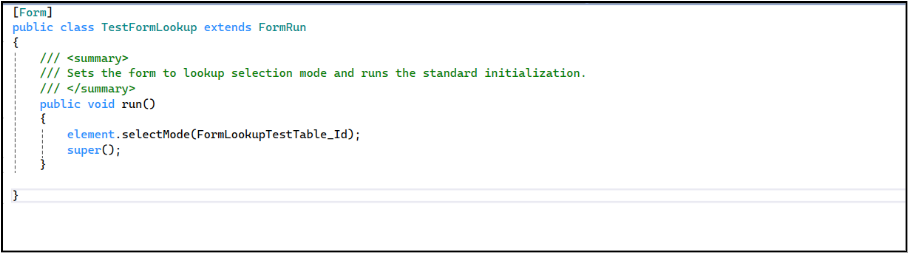
- Override the run() method in the form and write logic to capture the selected record so that the required field value is stored when the user clicks a lookup value.
| public void run() { element.selectMode(Table_Field); super(); } |
- Eg: Here I have selected the ‘Id’ field
Step 3: Create an Extended Data Type (EDT) and set its Reference Table property to the base table and the FormHelp property to the lookup form to enable direct navigation and selection support.
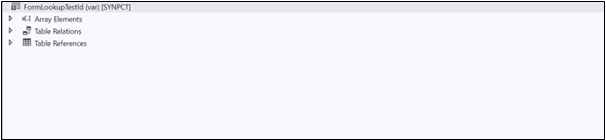
Eg: Created a String EDT named FormLookUpTestId, set the Reference Table property to FormLookupTestTable, and assigned the FormHelp property to FormLookupTestLookupForm to enable lookup and form-based selection functionality.

Step 4: Create a field in the required table with the same data type and assign the created EDT to the field’s Extended Data Type property
Eg: Here created a string field in your custom table and extend it using FormLookUpTestId to automatically enable the lookup functionality.

Step 5: Add the created field in a form
Eg: Here, a custom form named TestTable was created, TestTable was added as the data source, and the Id field was included in the grid to capture and display the lookup value.

Step 6: Open the form from the UI, trigger the lookup for the field, and select the required record to automatically populate the chosen value into the field.
Output: