How to Automate Item Journal Creation in D365 F&O
Introduction
Automating Project Item Journal creation in Dynamics 365 Finance & Operations (D365 F&O) helps reduce manual effort, minimize errors, and streamline journal processing. Instead of manually creating journal headers, entering lines, and posting journals, developers can use X++ logic to automate the entire workflow.
In this blog, we demonstrate how to automate item journal creation in D365 F&O. The solution covers generating the journal header, inserting journal lines, validating required data, and automatically posting the journal without manual intervention.
Scenario
Automate the creation and posting of an Item Journal, where the system automatically generates the journal along with all required item lines, populates the necessary item, inventory, and transaction details, performs the required validations, and completes the posting process seamlessly without any manual intervention.
High-level resolution steps
- Initiating the creation and posting process, and generating and validating the journal header details before insertion.
- Initialize journal line values using the header data, populate all required fields, and insert the records into the journal lines.
- Validate whether the data is eligible for posting, and upon successful validation, proceed with posting the journal.
Detailed resolution steps
Step 1: Initiating of the creation and posting process and generating the header journal data
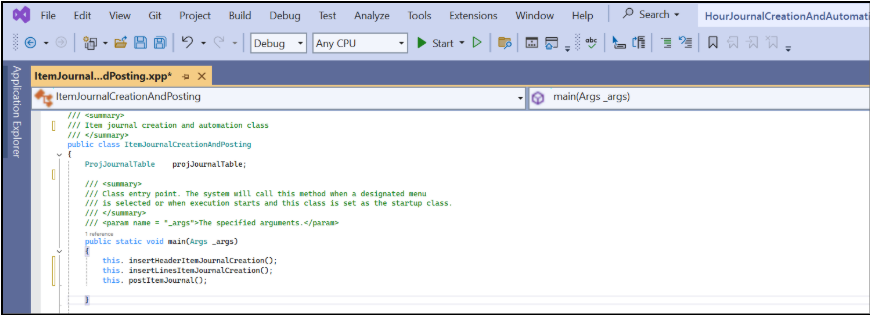
- : Global level variable declaration, journal creation, and posting logic initiating
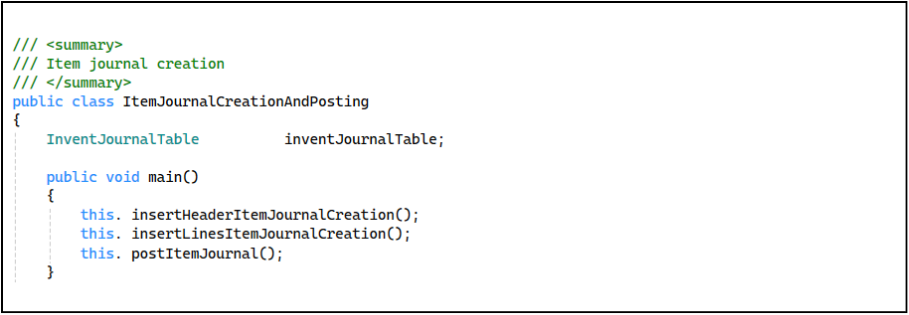
- The class ItemJournalCreationAndPosting automates the creation of Item Journals by generating the journal header and inserting the required journal lines.
- It controls the overall process flow by executing header creation, line insertion, and automatic posting of the Item Journal in sequence.
1.2: Generate the header journal data
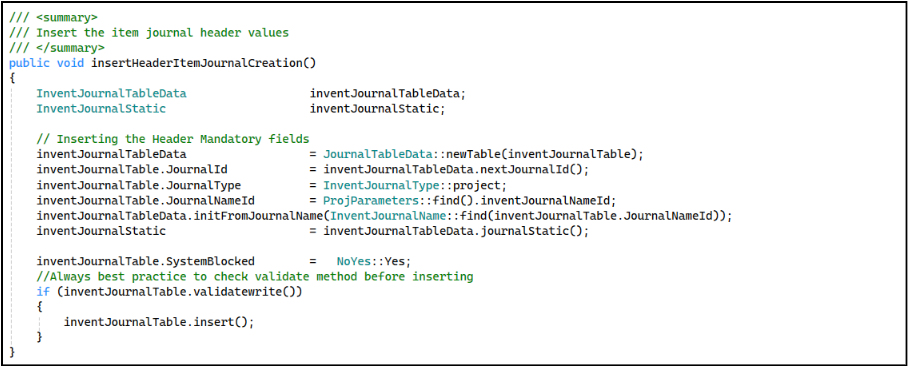
- Initializes the Item Journal header by creating a journal table instance, generating the next Journal ID, setting the Journal Type as Item, and assigning the Journal Name from Project Parameters.
- Populates default journal header values using the selected Journal Name configuration to ensure all required header details are initialized correctly.
- The Item Journal is set to System Blocked (NoYes::Yes) before posting to prevent further modifications during the posting process and ensure data consistency.
- Validates the journal header using validateWrite() and inserts the record into the InventJournalTable upon successful validation.
Step 2: Insert the data in journal lines
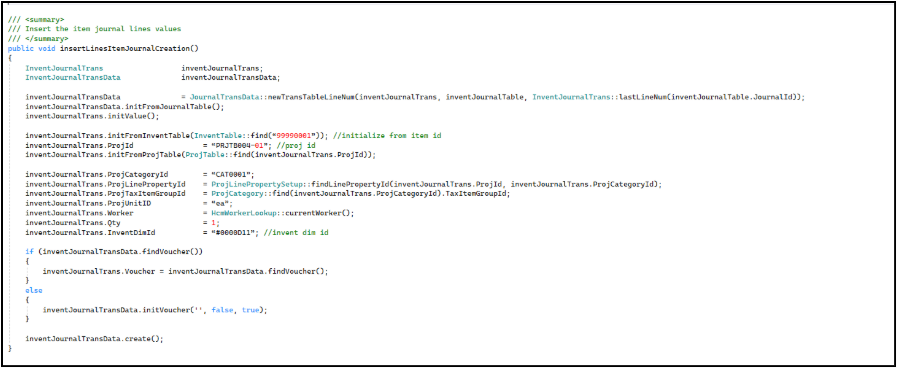
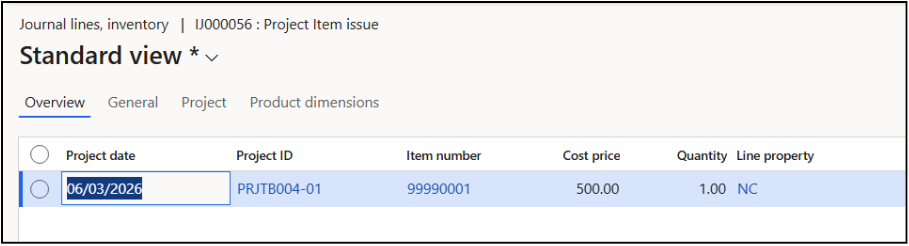
- Initializes the journal transaction objects and creates a new journal line by generating the next available line number for the selected journal.
- Inherits default values from the journal header and initializes standard default values required for creating a new item journal line.
- Loads item details from the item master using the specified ItemId to populate item-related default values.
- Assigns the Project ID and initializes project-related details based on the selected project.
- Sets the Project Category, determines the Project Line Property, and assigns the Tax Item Group based on the selected category.
- Assigns the Unit of Measure and sets the Worker using the currently logged-in worker details.
- Specifies the Quantity and assigns the required Inventory Dimension ID for the transaction.
- Generates or retrieves the voucher number required for the journal transaction.
- Creates and inserts the journal line record into InventJournalTrans after assigning all required values.
Step 3: Validate and post the journal created
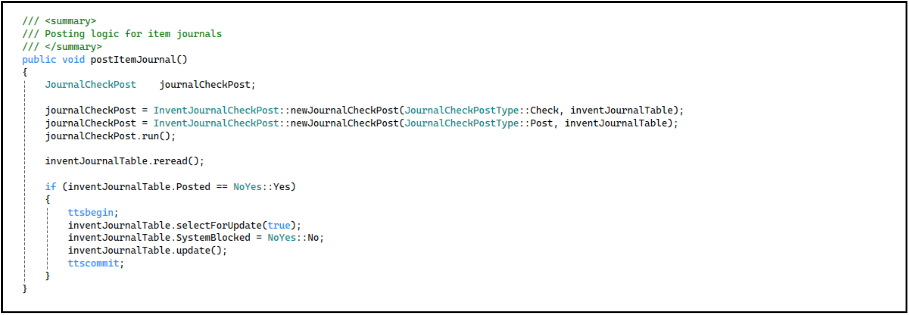
- Initializes the JournalCheckPost object and performs the journal validation using JournalCheckPostType::Check to verify that the journal is ready for posting.
- Reinitializes the JournalCheckPost object with JournalCheckPostType::Post to execute the actual posting of the item journal.
- Executes the posting process using the run() method, which completes the journal posting operation.
- Refreshes the journal header record using reread() to get the latest updated values after posting.
- Checks whether the journal status is marked as Posted to confirm successful posting.
- Remove the SystemBlocked flag to allow further operations if required.
Output
- Start the project
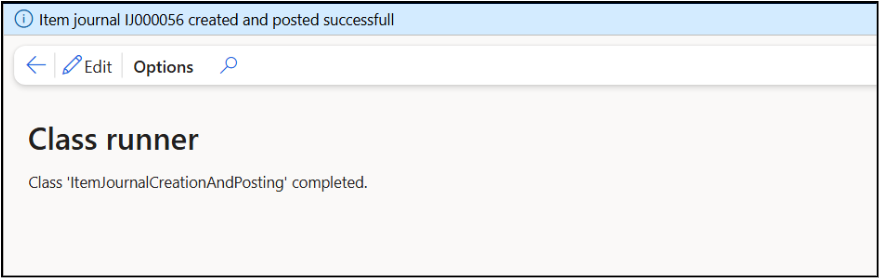
- Output message that item journal posted
- Navigation to check created hour journal
Project management and accounting >> Journals >> Item
Header level:

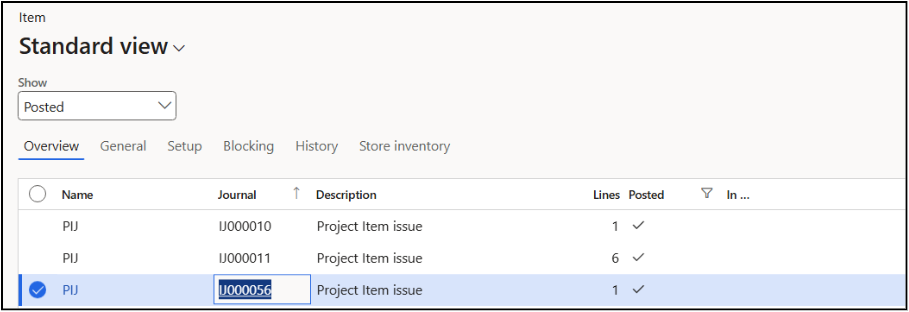
Line level: