Purpose
The purpose of overriding the lookup method in Dynamics 365 Finance and Operations is to customize the default behavior of field lookups. By default, the system displays all records from a related table, but business requirements often necessitate filtering these records to show only relevant data.
Overview
This technical integration involves overriding the lookup() method on a form data source field and using a dynamic query to filter records. This ensures data accuracy by preventing users from selecting invalid or redundant records, such as items that have already been added to a specific transaction.
Prerequisites:
- Access to Visual Studio with D365 F&O development tools.
- Knowledge of the target Form and Data Entity.
- Understanding of X++ Query objects and Join modes.
Example Configuration
Scenario: Show only ItemIds from the InventTable that do not currently exist in the Shopping App table.
Locate the Field Where Lookup Will Be Overridden
Step 1: Expand the form and go to:
Data Sources → Fields → ItemId (field where lookup will be overriden)
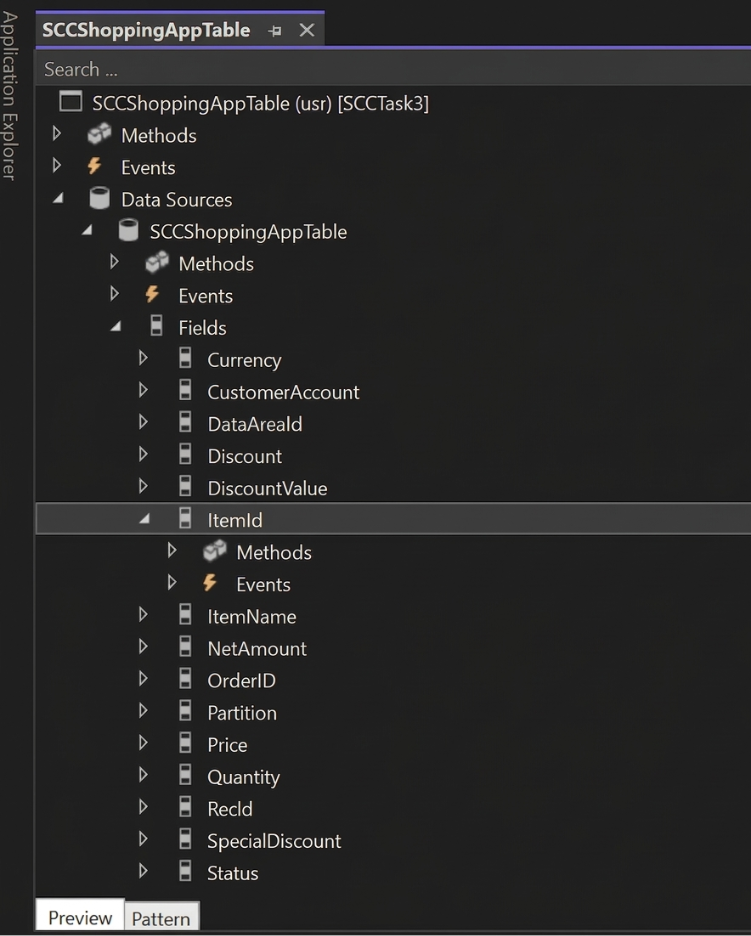
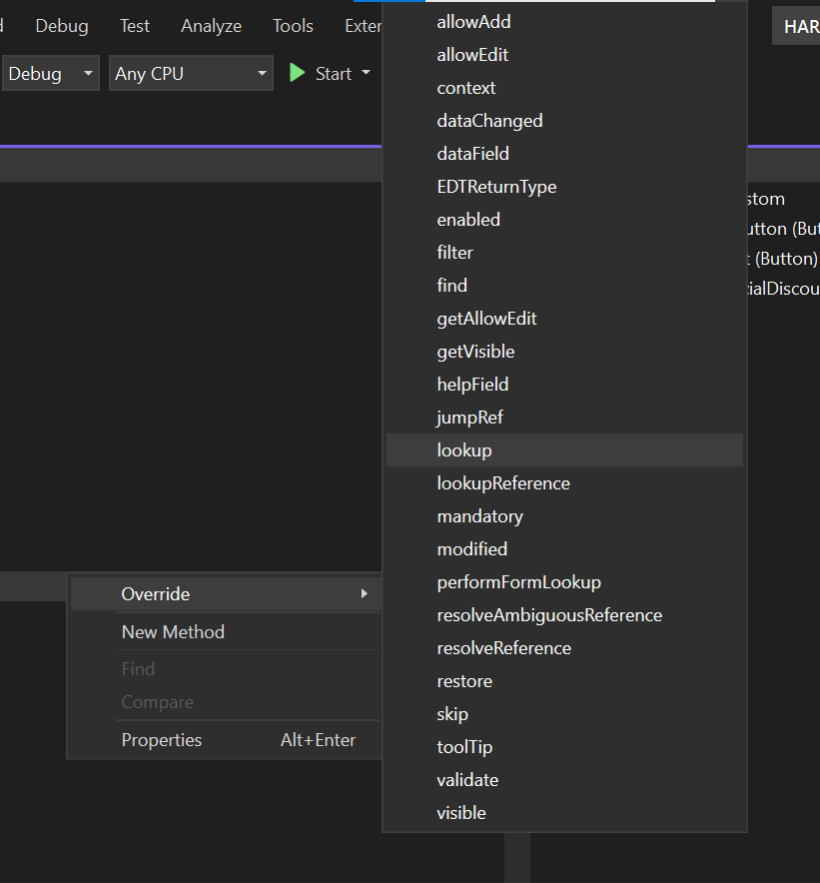
Step 2: Right-click on the ItemId field.
Select:
Override Method → lookup

Write the Lookup Code
Now the system will generate a method like this:
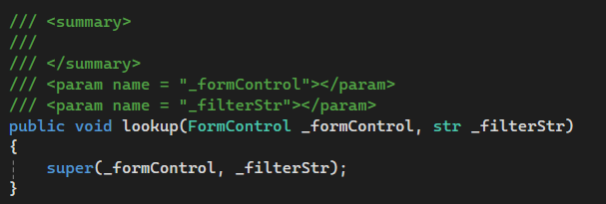
Now we customize it.
Complete code:
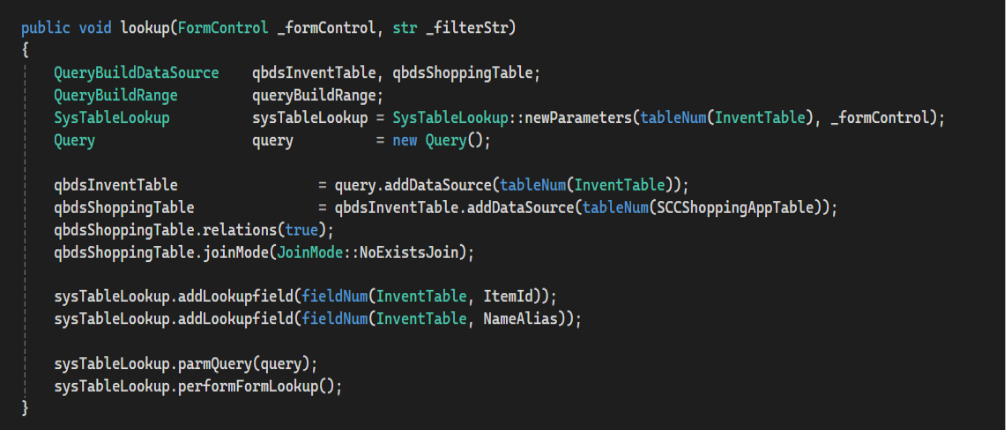
Code written inside the lookup method.
NOTE: Remove super call to avoid ambiguity between super class lookup method or child class lookup method
Explanation of the Code
SysTableLookup

This creates a lookup that will display data from the InventTable.
Query Object

This creates a dynamic query that will filter records.
Create variable for buffer

Range variable is optional (for adding range)
Add Data Source

This sets InventTable as the main table for the lookup.
Add Child Data Source

This joins ShoppingAppTable with InventTable.
Relations

This tells the system to use relations defined in AOT automatically.
Join Mode

This ensures that only items not present in Shopping table appear.
Lookup Fields

These fields will be displayed in lookup.
Execute Lookup

Final Validation:
- Build & Sync: Perform a build (Ctrl+B) and synchronize the database to apply changes.
- Test: Open the form in the browser; the ItemId lookup should now only display items not yet present in the shopping list.
Testing the Lookup
Steps:
- Open the form in the browser.
- Click ItemId field.
- Now the lookup will show filtered records.
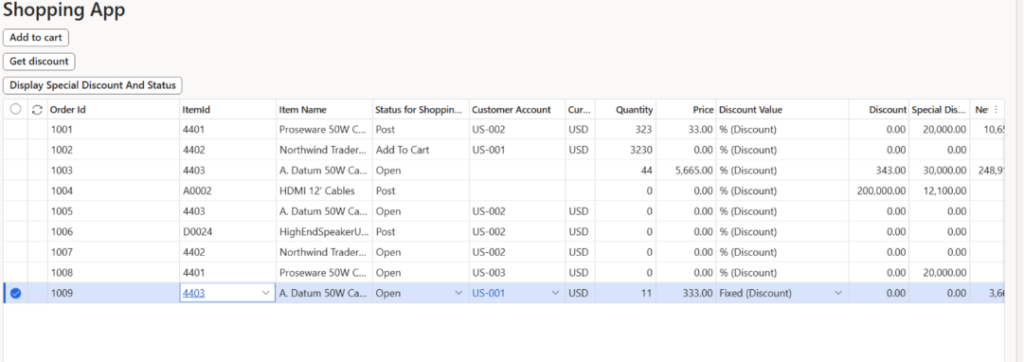
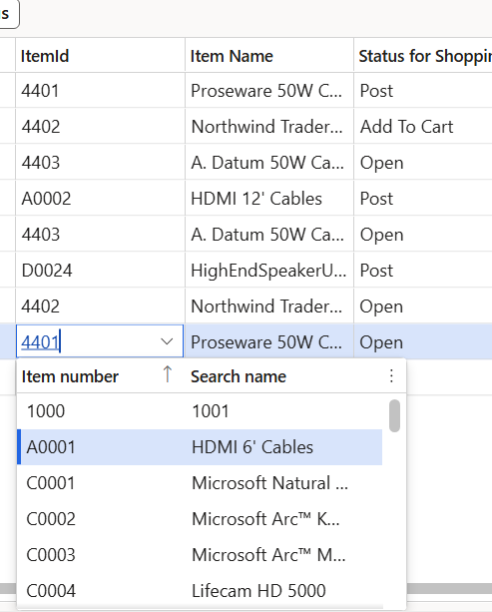
Expected Result
- Items that already exist in the Shopping table will not appear in the lookup.
- Only new items will be shown.
Conclusion
Overriding the lookup method allows you to customize lookup behavior based on business requirements. By using dynamic queries and join modes, developers can filter and control lookup data effectively.
This technique is widely used in real-time ERP implementations.