Scenario
When a user clicks an action button in a button group on a form, a dialog opens to capture additional input. The dialog contains one or more fields with lookup functionality, allowing the user to select valid values from predefined data. After the user confirms the selection, the system validates the input. It uses the selected values to execute the required business logic, such as updating records, triggering workflows, or submitting data for further processing.
Example
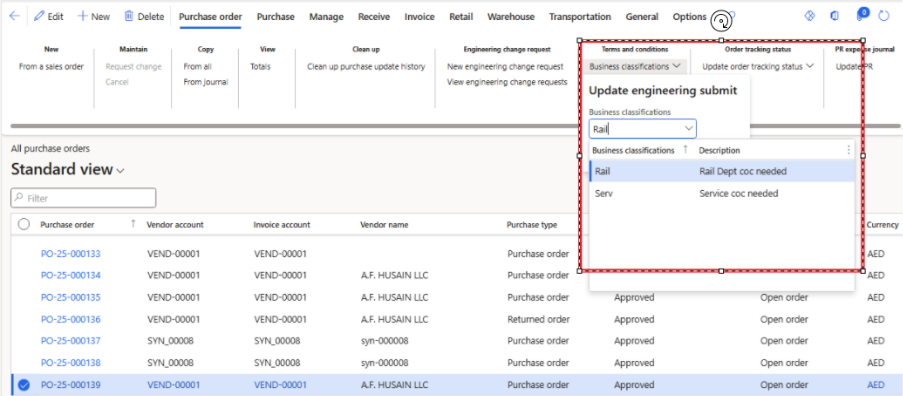
When a user clicks an action button on the Purchase Order form, a dialog opens prompting the user to select a Business Unit from a lookup field. After the user selects the required Business Unit updates the selected Business Unit on the corresponding purchase order record.
Detailed resolution steps
Step 1: Create a new form and set the design pattern to Drop Dialog. Add a group to the form and include the Business Unit field inside the group.
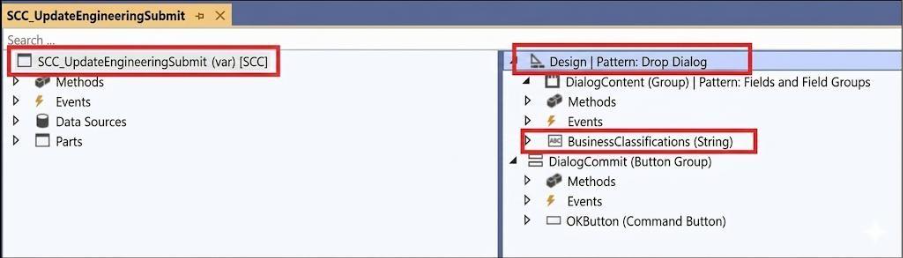
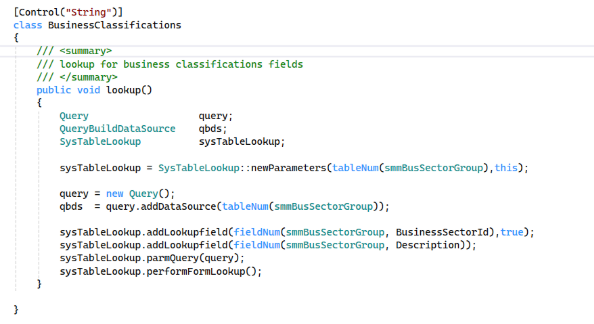
Step 2: Implement lookup logic for the Business Unit field using the appropriate lookup method.
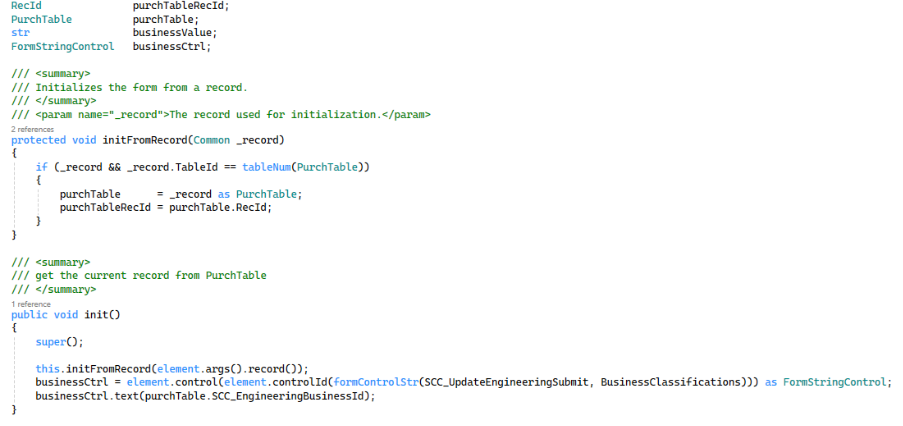
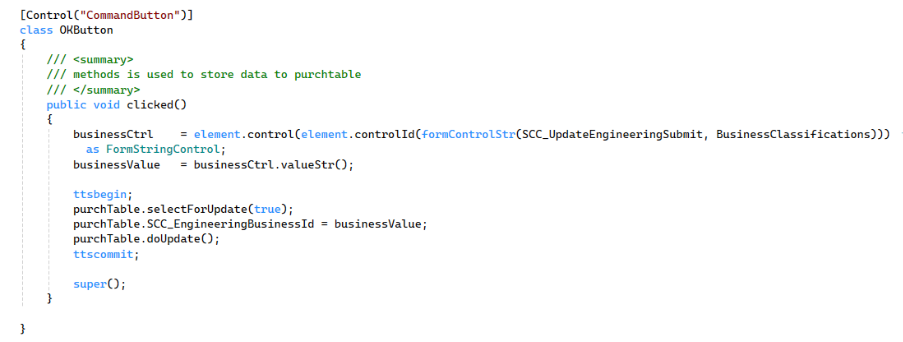
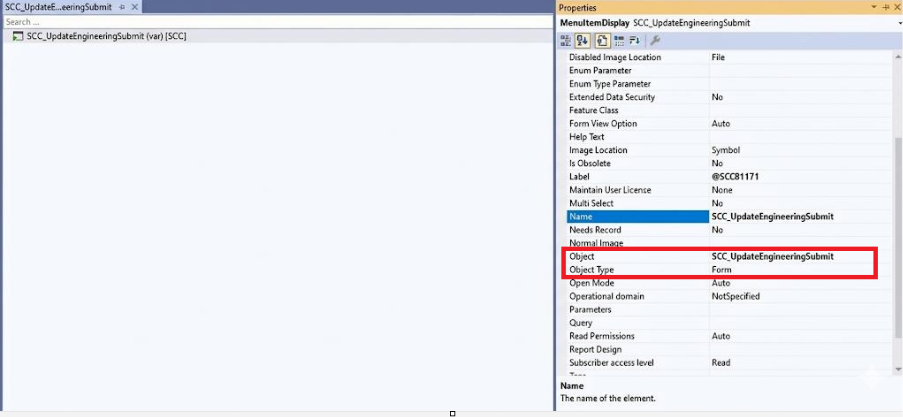
Step 4: Create a Display Menu Item and attach the drop dialog form to it.
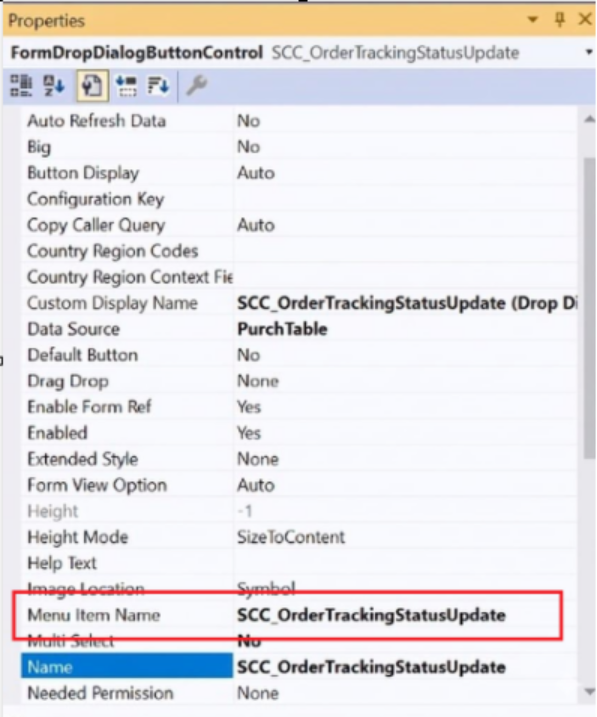
Step 5: Add a Drop Dialog button to the Purchase Order form button group and link it to the Display Menu Item.

Output
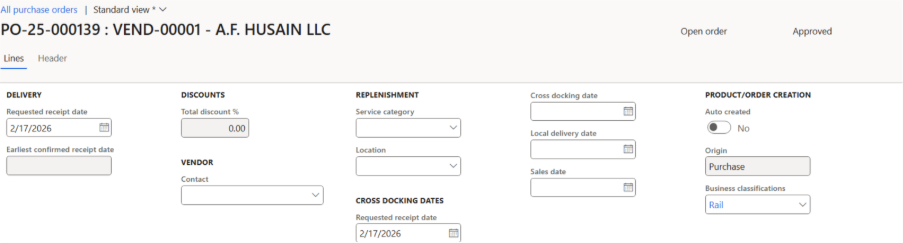
The user selects Purchase Order PO-25-000139 and clicks the action button. A dialog opens where the user selects the Business Unit as Rail from the lookup. After clicking OK, the system updates the Business Unit field on the selected Purchase Order and saves the changes successfully