Introduction
This document explains how to create a PDF Document Manager using Power Apps Canvas App. It covers how to select a Contact from Dataverse, upload and manage PDF documents, and associate them with the selected Contact. The document also explains how to view, download, and delete PDFs, handle multiple file uploads, and prevent duplicate file uploads.
Scenario
The scenario demonstrates how to create a PDF Document Manager using a Power Apps Canvas App to manage documents associated with Contacts in Dataverse.
The application allows users to search and select a Contact, upload PDF documents, and associate them with the selected Contact. Users can also view, download, and delete the uploaded documents directly from the Canvas App.
The goal is to build a simple document management solution that supports PDF validation, file size restrictions, multiple file uploads, duplicate file checking, and error handling, ensuring that documents can be managed efficiently for each Contact.
Example
In this example, we create a PDF Document Manager in Power Apps Canvas App to manage PDF documents associated with Contacts in Dataverse.
The application allows users to:
- Search and select a Contact from Dataverse.
- Upload a PDF document for the selected Contact.
- Store the uploaded document in the standard Notes table.
- Validate the file type and allow only PDF files up to 5 MB.
- Display the list of uploaded documents with File Name, Uploaded Date, and Uploaded By.
- Open and view the selected PDF within the Canvas App.
- Download or delete the selected document after confirmation.
- Upload and process multiple PDF files while allowing other files to continue if one upload fails.
- Prevent duplicate file names from being uploaded for the same Contact.
Table used and their relationship
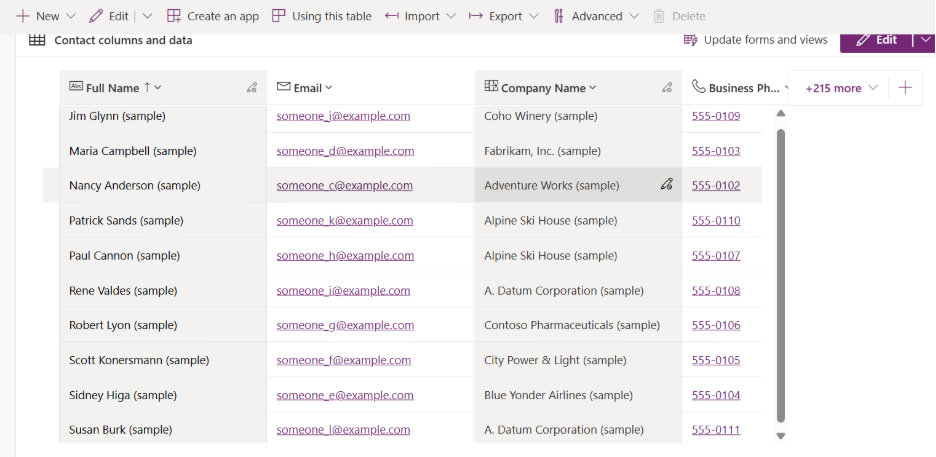
Contact Table
The standard Contact table is used to search and select the Contact for whom the documents need to be managed.
The selected Contact acts as the reference for retrieving and uploading the associated PDF documents.
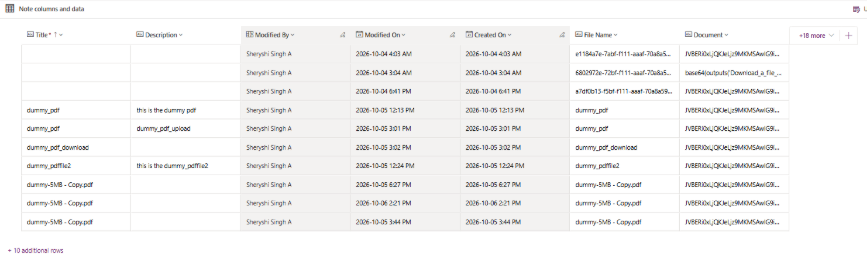
Notes Table
The standard Notes (Annotation) table is used to store the uploaded document information and maintain the document association with the Contact.
The Notes table supports file attachments and contains information such as:
- File Name
- Created On
- Created By
- Regarding (Contact)
- Document/File information
The Regarding relationship associates the Note with the selected Contact.
PDF Upload Table
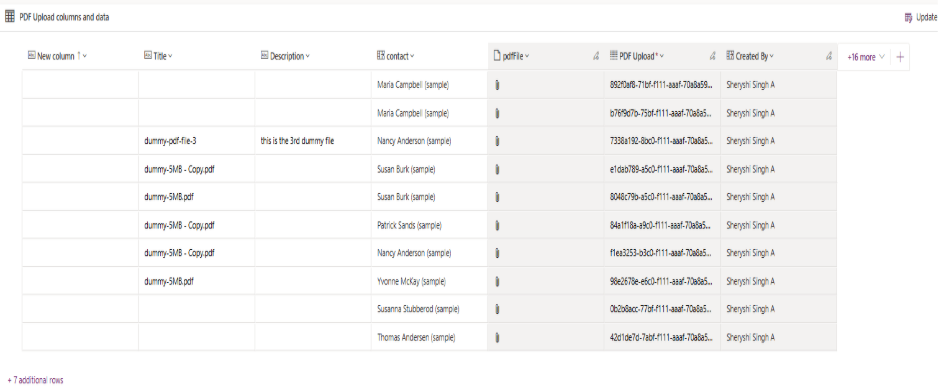
The custom PDF Upload table is used specifically for handling the PDF file within the Canvas App.
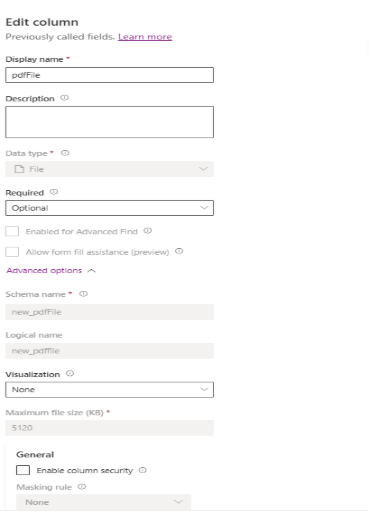
It contains a PDF File column with the File data type, which is used to attach/store the actual PDF document.
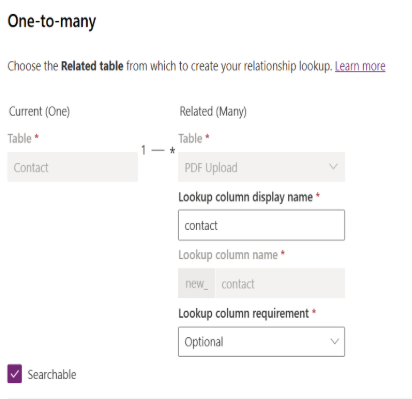
It can also contain a Contact lookup to associate the uploaded PDF with the selected Contact.
Relationship Between the Tables
The overall relationship can be represented as:
| Contact │ ┌───────┴────────┐ │ │ 1 : N 1 : N │ │ ↓ ↓ Notes PDF Upload │ │ │ │ Document/File PDF File |
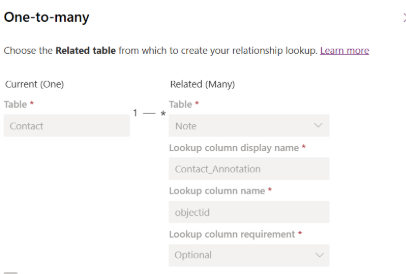
Contact → Notes: The Contact is associated with Notes through the Regarding relationship.
Contact → PDF Upload: The PDF Upload record is associated with the selected Contact through a Contact lookup.
How it Work together:
When a user selects a Contact in the Canvas App, the application uses that Contact as the reference for document management. The Notes table is used for the standard Dataverse document/attachment functionality, while the PDF Upload table provides a dedicated File-type field for handling the PDF within the application.
The Canvas App retrieves the documents related to the selected Contact and displays details such as File Name, Uploaded Date, and Uploaded By. This structure keeps the Contact information separate while maintaining the required relationships for document storage and management.
Application Functionality
Contact Selection
The user searches and selects a Contact from the Contact table. The selected Contact is stored in a variable and used to filter the related documents from the Notes and PDF Upload tables.
| OnSelect | Set( varSelectedContact, ThisItem ); Navigate( scrDocumentManager, ScreenTransition.Fade ) |
Contact Search:
| OnSelect | Filter( Contacts, StartsWith( ‘Full Name’, txtSearchContact.Text ) ) |
The document gallery is then filtered based on the selected Contact.
PDF Upload
The user selects one or more files through the Attachments/File control. Before processing, the Canvas App validates:
- File extension = .pdf
- File size ≤ 5 MB
- Contact is selected
- File name does not already exist for that Contact
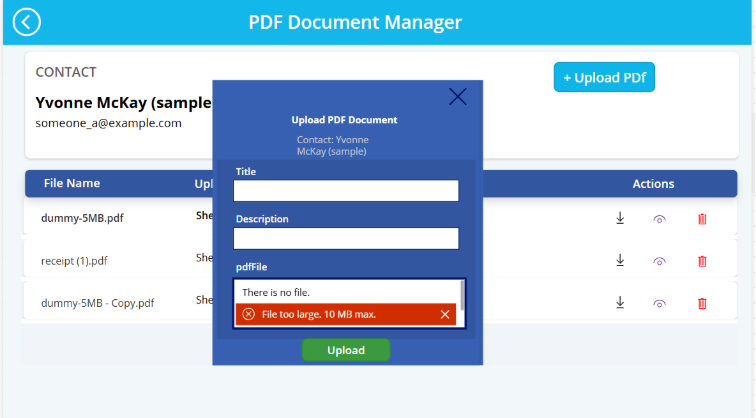
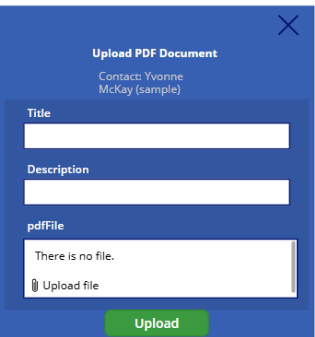
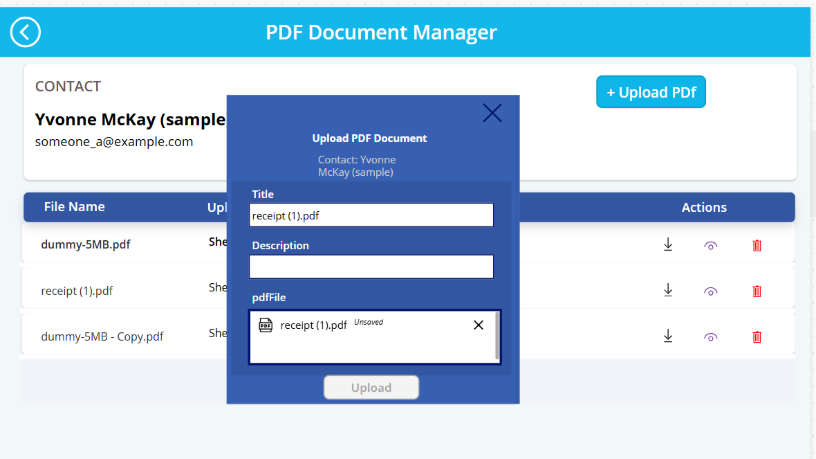
The + Upload PDF button opens a popup form where the user can enter the document details and attach the PDF for the selected Contact.
The popup contains:
- Title – Document title or file name.
- Description – Optional document description.
- PDF File – File-type field used to attach the PDF.
- Upload – Submits the document for processing.
- Close (X) – Closes the popup without uploading.
The upload process is:
| Select Contact → Click “+ Upload PDF” → Enter Title/Description & Attach PDF → Click “Upload” → Validate File → Check Duplicate → Trigger Power Automate → Create/Update Dataverse Record → Store PDF in PDF File Column |
Button Upload
| OnSelect | SubmitForm(frmPDFUpload) |
After validation, the file is passed to Power Automate.
Canvas App → Power Automate → Dataverse
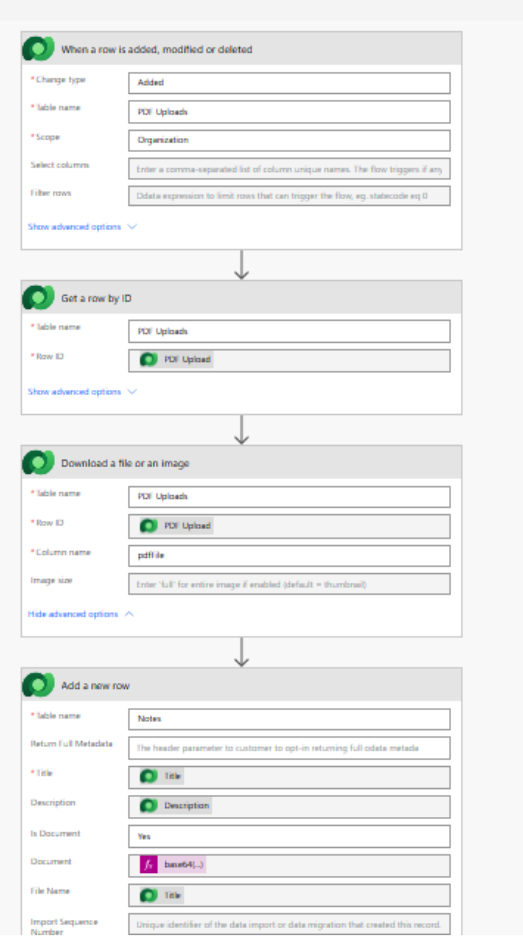
The flow creates/updates the required Dataverse records and stores the file in the PDF Upload → PDF File column. The related Contact is also associated with the record.
Power Automate – Upload Logic
The upload flow receives the file information from Power Apps and performs the following operations:
Button- UploadBtn
| OnSelect | NewForm(frmPDFUpload); UpdateContext({varShowUploadPopup: true}) |
PDF Download
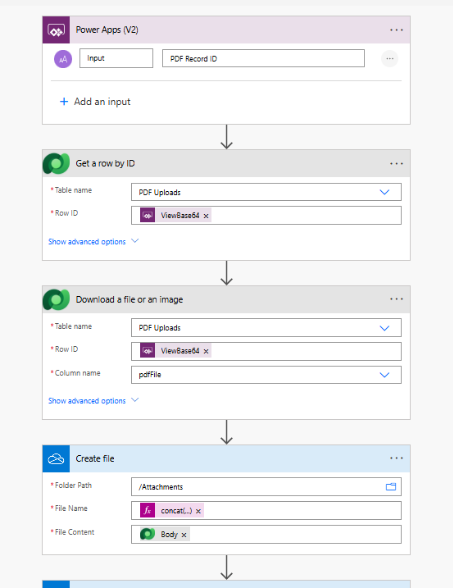
- The download functionality is implemented using Power Automate because the Canvas App needs to retrieve the actual file content stored in the Dataverse PDF File column.
- When the user clicks Download, the selected PDF Upload record ID is passed from Power Apps to the flow.
- In Power Automate, the flow retrieves the file content from the PDF File column of the PDF Upload table and returns the file information to the Canvas App.
- The Canvas App then uses the returned file content to initiate the download.
- This approach keeps the file retrieval logic in Power Automate while the Canvas App handles the user interaction.
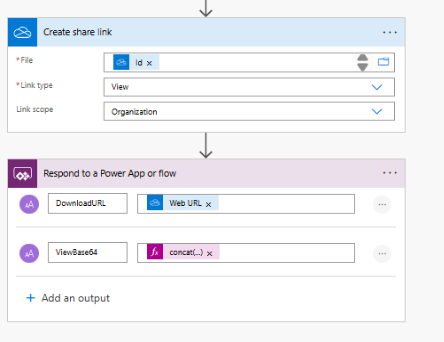
| OnSelect | If(IsBlank(varFileData), Set(varFileData, ‘Copyof-pdf-file-download’.Run(ThisItem.new_pdfuploadid))); Download(varFileData.downloadurl) |
View PDF
Button – View
| OnSelect | UpdateContext({varShowPdf: true}); Set(varFileData, ‘Copyof-pdf-file-download’.Run(ThisItem.new_pdfuploadid)) |
Delete PDF
Button – Delete
| OnSelect | Remove( ‘PDF Uploads’, ThisItem ) |
Output:
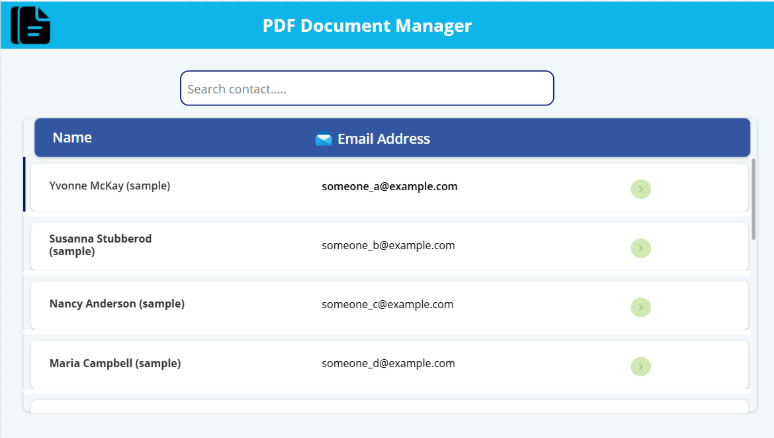
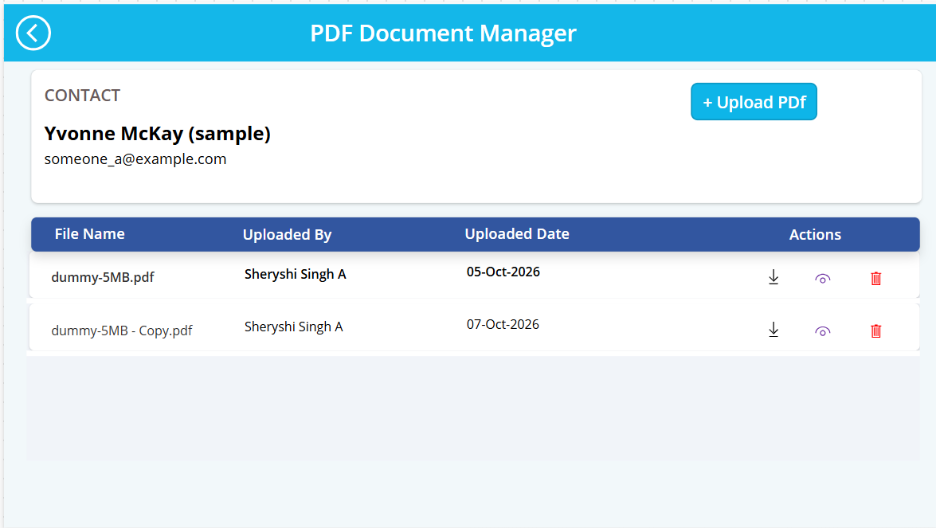
Onclick of download it will redirect to the specified sharepoint to download the file
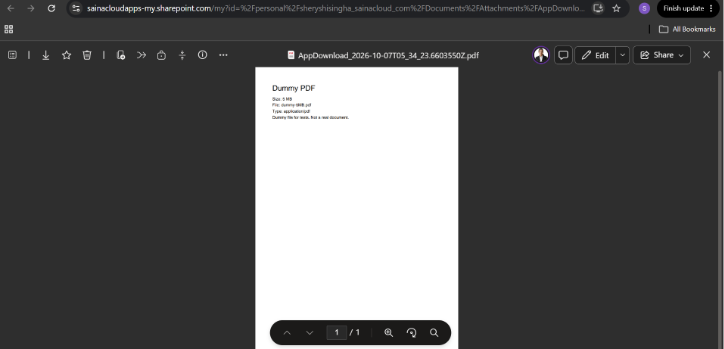
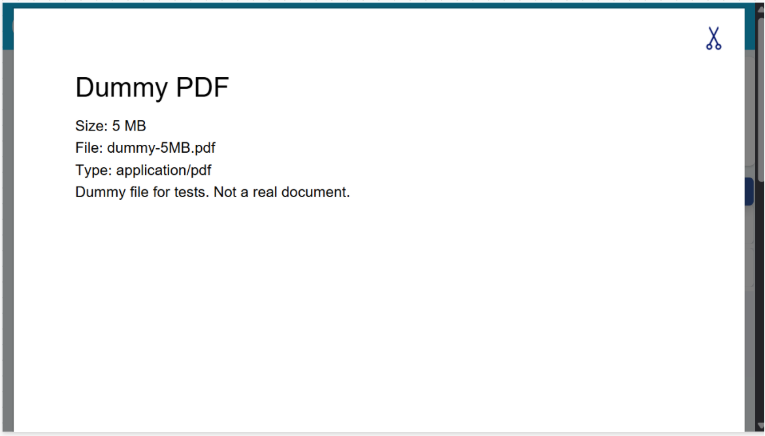
Onclick of the view it will open the pdf viewer
On uploading the duplicate file it will disable the upload button
OnUploading the file size >5mb it will indicate in the attachment card