
Users don’t have the option to change the color theme for an individual legal entity.
High Resolution Steps
Get Color Change Option in Legal Entity, same as user options -> preferences
Create a base enum
Extend the CompanyInfo (Standard table)
Extend the OMLegalEntiy(Standard form)
Detailed Resolution Steps
Step 1
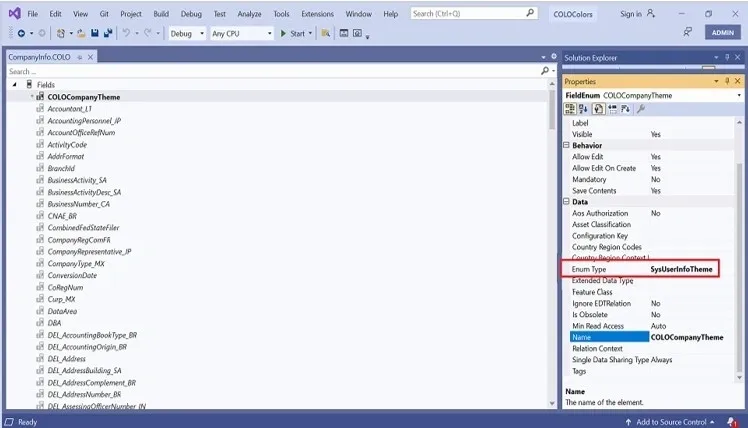
Create a new enum field named “COLOCompanyTheme” in the “CompanyInfo” standard table. In properties, set the enum type as “SysUserInfoTheme”.
Step 2
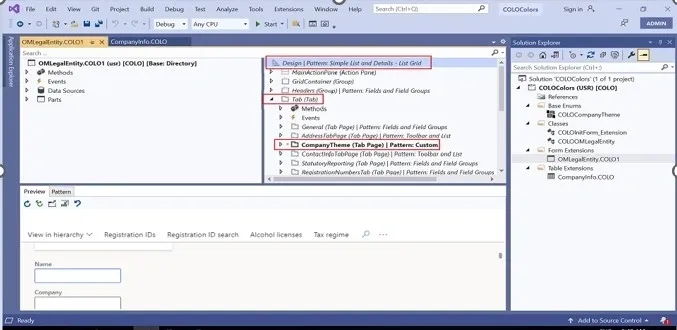
Extend the “OMLegalEntiy” Standard form. Create a tab page named “CompanyTheme” in the tab section and set the pattern as “Custom”.
Step 3
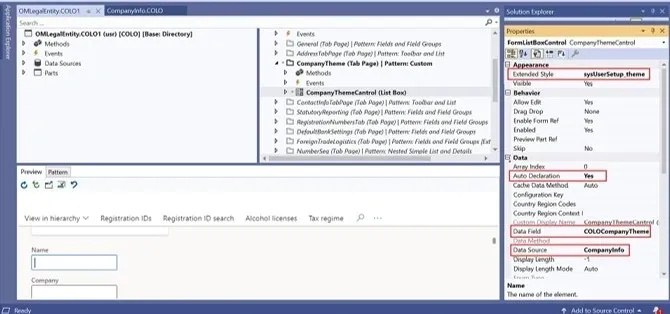
Create a list box named “CompanyThemeControl” under the CompanyTheme Tab page.
Set the list box properties:
1. set Extended Style: sysUserSetup_theme
2. Auto Declaration: Yes
3. Data Source: CompanyInfo
4. Data Field: COLOCompanyTheme (Give the base enum field name that you have created).
Step 4
Create a class named “COLOOMLegalEntity”.

Step 5
The code below has been written by making use of event handlers, and it helps us to change the color of the current legal entity.
    class COLOOMLegalEntity

{

[SubscribesTo(classStr(Application), delegateStr(Application, onSetDefaultCompany))]

public static void Application_onSetDefaultCompany()

{

appl.setTheme(CompanyInfo::find().COLOCompanyTheme);

}

[FormControlEventHandler(formControlStr(OMLegalEntity, CompanyThemeCantrol), FormControlEventType::SelectionChanged)]

public static void CompanyThemeControl_OnSelectionChanged(FormControl sender, FormControlEventArgs e)

{

FormListBoxControl listBox = sender;

FormRun fr = sender.formRun();

FormDataSource companyInfo_ds = fr.dataSource(formDataSourceStr(OMLegalEntity, CompanyInfo));

companyInfo_ds.write();

appl.setTheme(listBox.selection());

}

}
Step 6
The code below has been written by making use of a chain of commands, and this helps us to have the same color even after changing the legal entity on the home page.
[ExtensionOf (classStr(FormRun))]

final class COLOInitForm_Extension

{

public void init()

{

next init();

appl.setTheme(CompanyInfo::find().COLOCompanyTheme);

}

}
Output
Now we have a color change option in Legal entities.
Navigation: Go to Organization administration -> Organizations -> Legal entity.
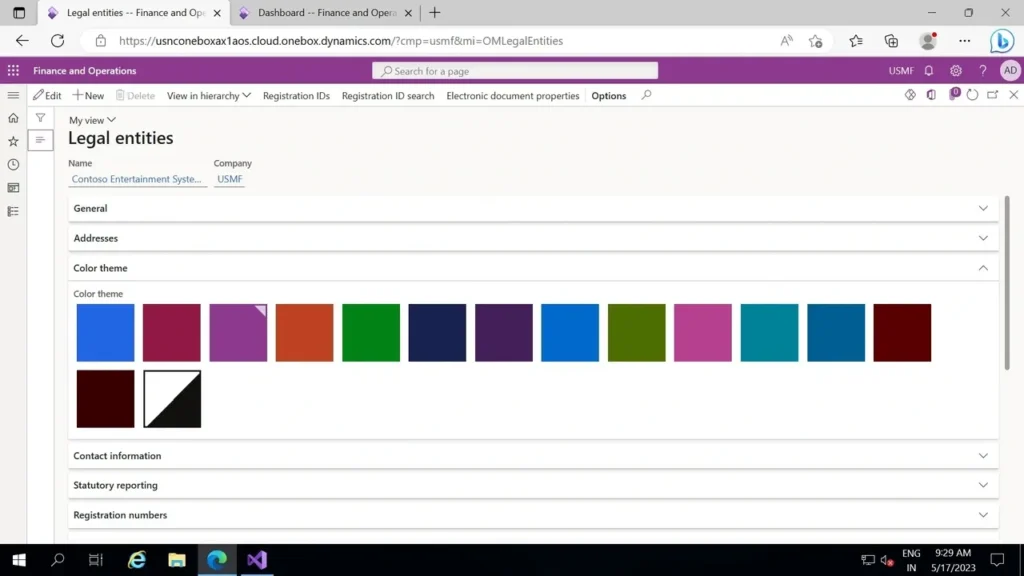
Select the company and the preferred color, then save the form. The screenshot shows the selection of the USMF company and the Blue color.
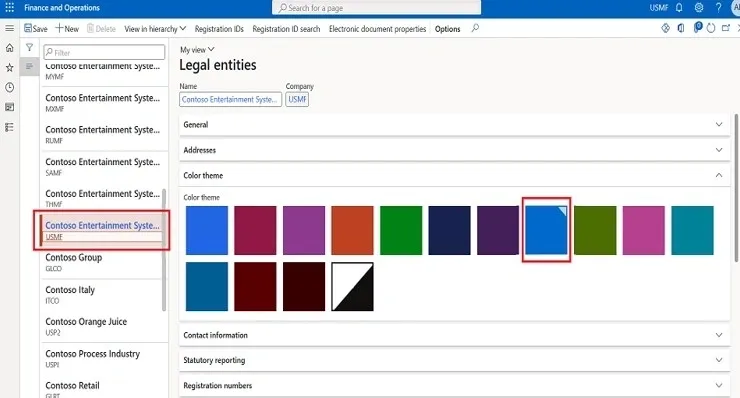
When the user selects the Legal entity as “USMF”, the color turns to “Blue”.
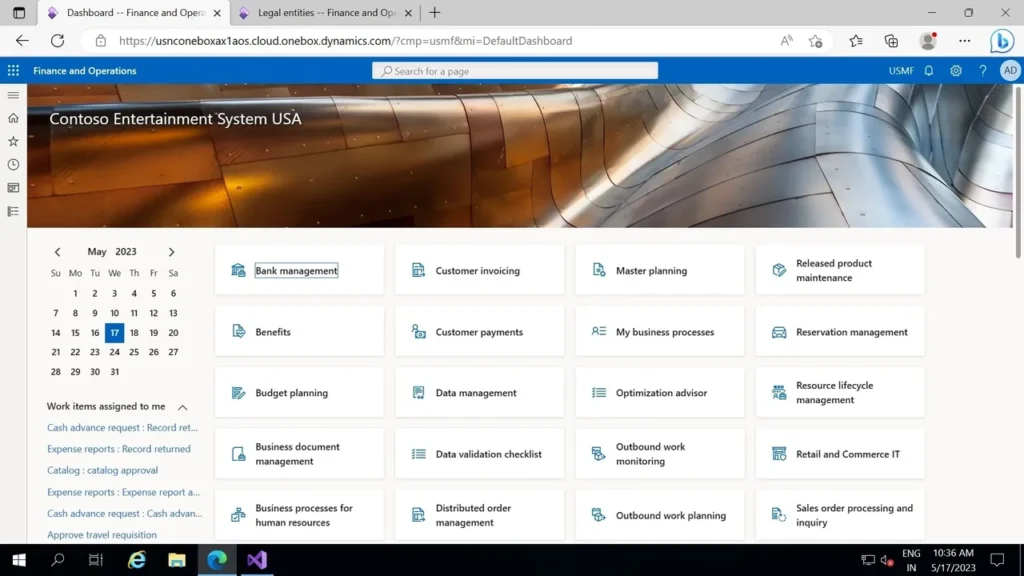
When the user selects the Legal entity as “THMF,” the color turns to “Dark orange”.