Scenario
Imagine an organization that generates business documents for multiple business processes using a single Word template. While the overall document structure remains the same, certain sections, such as images, must change dynamically based on the information received in each request.
Example
This example demonstrates how an Azure Function dynamically inserts images into a Microsoft Word document. The client application sends the Word document as a Base64-encoded string along with one or more images, also encoded as Base64 strings. Each image is associated with a predefined placeholder in the document.
When the Azure Function receives the request, it decodes the Word document and the image data, locates the specified placeholders within the document, and replaces each placeholder with the corresponding image. After all images have been inserted, the function generates the updated Word document and returns it as a Base64-encoded string.
This approach enables applications to use a single Word template while dynamically populating images at runtime, making document generation flexible, reusable, and easy to integrate with business applications and APIs.
Resolution steps
- Create the Azure Function App.
- Create an HTTP-triggered function to receive the request.
- Implement the logic to insert the image into the Word document represented as a Base64-encoded string.
- Return the updated Word document with the inserted image as a Base64-encoded string.
Detailed Explanation Steps
Step 1: Create Azure function app with latest dotnet version 10.
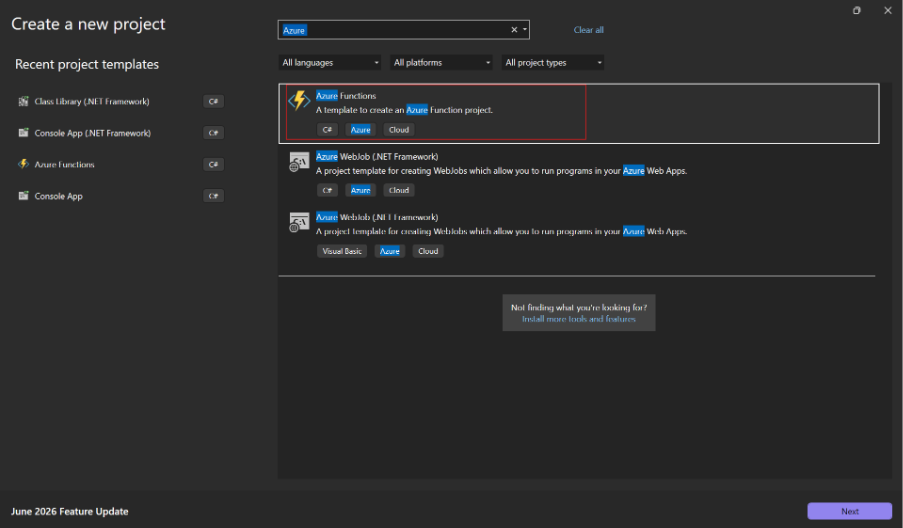

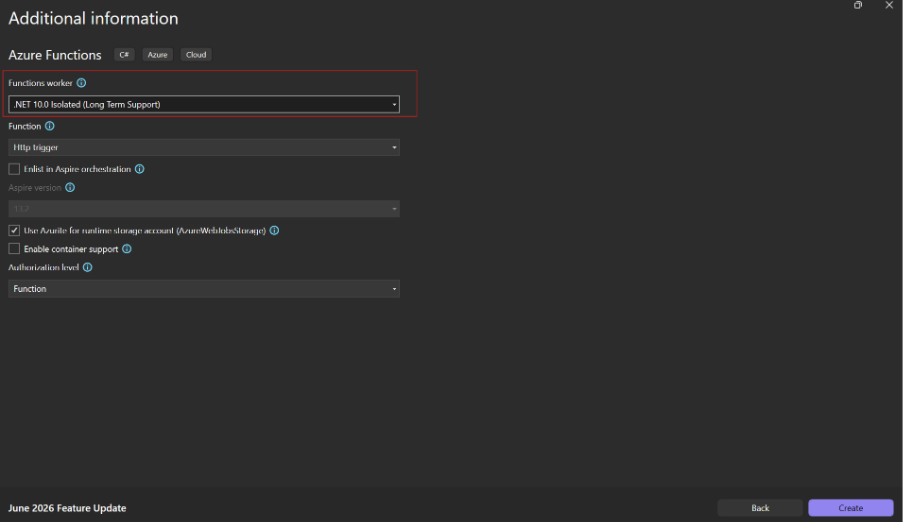
Step 2: Create the DTO classes for the request and response contracts.
WordDocumentRequest: It contains the word document request payload.
| public class WordDocumentRequest { public string? DocumentName { get; set; } public string? WordDocBase64Str { get; set; } public List<ImageDetails>? ImageDetails { get; set; } } |
WordDocumentResponse: It contains the word document processed response
| public class WordDocumentResponse { public string? DocumentBase64String { get; set; } } |
ImageDetails: It contains image information to be inserted into word document
| public class ImageDetails { public string? FileName { get; set; } public string? ImageBase64Str { get; set; } public string? PlaceHolder { get; set; } } |
Step 3: Create an HTTP-triggered Azure Function to receive the request and process the insertion of an image into the Word document.
Code snippet:
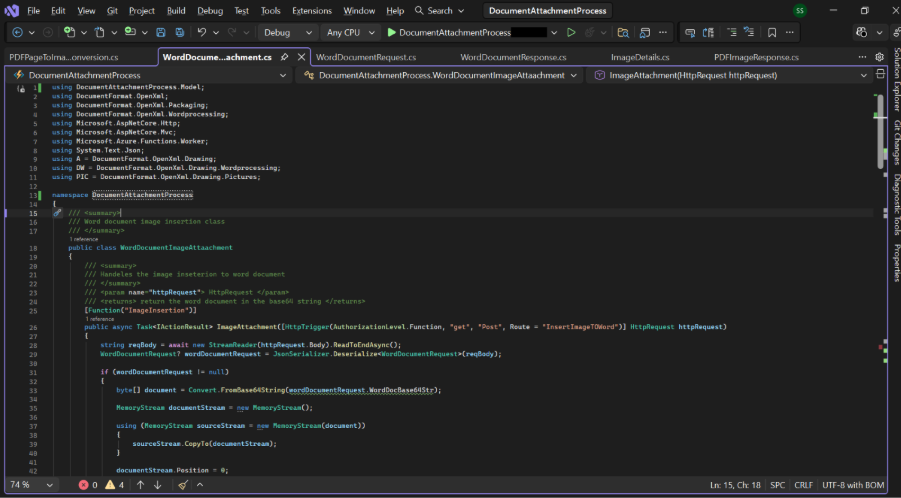
| using DocumentAttachmentProcess.Model; using DocumentFormat.OpenXml; using DocumentFormat.OpenXml.Packaging; using DocumentFormat.OpenXml.Wordprocessing; using Microsoft.AspNetCore.Http; using Microsoft.AspNetCore.Mvc; using Microsoft.Azure.Functions.Worker; using System.Text.Json; using A = DocumentFormat.OpenXml.Drawing; using DW = DocumentFormat.OpenXml.Drawing.Wordprocessing; using PIC = DocumentFormat.OpenXml.Drawing.Pictures; namespace DocumentAttachmentProcess { /// <summary> /// Word document image insertion class /// </summary> public class WordDocumentImageAttaachment { /// <summary> /// Handeles the image inseterion to word document /// </summary> /// <param name=”httpRequest”> HttpRequest </param> /// <returns> return the word document in the base64 string </returns> [Function(“ImageInsertion”)] public async Task<IActionResult> ImageAttachment([HttpTrigger(AuthorizationLevel.Function, “get”, “Post”, Route = “InsertImageTOWord”)] HttpRequest httpRequest) { string reqBody = await new StreamReader(httpRequest.Body).ReadToEndAsync(); WordDocumentRequest? wordDocumentRequest = JsonSerializer.Deserialize<WordDocumentRequest>(reqBody); if (wordDocumentRequest != null) { byte[] document = Convert.FromBase64String(wordDocumentRequest.WordDocBase64Str); MemoryStream documentStream = new MemoryStream(); using (MemoryStream sourceStream = new MemoryStream(document)) { sourceStream.CopyTo(documentStream); } documentStream.Position = 0; using (var doc = WordprocessingDocument.Open(documentStream, true)) { var mainPart = doc.MainDocumentPart ?? doc.AddMainDocumentPart(); if (mainPart.Document == null) mainPart.Document = new Document(new Body()); InsertImages(wordDocumentRequest, mainPart); } String imageUpdDocBase64String = Convert.ToBase64String(documentStream.ToArray()); return new JsonResult(new WordDocumentResponse { DocumentBase64String = imageUpdDocBase64String }); } return new BadRequestObjectResult(new WordDocumentErrorResponse() { ErrorMsg = “Invalid request body. Please check request payload and try again.” }); } /// <summary> /// Adds the images to the document /// </summary> /// <param name=”mainPart”> MainDocumentPart </param> /// <param name=”image”> byte[] </param> /// <param name=”imageName”> string </param> /// <returns> return the paragraph inserted image </returns> private Paragraph AddImageTODocument(MainDocumentPart mainPart, byte[] image, string imageName) { ImagePart imagePart = mainPart.AddImagePart(ImagePartType.Emf); using (MemoryStream stream = new MemoryStream(image)) { stream.Position = 0; imagePart.FeedData(stream); } string relationshipId = mainPart.GetIdOfPart(imagePart); // 2) Build the Drawing element (inline image) // Dimensions are in EMUs (English Metric Units) long emusPerInch = 914400; long widthEmu = (long)(5.5 * emusPerInch); long heightEmu = (long)(6.5 * emusPerInch); var element = new Drawing( new DW.Inline( new DW.Extent() { Cx = widthEmu, Cy = heightEmu }, new DW.EffectExtent() { LeftEdge = 0L, TopEdge = 0L, RightEdge = 0L, BottomEdge = 0L }, new DW.DocProperties() { Id = (UInt32Value)1U, Name = imageName }, new DW.NonVisualGraphicFrameDrawingProperties( new A.GraphicFrameLocks() { NoChangeAspect = true }), new A.Graphic( new A.GraphicData( new PIC.Picture( new PIC.NonVisualPictureProperties( new PIC.NonVisualDrawingProperties() { Id = (UInt32Value)0U, Name = imageName }, new PIC.NonVisualPictureDrawingProperties() ), new PIC.BlipFill( new A.Blip() { Embed = relationshipId }, new A.Stretch(new A.FillRectangle()) ), new PIC.ShapeProperties( new A.Transform2D( new A.Offset() { X = 0L, Y = 0L }, new A.Extents() { Cx = widthEmu, Cy = heightEmu } ), new A.PresetGeometry(new A.AdjustValueList()) { Preset = A.ShapeTypeValues.Rectangle } ) ) )) ) { DistanceFromTop = 0U, DistanceFromBottom = 0U, DistanceFromLeft = 0U, DistanceFromRight = 0U, }); var run = new Run(element); return new Paragraph(run); } /// <summary> /// Insert the individual images to the word document /// </summary> /// <param name=”wordDocumentRequest”> WordDocumentRequest </param> /// <param name=”mainPart”> MainDocumentPart </param> private void InsertImages(WordDocumentRequest wordDocumentRequest, MainDocumentPart mainPart) { List<ImageDetails> imageDetails = wordDocumentRequest.ImageDetails!.ToList(); foreach (var imageDetail in imageDetails) { Paragraph paragraph = AddImageTODocument(mainPart, Convert.FromBase64String(imageDetail.ImageBase64Str!), imageDetail.FileName!); Paragraph imagePlaceHolderPara = mainPart.Document.Body.Descendants<Paragraph>().FirstOrDefault(p => p.InnerText.Contains(imageDetail.PlaceHolder!))!; if (paragraph != null && imagePlaceHolderPara != null) { foreach (var text in imagePlaceHolderPara.Descendants<Text>()) { if (text.Text.Contains(imageDetail.PlaceHolder)) { text.Text = text.Text.Replace(imageDetail.PlaceHolder, “”); } } imagePlaceHolderPara.Append(paragraph); mainPart.Document.Save(); } } } } } |
Step 4: Detailed Code Explanation for Image Insertion into a Word Document
- Create a class and an HTTP-triggered Azure Function to receive the Word document and image information as Base64-encoded strings in the request.
- Convert the Base64-encoded Word document into a stream and open it using the WordprocessingDocument.Open() method.
- Pass the document’s MainDocumentPart and the request data to the InsertImages method, which inserts the images into the appropriate locations in the Word document.
- After all images have been inserted, convert the updated document stream back into a Base64-encoded string.
- Return the updated Base64-encoded Word document as the response.
| public class WordDocumentImageAttaachment { /// <summary> /// Handeles the image inseterion to word document /// </summary> /// <param name=”httpRequest”> HttpRequest </param> /// <returns> return the word document in the base64 string </returns> [Function(“ImageInsertion”)] public async Task<IActionResult> ImageAttachment([HttpTrigger(AuthorizationLevel.Function, “get”, “Post”, Route = “InsertImageTOWord”)] HttpRequest httpRequest) { string reqBody = await new StreamReader(httpRequest.Body).ReadToEndAsync(); WordDocumentRequest? wordDocumentRequest = JsonSerializer.Deserialize<WordDocumentRequest>(reqBody); if (wordDocumentRequest != null) { byte[] document = Convert.FromBase64String(wordDocumentRequest.WordDocBase64Str); MemoryStream documentStream = new MemoryStream(); using (MemoryStream sourceStream = new MemoryStream(document)) { sourceStream.CopyTo(documentStream); } documentStream.Position = 0; using (var doc = WordprocessingDocument.Open(documentStream, true)) { var mainPart = doc.MainDocumentPart ?? doc.AddMainDocumentPart(); if (mainPart.Document == null) mainPart.Document = new Document(new Body()); InsertImages(wordDocumentRequest, mainPart); } String imageUpdDocBase64String = Convert.ToBase64String(documentStream.ToArray()); return new JsonResult(new WordDocumentResponse { DocumentBase64String = imageUpdDocBase64String }); } return new BadRequestObjectResult(new WordDocumentErrorResponse() { ErrorMsg = “Invalid request body. Please check request payload and try again.” }); } |
- Receive the Word document request and the document’s MainDocumentPart, then iterate through all the image details provided in the request.
- Pass each image record to the AddImageToDocument method, which creates a paragraph containing the image and returns the constructed paragraph.
- Locate the placeholder text specified in the request payload and replace it with the generated image paragraph.
- Save the Word document after all images have been inserted successfully.
| private void InsertImages(WordDocumentRequest wordDocumentRequest, MainDocumentPart mainPart) { List<ImageDetails> imageDetails = wordDocumentRequest.ImageDetails!.ToList(); foreach (var imageDetail in imageDetails) { Paragraph paragraph = AddImageTODocument(mainPart, Convert.FromBase64String(imageDetail.ImageBase64Str!), imageDetail.FileName!); Paragraph imagePlaceHolderPara = mainPart.Document.Body.Descendants<Paragraph>().FirstOrDefault(p => p.InnerText.Contains(imageDetail.PlaceHolder!))!; if (paragraph != null && imagePlaceHolderPara != null) { foreach (var text in imagePlaceHolderPara.Descendants<Text>()) { if (text.Text.Contains(imageDetail.PlaceHolder)) { text.Text = text.Text.Replace(imageDetail.PlaceHolder, “”); } } imagePlaceHolderPara.Append(paragraph); mainPart.Document.Save(); } } } |
- Convert the image bytes into a stream and retrieve the image name provided in the request.
- Add the image as an EMF image part to the Word document and establish the required relationship with the document.
- Set the image height and width using EMU (English Metric Units) to ensure the correct display size in the document.
- Create the drawing element by specifying all the required image properties, including the relationship ID, image height, image width, and image name.
| private Paragraph AddImageTODocument(MainDocumentPart mainPart, byte[] image, string imageName) { ImagePart imagePart = mainPart.AddImagePart(ImagePartType.Emf); using (MemoryStream stream = new MemoryStream(image)) { stream.Position = 0; imagePart.FeedData(stream); } string relationshipId = mainPart.GetIdOfPart(imagePart); // 2) Build the Drawing element (inline image) // Dimensions are in EMUs (English Metric Units) long emusPerInch = 914400; long widthEmu = (long)(5.5 * emusPerInch); long heightEmu = (long)(6.5 * emusPerInch); var element = new Drawing( new DW.Inline( new DW.Extent() { Cx = widthEmu, Cy = heightEmu }, new DW.EffectExtent() { LeftEdge = 0L, TopEdge = 0L, RightEdge = 0L, BottomEdge = 0L }, new DW.DocProperties() { Id = (UInt32Value)1U, Name = imageName }, new DW.NonVisualGraphicFrameDrawingProperties( new A.GraphicFrameLocks() { NoChangeAspect = true }), new A.Graphic( new A.GraphicData( new PIC.Picture( new PIC.NonVisualPictureProperties( new PIC.NonVisualDrawingProperties() { Id = (UInt32Value)0U, Name = imageName }, new PIC.NonVisualPictureDrawingProperties() ), new PIC.BlipFill( new A.Blip() { Embed = relationshipId }, new A.Stretch(new A.FillRectangle()) ), new PIC.ShapeProperties( new A.Transform2D( new A.Offset() { X = 0L, Y = 0L }, new A.Extents() { Cx = widthEmu, Cy = heightEmu } ), new A.PresetGeometry(new A.AdjustValueList()) { Preset = A.ShapeTypeValues.Rectangle } ) ) )) ) { DistanceFromTop = 0U, DistanceFromBottom = 0U, DistanceFromLeft = 0U, DistanceFromRight = 0U, }); var run = new Run(element); return new Paragraph(run); } |
Output
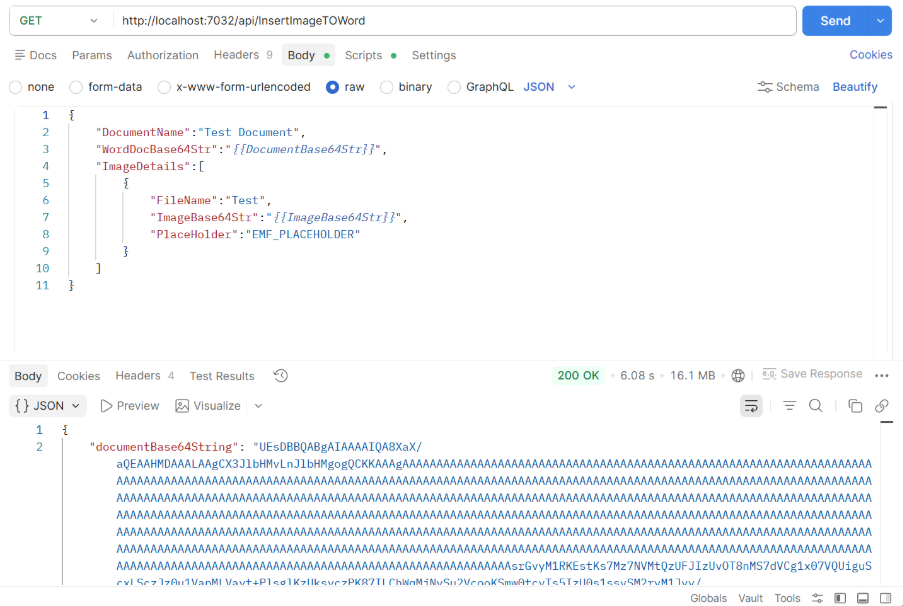
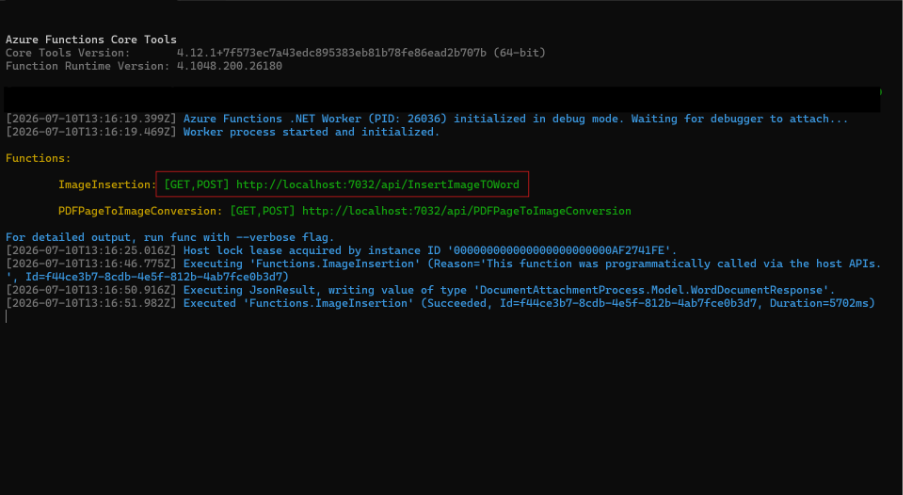
Run the Azure Function App and copy the HTTP trigger URL, which will be used to invoke the function.
Provide the word document and images base64 strings to insert into the document.
Decode the Base64-encoded Word document returned in the response and verify that the images have been inserted correctly and that the document content is as expected.