Problem Statement
When a user submits the form, the data is successfully saved in the backend; however, no visual indication is displayed on the screen. This lack of feedback may cause confusion, leading users to believe the submission did not go through, which can result in multiple clicks or duplicate submissions.
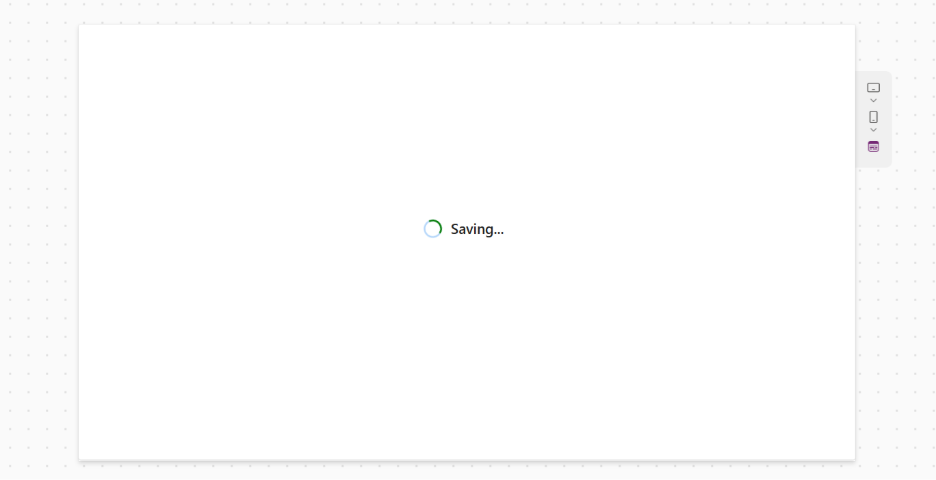
To enhance the user experience and provide clear feedback, a loading spinner needs to be displayed while the data is being saved and hidden once the save process is complete.
High-Level Resolution Steps
- Added a spinner control on the screen to indicate the form submission process.
- Introduced a variable to manage the spinner’s visibility.
- Set the variable to true when the form is submitted, so the spinner is displayed while data is being processed.
- Reset the variable to false once the data save operation is completed.
- Implemented this logic in both the OnSuccess and OnFailure events of the form submission.
- Linked the variable to the Visible property of the spinner control to dynamically show or hide it.
Detailed resolution steps
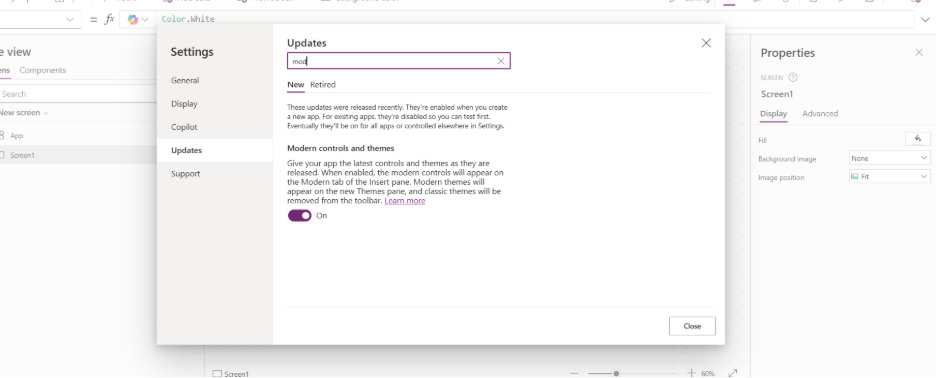
Note:- To get the spinner inside the display section, we first need to turn on “modern controls and themes” from the settings. Once that is enabled, spinner control will be available under display tab.
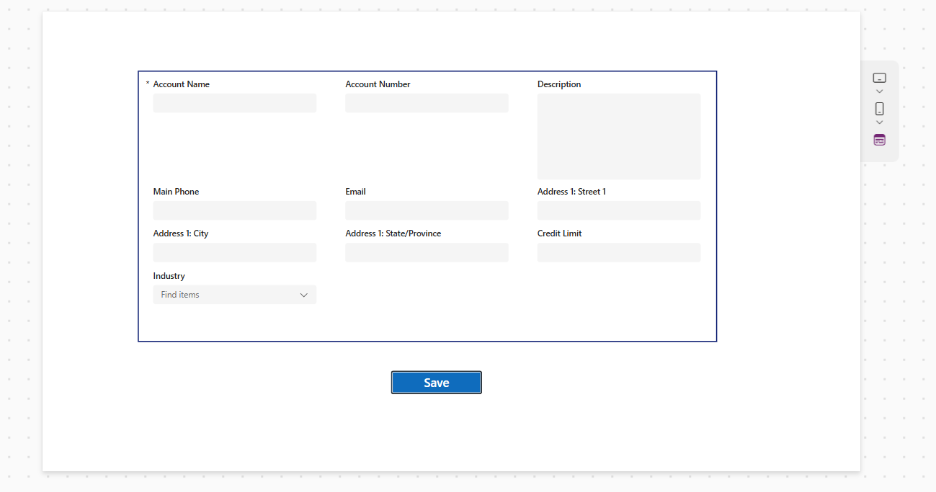
Step1: Add the form on the screen and connect it to the data source you want. Here I’m using the default “Accounts” table. Also add a save button which will be used to submit the form and save the data to the data source.
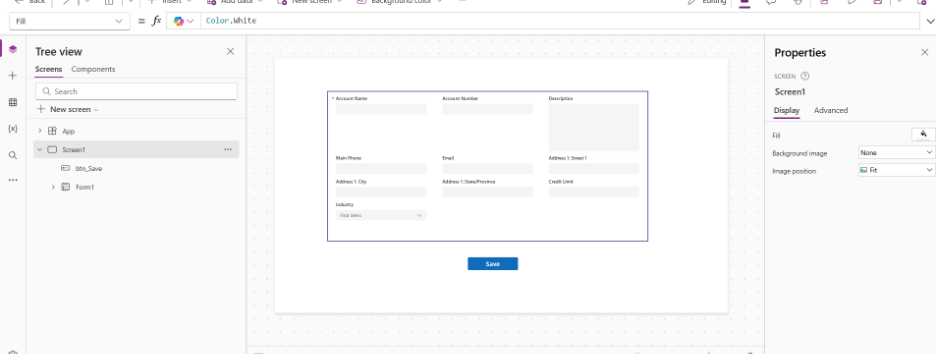
Step 2: Now on the Save button, create a local variable to show the spinner. set it to true before submitform. then use the submitform formula to save the form data.
| UpdateContext({localspinner:true}); SubmitForm(Form1); UpdateContext({localspinner:false}); Notify(“Successfully Saved”,NotificationType.Success,3000); |
Explanation:
UpdateContext({localspinner:true});
Sets a local variable localspinner to true to show a loading spinner.
SubmitForm(Form1);
Submits the data from Form1 to the connected data source.
UpdateContext({localspinner:false});
Turns off the loading spinner by setting localspinner to false.
Notify(“Successfully Saved”,NotificationType.Success,3000);
Displays a success message saying “Successfully Saved” for 3 seconds.
Step 3: Now add a container on the screen and put the spinner control inside it. Then set the visible property of both container and spinner to the variable like localspinner. This will make sure spinner only shows when the variable is true.
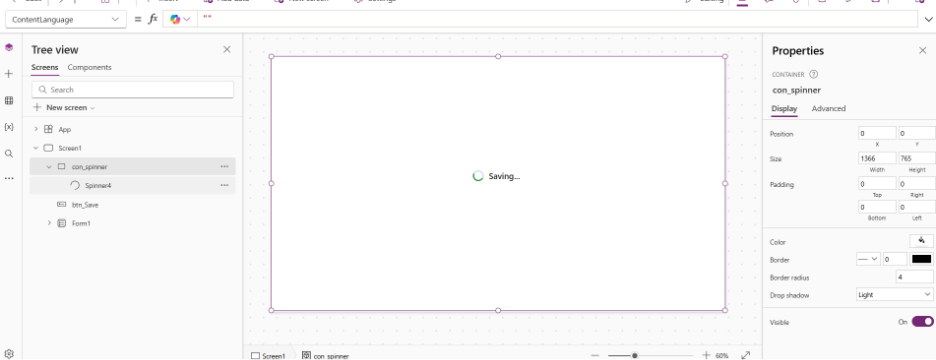
| Visible property of con_spinner :- localspinner |
| Visible property of Spinner localspinner |
Output:-
After clicking on save button