Scenario
When working with KingswaySoft’s SSIS Integration Toolkit, it’s common to move the same integration package across multiple Dynamics environments.
For example: from a Dev instance to UAT, and eventually to Production. Done correctly, you can switch environments without rebuilding your field mappings or losing your existing configurations.
High Resolution Steps
- Create a new connection manager for your source or destination Dynamics instance.
- Configure the connection using the required user account and CDS/CRM Server URL.
- Switch the existing connection manager to another Dynamics environment by updating the Server URL.
- Ensure the schema names of the fields are the same across environments.
Detailed Resolution Steps
Step 1: Create a New Connection
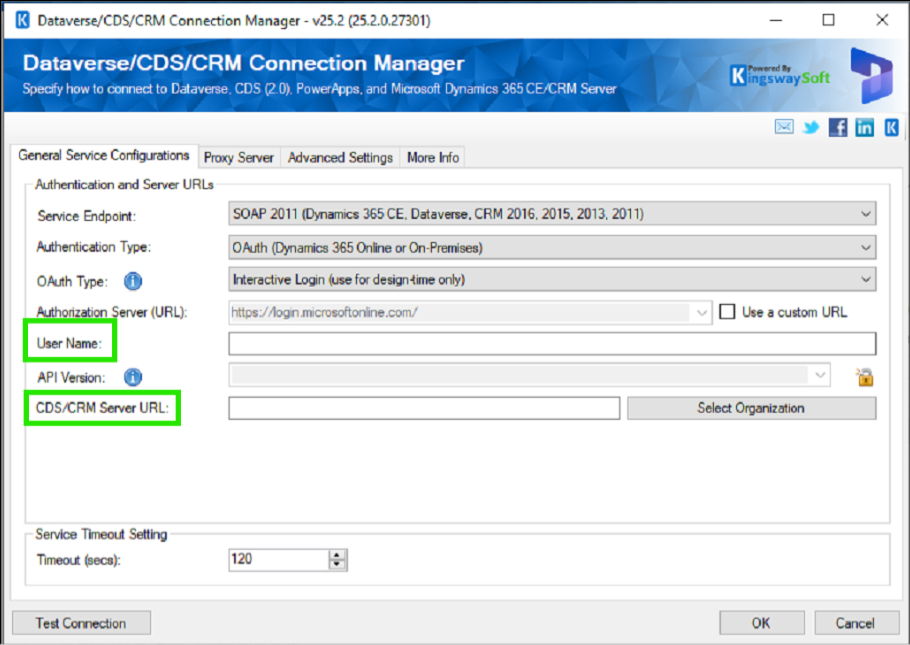
Start by setting up a new connection manager for your source or destination Dynamics instance.
- Username: Provide the account you’d like to use for integration. A service account is recommended over a personal user account, since it won’t be affected by password resets, license changes, or an individual employee leaving the organization.
- CDS/CRM Server URL: Enter your Dynamics environment URL, for example: https://test.api.crm.dynamics.com
This connection manager becomes the link between your SSIS package and the target Dynamics environment, and it’s where your field mappings will be validated against.
Step 2: Switch Between Environments (e.g., Dev to UAT)
When you’re ready to move from one environment to another — say, from Dev to UAT — you don’t need to rebuild the package or its mappings.
Simply:
- Open the existing connection manager you created in Step 1.
- Update the Server URL to point to the new environment (e.g., replace the Dev URL with the UAT URL).
- Save the connection manager.
Your existing field mappings and package configuration will carry over, as long as the environments are aligned (see the note below).
Important Note: Keep Schema Names Consistent
For this to work smoothly, the schema names of the fields must be the same in both environments.
If a field’s schema name differs between Dev and UAT — or if a field exists in one environment but not the other — KingswaySoft will be unable to match it correctly, and you may see mapping errors or missing fields when you switch the connection.
Tip: Before switching environments, it’s good practice to confirm that any custom fields or recent schema changes have been deployed consistently across both environments. This keeps your mappings intact and avoids last-minute surprises during migration or testing.