Introduction
As Power BI solutions grow, managing report changes across multiple developers and environments can become challenging. Without version control, it is difficult to track changes, collaborate safely, or roll back unwanted updates.
By integrating Power BI/Fabric with Azure DevOps Git, teams can introduce version history, branching, collaboration, and controlled deployment into their Power BI development process.
In this blog, we will explore how to set up Power BI version control using Azure DevOps Git, from initial configuration to managing and promoting report changes.
Scenario
A company has a Sales Analytics Power BI solution used by the sales and management teams. Multiple developers are working on the same solution and frequently make changes to reports, dashboards, and semantic models.
Currently, all changes are made directly in the Power BI/Fabric workspace. This creates challenges such as:
- No proper history of changes
- Difficulty tracking who made a change
- Risk of developers overwriting each other’s work
- Difficulty reverting unwanted changes
- No structured Dev → UAT → Production process
To address these challenges, the company decides to integrate the Fabric workspace with an Azure DevOps Git repository.
The team creates separate branches for Dev, UAT, and Main, allowing developers to commit their changes, review them through pull requests, test them in UAT, and finally promote approved changes to production.
This provides a controlled and traceable development process for the Power BI solution.
Prerequisites
Azure DevOps prerequisites
- You must have an Azure DevOps organization and be able to sign in with the same Microsoft Entra ID (Azure AD) tenant used by Fabric.
- You need access to an Azure DevOps Git repository.
- You need repository permissions such as Read and usually Contribute (to commit changes).
Fabric / Power BI prerequisites
- The workspace must be a Fabric-enabled workspace.
- You must have an appropriate license:
- Power BI Pro can use Power BI features, but Git integration for Fabric items generally requires a Fabric capacity.
- Power BI Premium Per User (PPU) supports many premium features, but Fabric Git integration still depends on the workspace being on a Fabric capacity for supported Fabric items.
- A Fabric capacity (F, P, or trial Fabric capacity) is the key requirement for full Fabric Git integration.
- You must be at least a Workspace Admin, Member, or Contributor with permission to connect Git (Admin is recommended for setup).
Tenant setting
A Fabric administrator must enable Git integration / Microsoft Fabric in the Fabric Admin Portal. If disabled, the Git option will not appear.
Azure DevOps Setup for Reports Git Sync
Step 1: Sign in to Azure DevOps
- Sign in with the same Microsoft account / Entra ID account that you use in Microsoft Fabric.
Step 2: Create an Organization (skip if already available)
- Click New organization.
- Enter an organization name.
- Select the region.
- Click Continue.
Example:
- Organization: sainacloud
Step 3: Create a Project
- Inside the organization, click New Project.
- Enter:
- Project name: sainacloudgit
- Visibility: Private
- Version control: Git
- Work item process: Agile
- Click Create.
Result: sainacloudgit.
Step 4: Create a Git Repository
- Open the project sainacloudgit.
- In the left menu, select Repos.
- Click the repository dropdown and choose New repository.
- Enter:
- Repository name: PowerBIWorkspaceRepo
- Click Create.
Result: Empty Git repository is created.
Step 6: Create Branches (Recommended)
Open Repos → Branches.
Create these branches:
- dev
- uat
- main
Keep main as the default branch.
Step-by-step in Fabric Workspace
Step 1: Open Workspace Settings
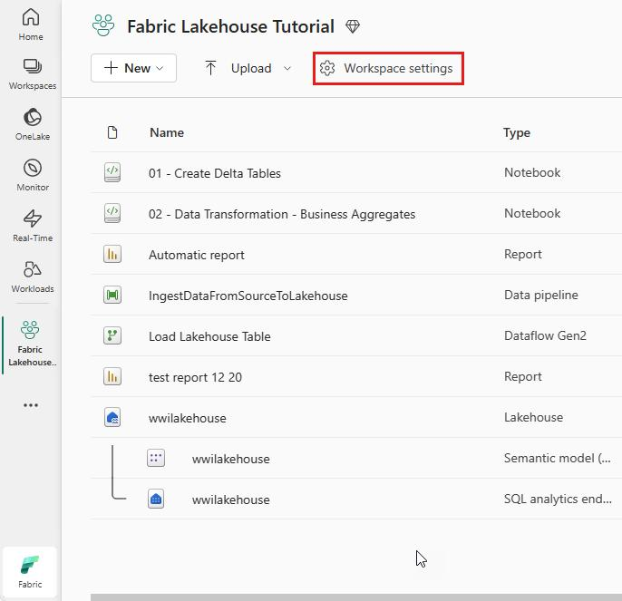
- In the top-right corner, click Workspace settings (gear icon).
- In the left menu, select Git integration.
If you do not see Git integration, the workspace is not Fabric-enabled or the tenant admin has not enabled Git integration.
Step 2: Connect to Azure DevOps
You will see a Connect button.
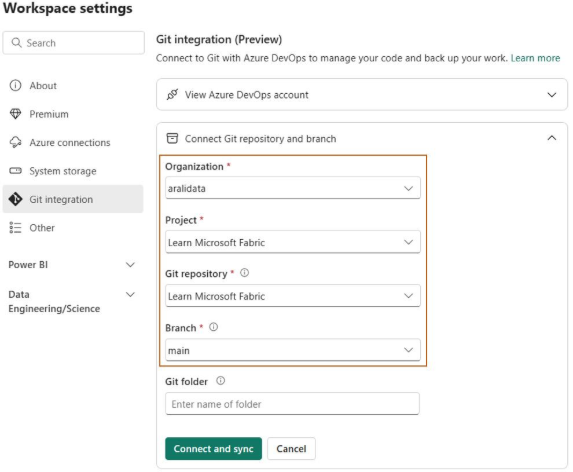
Click Connect and fill the details.
Step 3: Initialize the Repository
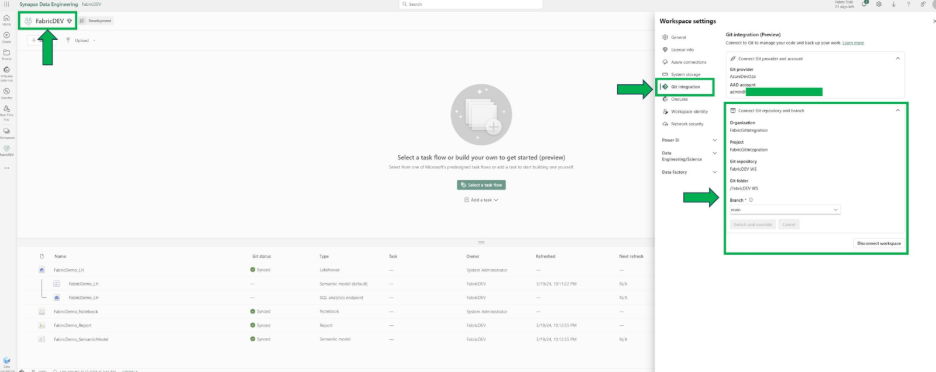
- Select the items you want to sync:
- Reports
- Semantic models
- Dataflow Gen2
- Pipelines
- Notebooks (if any)
- In Commit message, enter something meaningful, for example:
- Click Commit.
Fabric now pushes all selected items to Azure DevOps.
What to do when you change a report later
Suppose you edit a Power BI report in Fabric.
A. Save the report
- After editing, click Save.
B. Open Source Control
- In the workspace toolbar, click Source control.
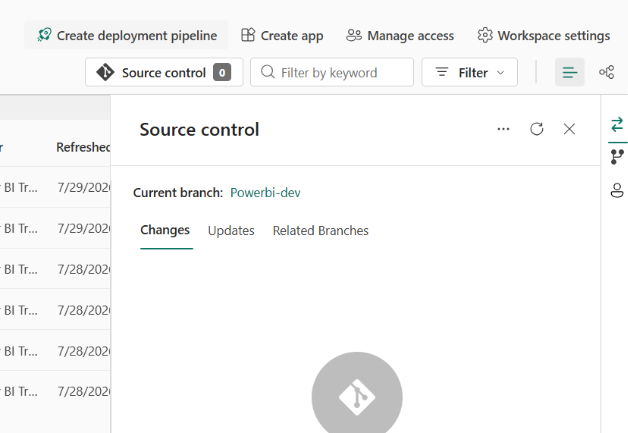
- You will see Pending changes (if available).
C. Commit the changes
- Select the changed report.
- Enter a commit message.
- Click Commit.
How to pull changes from Git
If another developer changes the repo:
- Open the workspace.
- Click Source control.
- Click Update from Git (or Pull).
- Review the incoming changes.
- Click Apply.
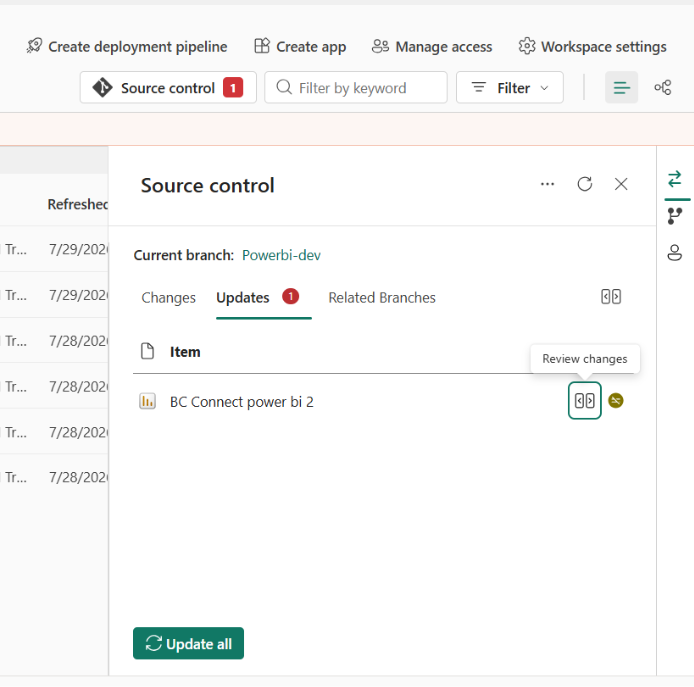
The workspace updates the latest Git version.