Introduction
In this blog, we will build an interactive Sales Analytics Calendar in Power BI that combines a monthly sales trend with an event-based calendar. The solution uses sales, calendar, event, and event-expense data to provide a clear view of sales performance alongside important business activities.
High Level Resolution Steps
Creating a drill through page in Sales line chart which connect to my Calendar page
Detailed Resolution Steps
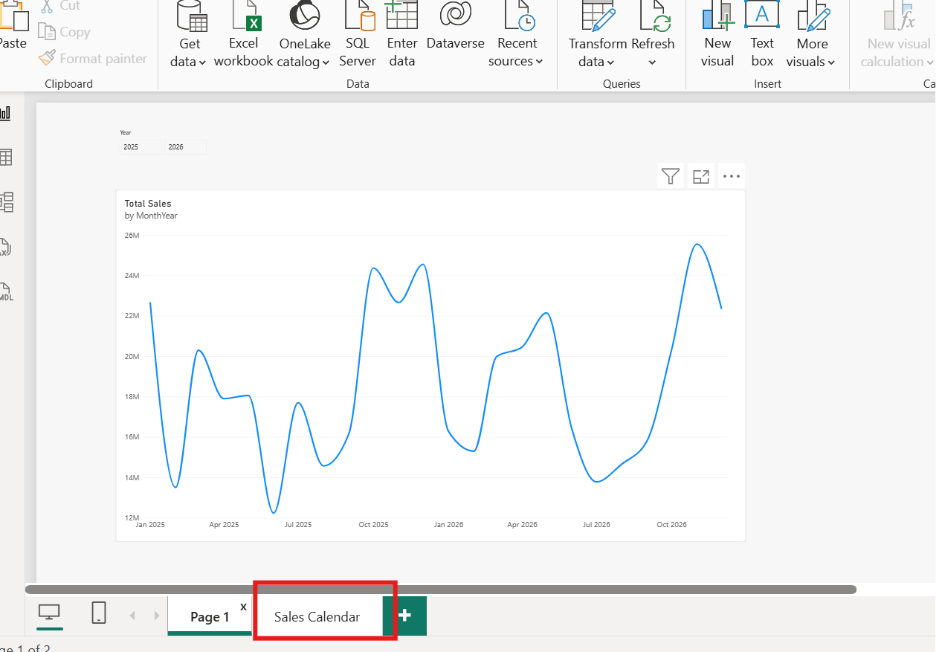
Create a sale line chart visual as per the requirement and create a sales calender page
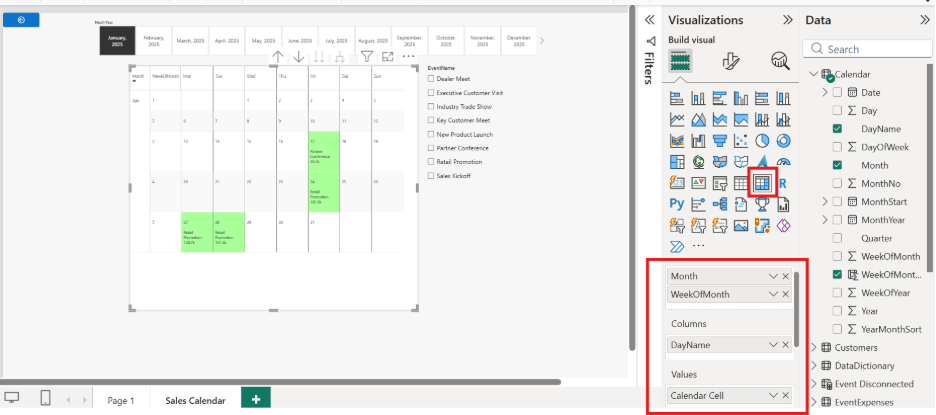
Create a matrix and Rows , columns and values as mentioned
Week of the month dax formula
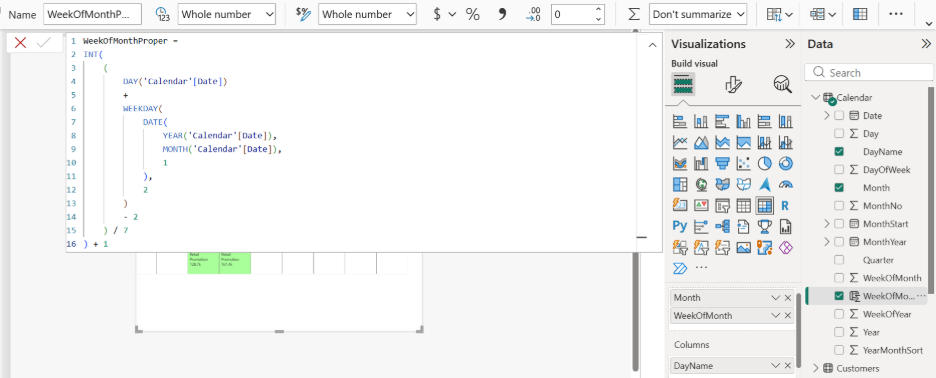
For the Day name we can The Date Table or Calendar
Most Important In values we will be giving Calendar cell
| Calendar Cell = VAR CurrentDate = SELECTEDVALUE(‘Calendar'[Date]) VAR CurrentDay = DAY(CurrentDate) VAR EventNames = CONCATENATEX( VALUES(‘Events'[EventName]), ‘Events'[EventName], “, ” ) VAR TotalSpent = [Event Expense] RETURN IF( ISBLANK(CurrentDate), BLANK(), FORMAT(CurrentDay, “0”) & IF( EventNames <> BLANK(), REPT(UNICHAR(10), 2) & EventNames, “” ) & IF( TotalSpent > 0, UNICHAR(10) & FORMAT(TotalSpent / 1000, “0.0k”), “” ) ) |
For this we have used this dax query
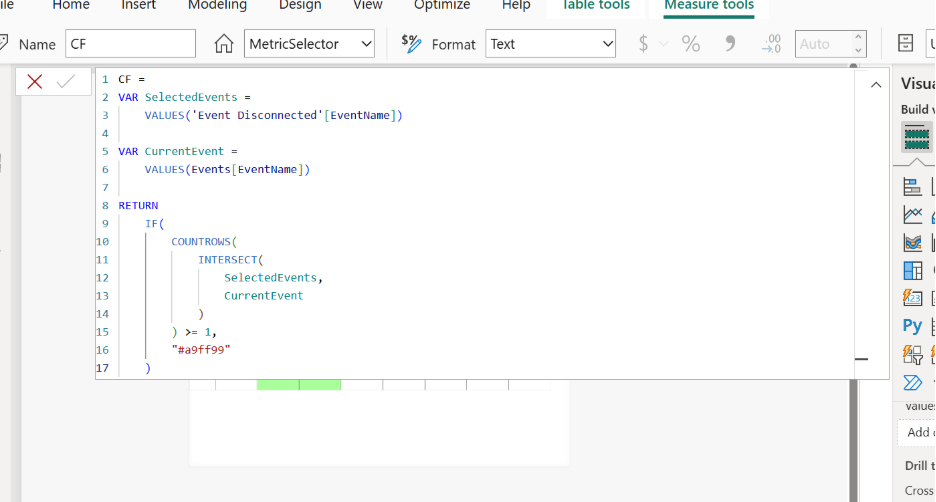
For the Background condtional formating we have used dax query as
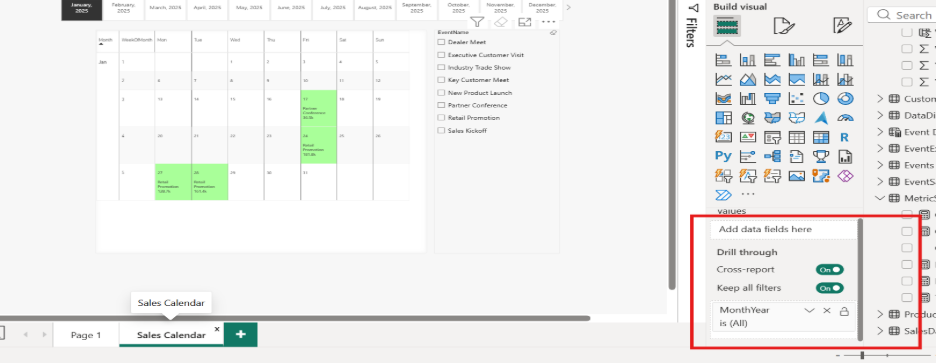
Now under the drill through page add the Same column ( Month year ) as You have taken in the sales line graph x-axis
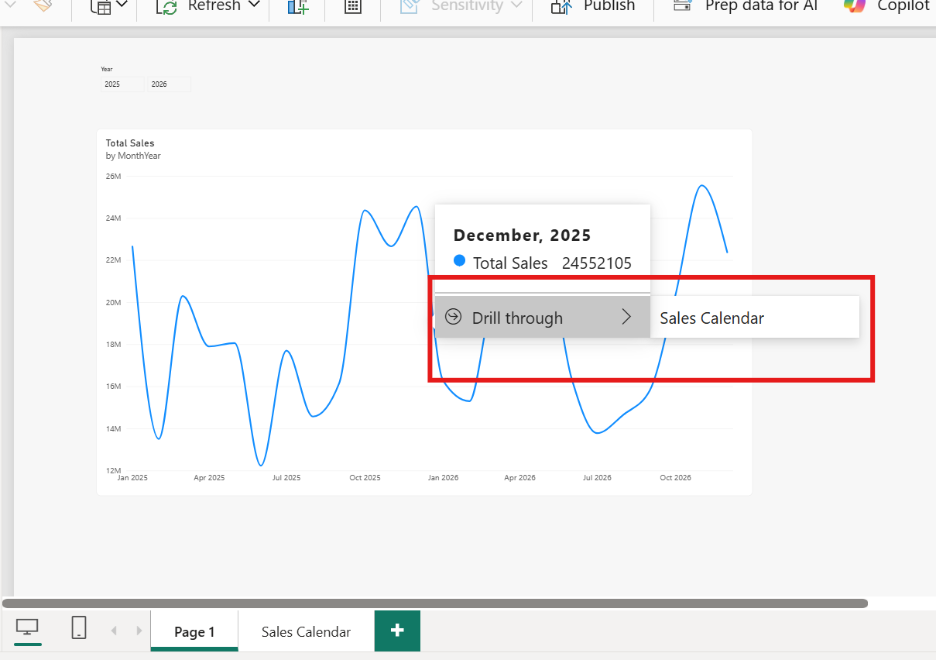
Now if i hover over any month it gives the option to drill through Sales Calender
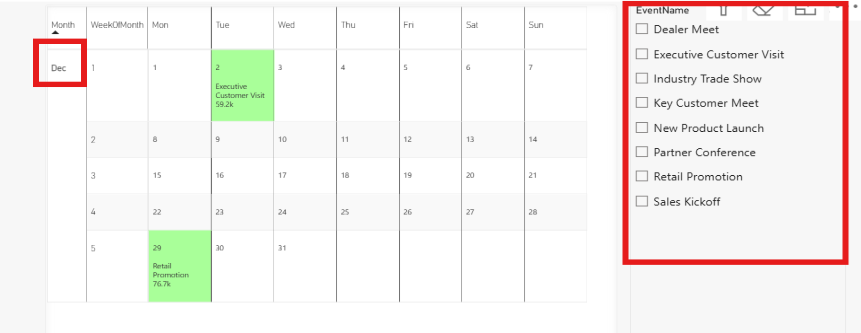
If You click on Sales Calendar its gives the Dec sales events details
Output