Introduction
In Dynamics 365 Model-driven Apps, JavaScript can be used to customize form behavior and provide interactive messages to users. One common requirement is to display a message box when a specific action occurs, such as when a form loads, a field changes, or a user performs an action.
This blog explains how to use JavaScript to display a message box in a Dynamics 365 Model-driven App using the Xrm.Navigation.openAlertDialog() method.
What is a Message Box?
A message box is a dialog displayed to the user to show important information, notifications, or alerts within a Dynamics 365 Model-driven App.
In this blog, we use JavaScript with the Xrm.Navigation.openAlertDialog() method to display a message box on the form.
Business Scenario
Consider an organization that uses Dynamics 365 Customer Service to manage customer cases. Some cases are marked as High Priority and require immediate attention.
JavaScript can be used on the Case form to check the Priority field when it is changed. If the case is marked as High Priority, a message box alerts the agent to review the case details before proceeding.
Prerequisites
Before configuring the message box, make sure you have:
- A Dynamics 365 Customer Service environment.
- A Case table available in the Model-driven App.
- Access to create and edit JavaScript Web Resources.
- Access to customize the Case form.
- A High Priority option available in the Case Priority field.
Create a JavaScript Web Resource
Create a JavaScript web resource to store the message box code.
Detailed Resolution Steps
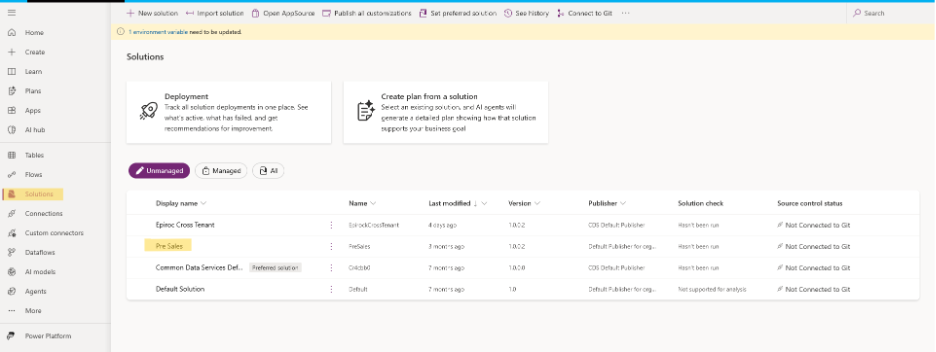
Step 1: Open Solutions in Power Apps.
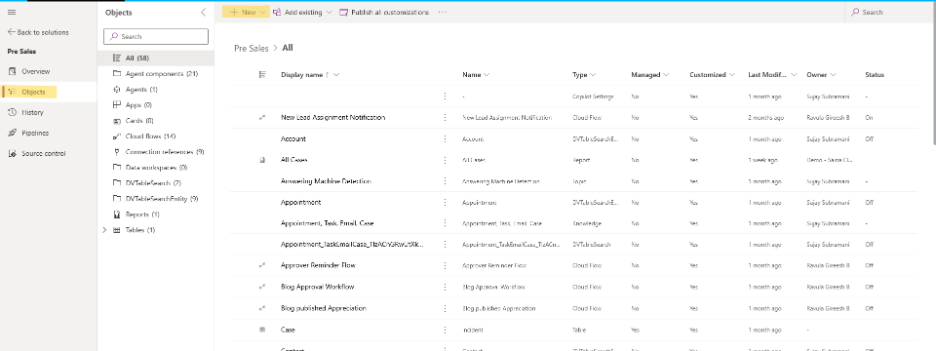
Step 2: Open your required solution.
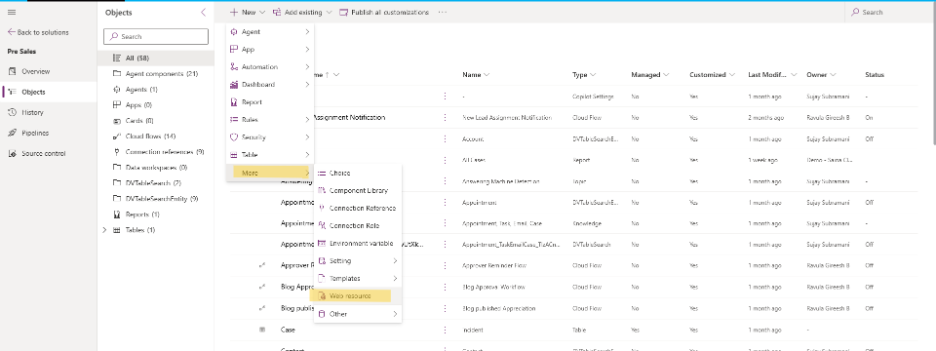
Step 3: Select New → More → Web resource.
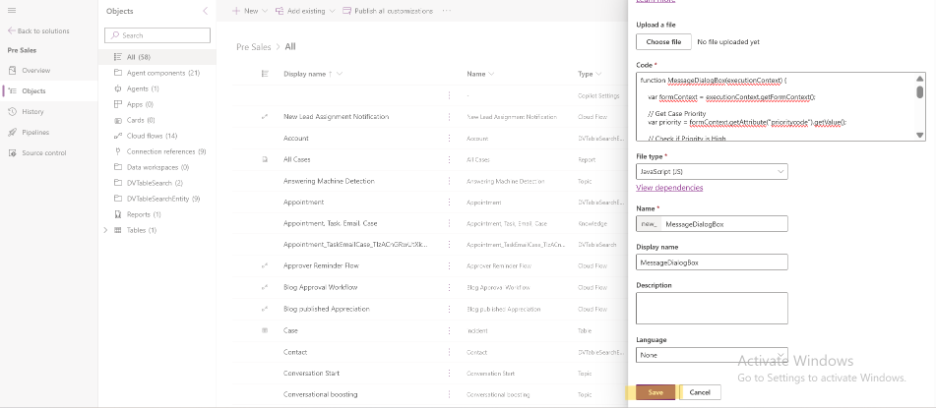
Step 4: Enter a suitable Name and Display name.
Step 5: Set Type to JavaScript (JS).
Step 6: Add the JavaScript code created for the High Priority Case scenario.
| function MessageDialogBox(executionContext) { var formContext = executionContext.getFormContext(); // Get Case Priority var priority = formContext.getAttribute(“prioritycode”).getValue(); // Check if Priority is High if (priority === 1) { var Messagebox = { confirmButtonLabel: “OK”, text: “This case is marked as High Priority. Please review the case details before proceeding.”, title: “High Priority Case” }; var MessageBoxOptions = { height: 300, width: 400 }; Xrm.Navigation.openAlertDialog(Messagebox, MessageBoxOptions).then( function (success) { console.log(“Message box displayed successfully.”); }, function (error) { console.log(“Error: ” + error.message); } ); } } |
Step 7: Select Save and then Publish.
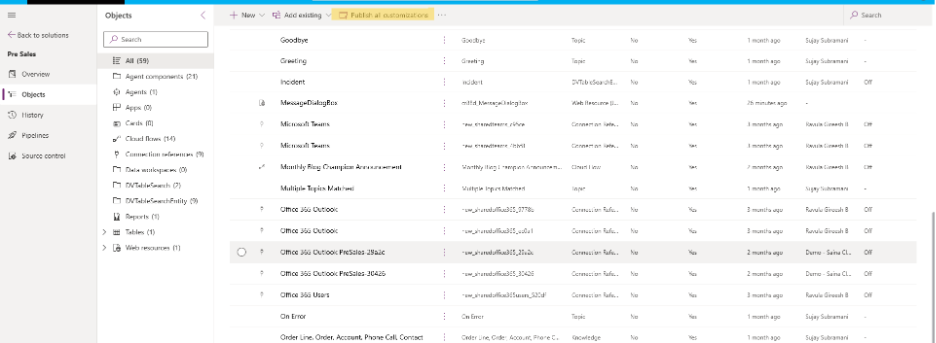
Add the JavaScript to the Case Form
Now add the JavaScript web resource to the Case form and configure the Priority field to trigger the function when its value changes.
Detailed Resolution Steps
Step 1: Open the Case table and select the required Main form.
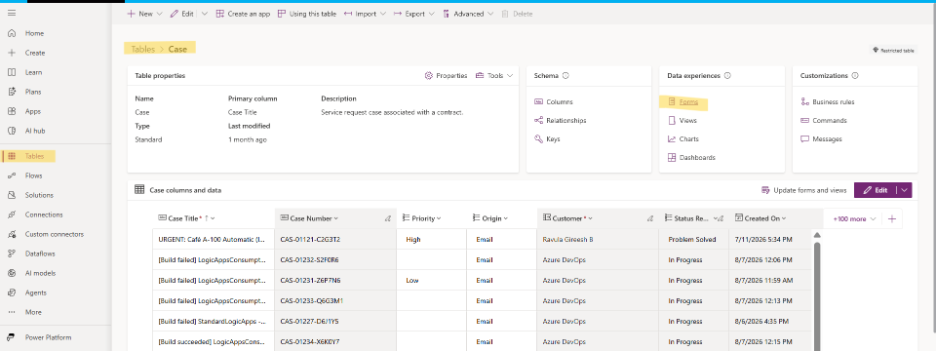
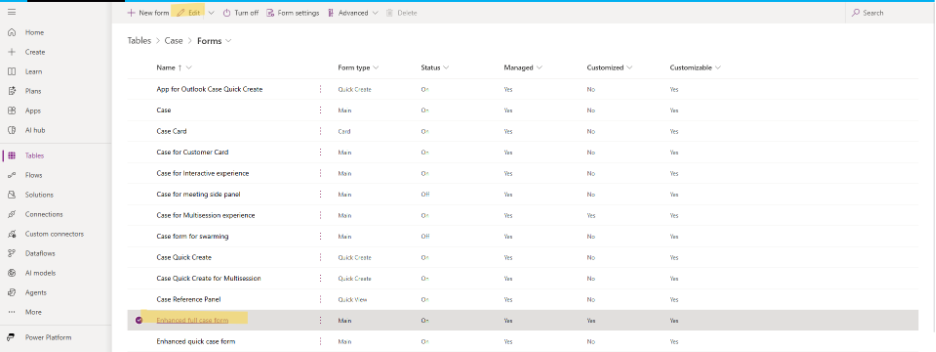
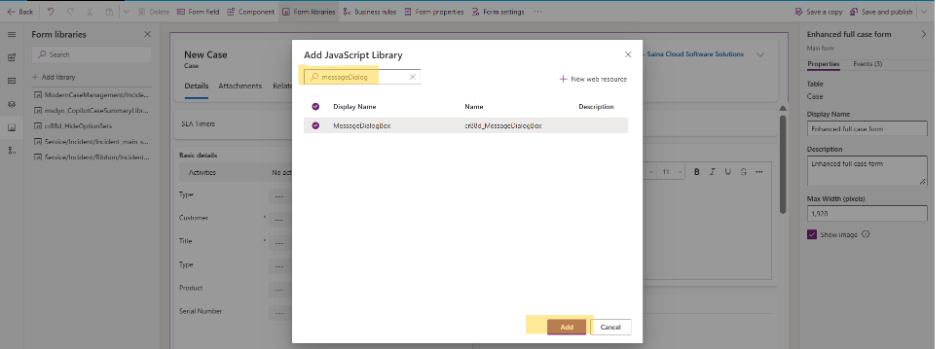
Step 2: Add the JavaScript web resource created in the previous section to the form.
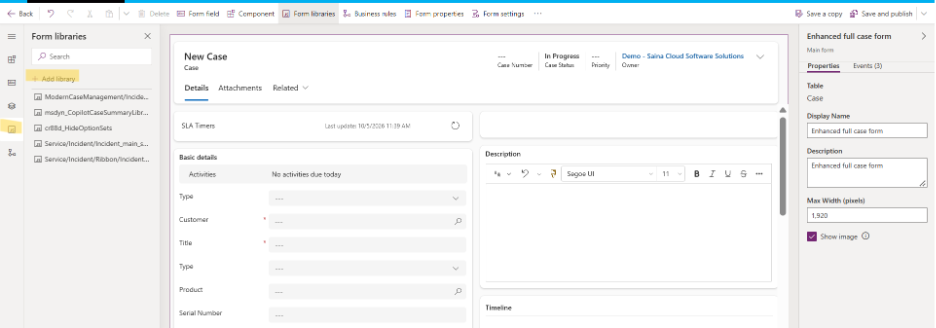
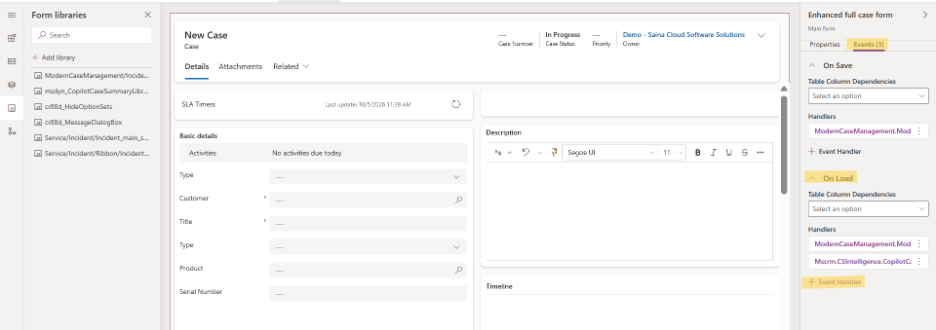
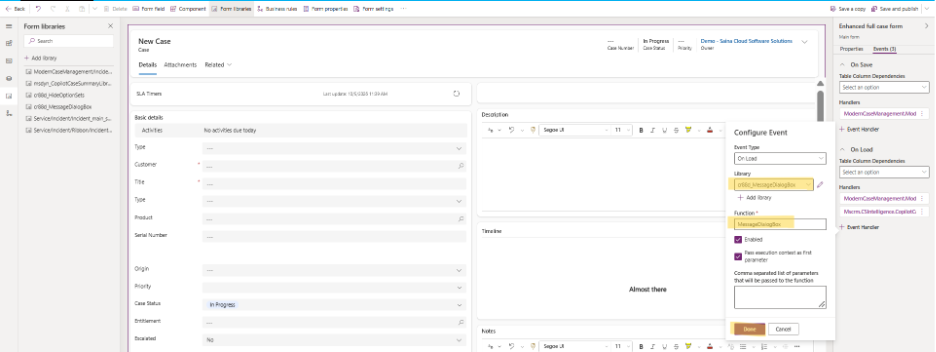
Step 3: Configure the Form OnLoad event:
- Add the function MessageDialogBox.
- Enable Pass execution context as the first parameter.
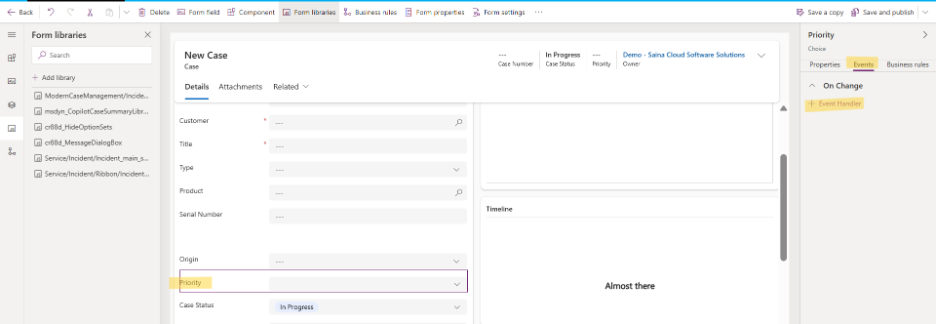
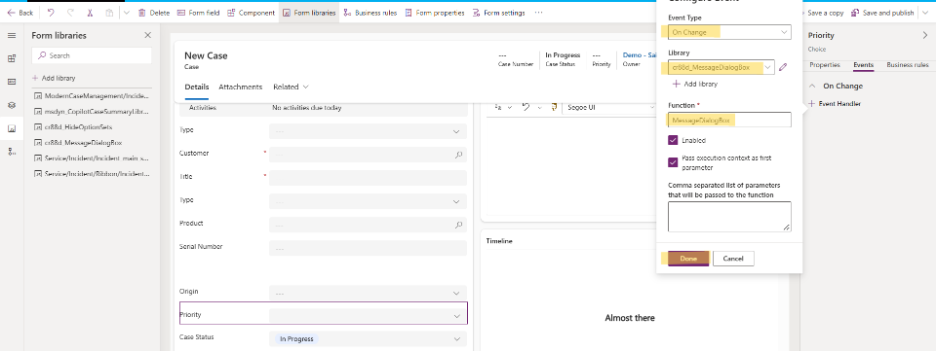
Step 4: Select the Priority field.
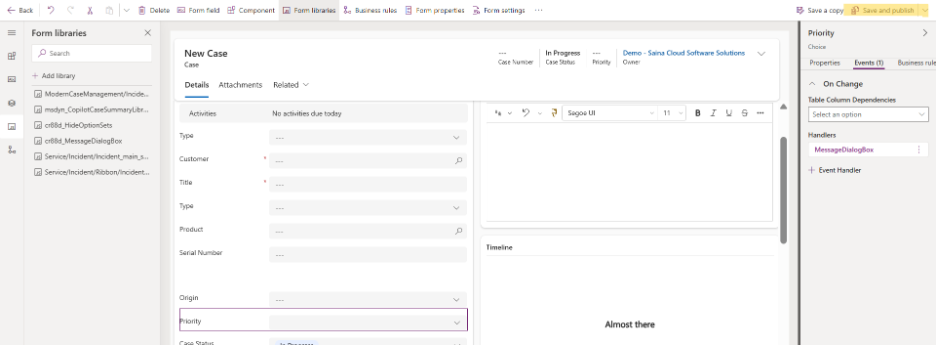
Step 5: Configure the OnChange event:
- Add the function MessageDialogBox.
- Enable Pass execution context as the first parameter.
Step 6: Save and Publish the form.
Test the Message Box
Now test the configuration on the Case form.
Detailed Resolution Steps
Step 1: Open an existing Case record or create a new Case.
Step 2: Set the Priority to High.
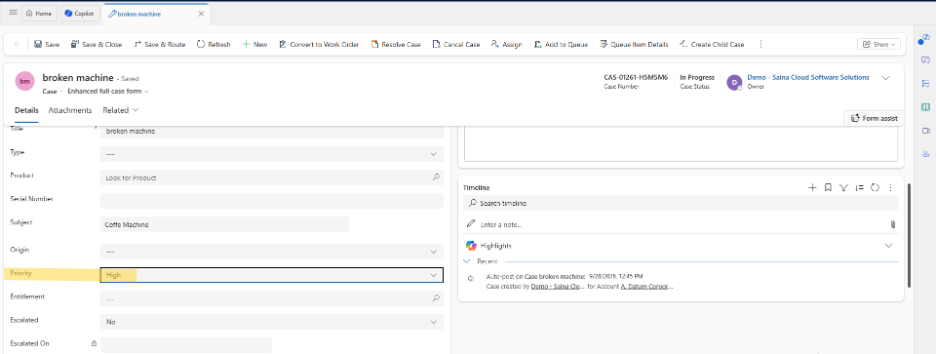
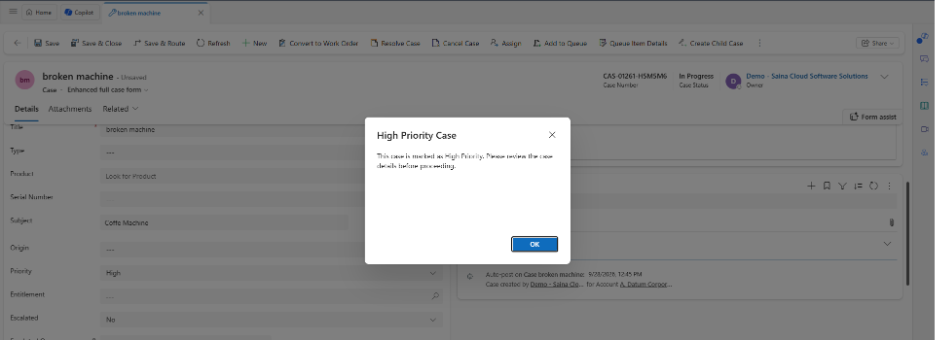
Step 3: Verify that the message box is displayed.
Step 4: Refresh or reopen the Case form and verify that the message box is displayed again when the form loads.
Result
The JavaScript message box is successfully configured on the Case form. When the Case is marked as High Priority, the message box alerts the customer service agent when the form loads or when the Priority field is changed.