How to create custom workflow in dynamics 365 F&O
Problem statement
The requirement is to create a custom workflow in “All assets” (standard form), which is available in the Asset management module. Workflow should trigger when it is in draft state & the Active field is set as yes.
Resolution
- Create a custom workflow in standard form
- Create enum
- Create a new field in the table
- Write code for the canSubmitWorkflow () method
- Write code for UpdateWorkflow()
- Create query
- Create workflow category
- Create workflow type
- Write logic in the submit manager
- Create workflow approval
- Write logic in the approval event handler
- Enabling the workflow in the form
- Configuration of workflow
1. Detailed step-by-step explanation of the resolution
Workflows are designed to streamline business processes while giving clear instructions for document flows through the system by showing the steps needed to process and approve it, along with who needs to process it.
This Blog will explain every step needed to create your custom workflow in Standard form in Dynamics 365 F&O
2. Workflow status Enumeration:
To define the status of the workflow, we need to use the base enumeration, which contains basic statuses such as draft, submitted, change request, rejected, and approved. Provide proper labels for each element.
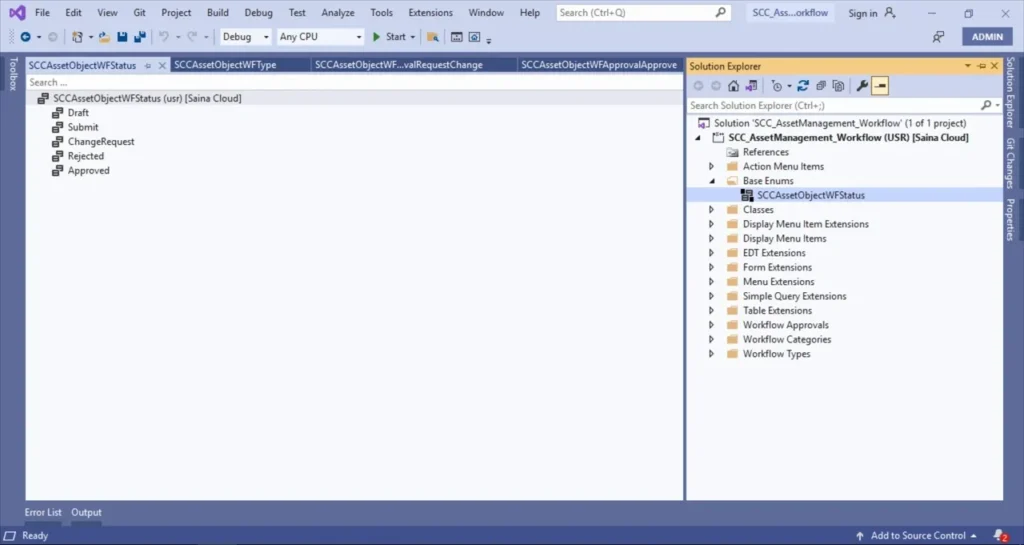
Create a new field on the table
Create an extension of the Asset table (standard), add a new field using an enumeration, and make the field non-editable.
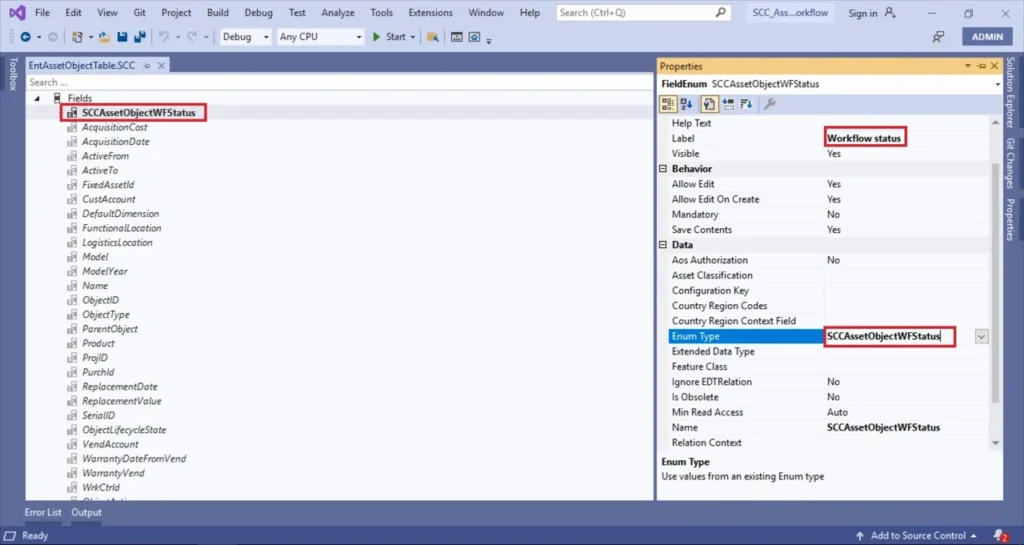
Table method
Usually, we need to override the canSubmitWorkflow() method in a custom table. Since we are creating a workflow in standard form, we need to write the COC at the table level. Create a class using the Asset object table. Write the code below, which shows the condition when workflow status is in draft state, and active should be yes, then Boolean true means workflow can trigger, else it will not trigger
[ExtensionOf(tableStr(EntAssetObjectTable))]

final class SCCEntAssetObjectTable_Extension

{

    public boolean canSubmitToWorkflow(str _workflowType)

    {

        boolean ret = next canSubmitToWorkflow(_workflowType);

        if(this.SCCAssetObjectWFStatus == SCCAssetObjectWFStatus::Draft

            && this.ObjectActive == NoYes::Yes)

        {

            ret = boolean::true;

        }

        else

        {

            ret = boolean::false;

        }

        return ret;

    }

}
We should add a method for updating the workflow status using a record identifier. Use the code below in the same COC “SCCEntAssetObjectTable_Extension.”
public static void updateWorkflowStatus(RecId _entAssetObjectTableRecId, SCCAssetObjectWFStatus _status)

    {

        ttsbegin;

        EntAssetObjectTable entAssetObjectTable;

        update_recordset    entAssetObjectTable

        setting             SCCAssetObjectWFStatus       = _status

        where               entAssetObjectTable.RecId   == _entAssetObjectTableRecId;

        ttscommit;

    }
Query
Create a new query for the Asset table. It defines the tables and fields that the workflow will use. For this example, we will define a query that returns all fields of our Asset table. Here I used the standard query “EntAssetObjectTableQuery”, set Dynamics queries as yes
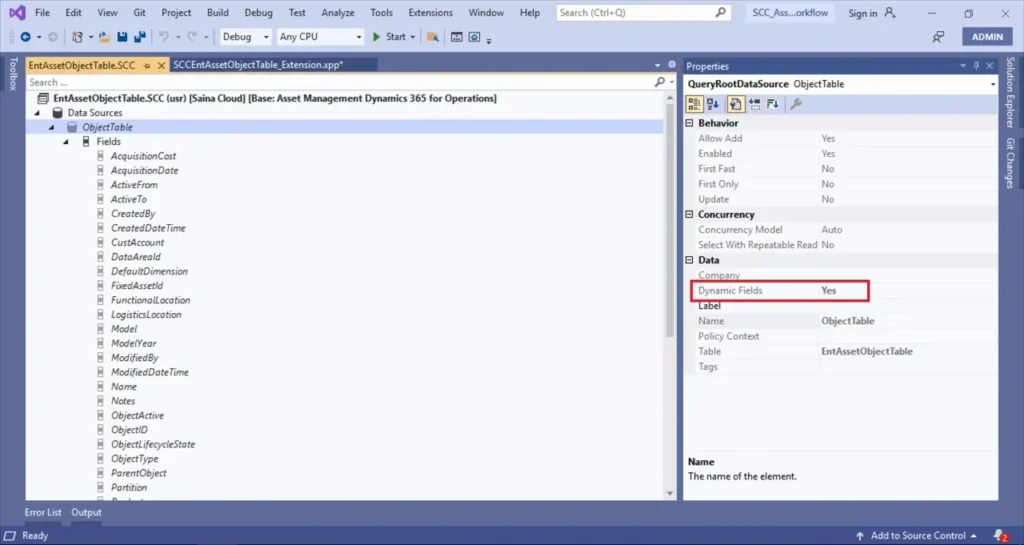
Workflow Category
We need to create a workflow category to set up the module property, which determines which module the workflow should appear in. In this example, the category will use the Asset Management module. So obviously it’s necessary to extend this Menu (Asset management) in our project. Click on Add à New Item à Business Process and Workflow à Workflow Category àEnter a proper name.
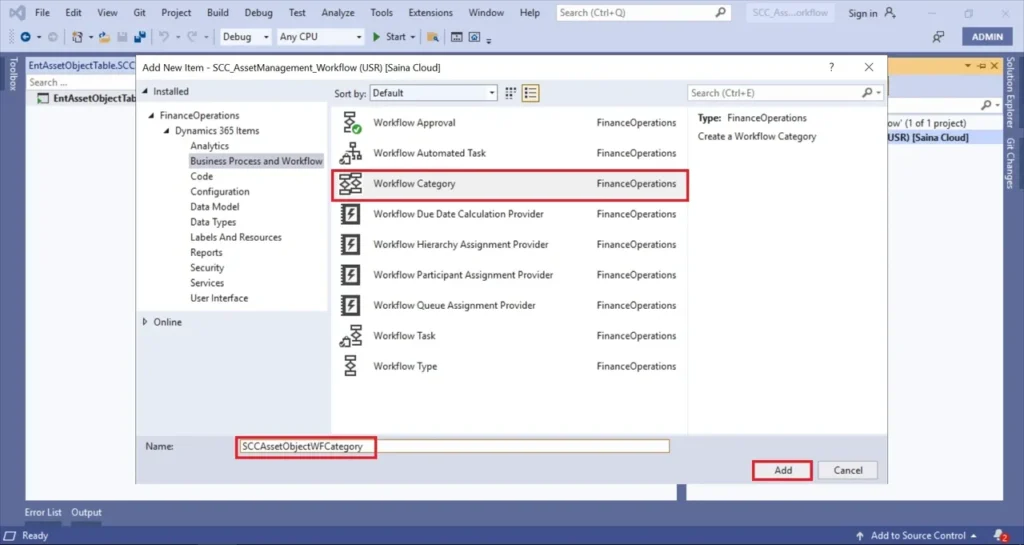
Set the module as “Asset management.”
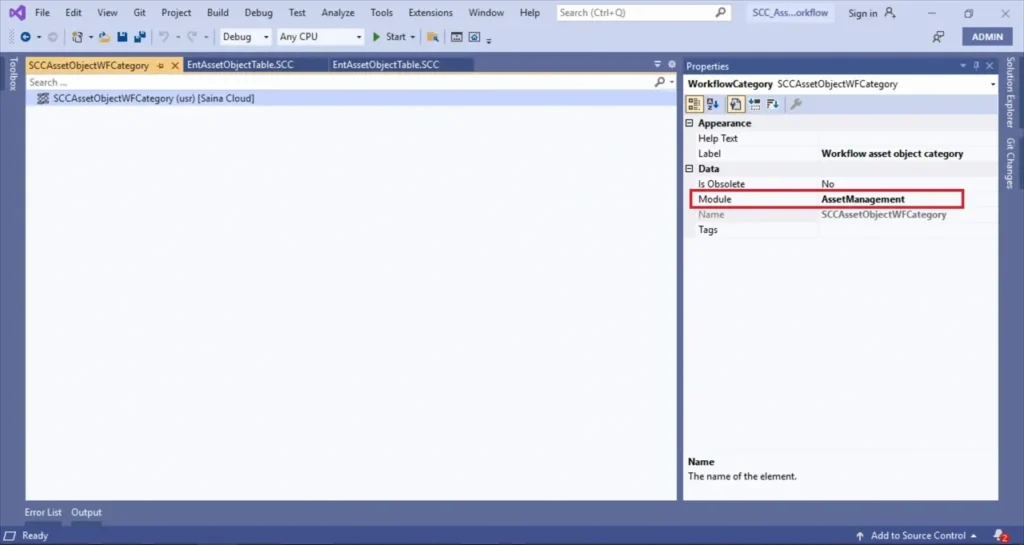
Workflow Type
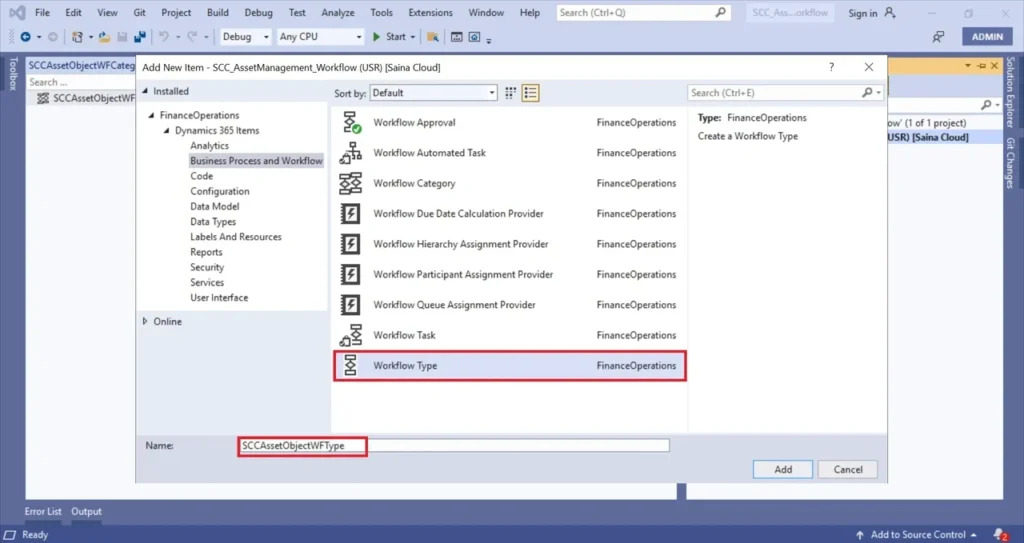
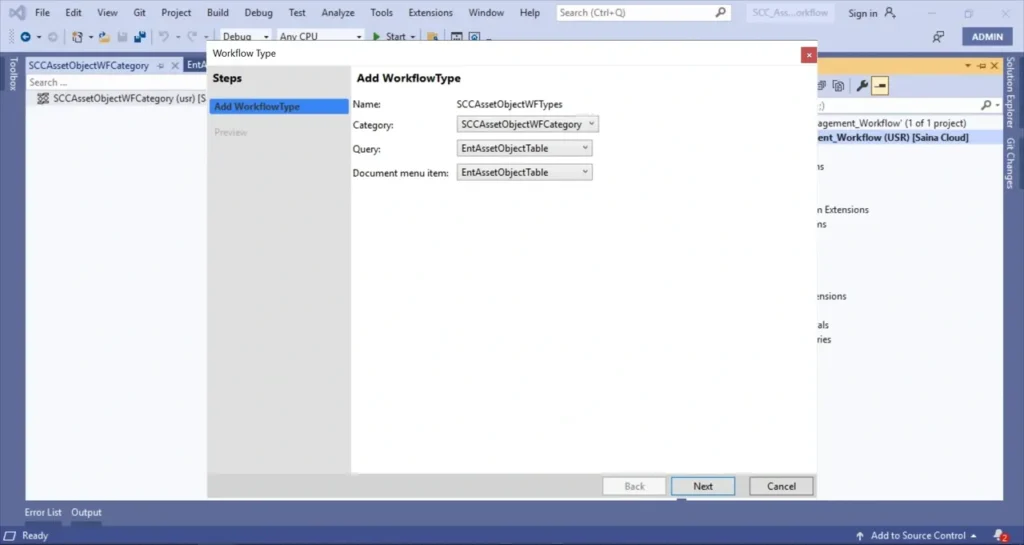
The Workflow type describes all the elements available in the workflow. While creating it, we need to fill the category, query & display menu item that we created. To create a workflow type, click on Add > New Item > Business Process and Workflow > Workflow Type
Category: Select the workflow category that we created
Query: Select the query created for the Asset table
Document menu item: Select the menu item for the Asset table’s form
After completing the wizard, Visual Studio creates objects in our project.
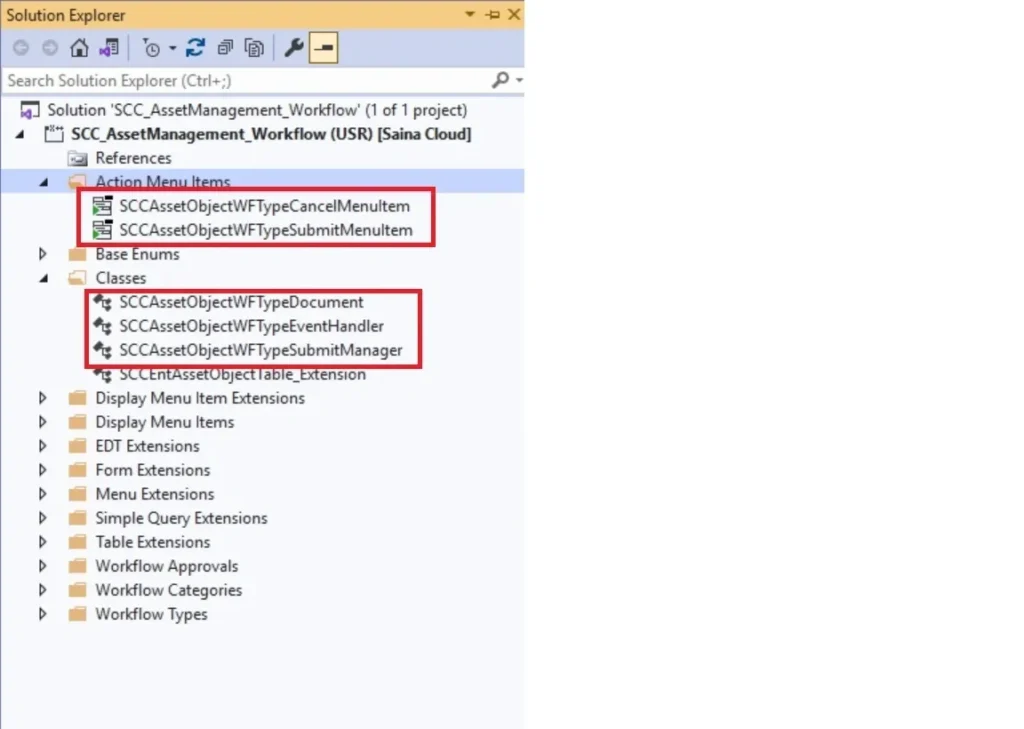
Open the Submit Manager class and write the code below. Workflow calls this class when submitting a document to the workflow. We can use this class for submission and resubmission of the workflow.
///The SCCAssetObjectWFTypeSubmitManager menu item action event handler.

public class SCCAssetObjectWFTypeSubmitManager

{

    private EntAssetObjectTable     entAssetObjectTable;

    private WorkflowVersionTable    versionTable;

    private WorkflowComment         comment;

    private WorkflowWorkItemTable   workItem;

    private SysUserId               userId;

    private boolean                 isSubmission;

    private WorkflowTypeName        workflowType;

    /// Main method

    /// calling arguments

    public static void main(Args _args)

    {

        if (_args.record().TableId != tableNum(EntAssetObjectTable))

        {

            throw error(‘Error attempting to submit document’);

        }

        EntAssetObjectTable entAssetObjectTable = _args.record();

        FormRun             caller              = _args.caller() as FormRun;

        boolean             isSubmission        = _args.parmEnum();

        MenuItemName        menuItem            = _args.menuItemName();

        FormDataSource      fds                 = caller.dataSource();

        SCCAssetObjectWFTypeSubmitManager manager = SCCAssetObjectWFTypeSubmitManager::construct();

        manager.init(entAssetObjectTable, isSubmission, caller.getActiveWorkflowConfiguration(), caller.getActiveWorkflowWorkItem());

        if (manager.openSubmitDialog(menuItem))

        {

            manager.performSubmit(menuItem);

        }

        caller.updateWorkflowControls();

        fds.research(true);

    }

    ///Construct method

    /// new instance of submission manager

    public static SCCAssetObjectWFTypeSubmitManager construct()

    {

        return new SCCAssetObjectWFTypeSubmitManager();

    }

    /// parameter method for document

    /// new document value

    /// current document

    public EntAssetObjectTable parmDocument(EntAssetObjectTable _entAssetObjectTable = entAssetObjectTable)

    {

        entAssetObjectTable = _entAssetObjectTable;

        return entAssetObjectTable;

    }

    /// parameter method for version

    /// new version table value

    /// current version table

    public WorkflowVersionTable parmVersionTable(WorkflowVersionTable _versionTable = versionTable)

    {

        versionTable = _versionTable;

        return versionTable;

    }

    /// parameter method for comment

    /// new comment value

    /// current comment value

    public WorkflowComment parmComment(WorkflowComment _comment = comment)

    {

        comment = _comment;

        return comment;

    }

    /// parameter method for work item

    /// new work item value

    /// current work item value

    public WorkflowWorkItemTable parmWorkItem(WorkflowWorkItemTable _workItem = workItem)

    {

        workItem = _workItem;

        return workItem;

    }

    /// parameter method for user

    /// new user value

    /// current user value

    public SysUserId parmUserId(SysUserId _userId = userId)

    {

        userId = _userId;

        return userId;

    }

    /// parameter method for isSubmission flag

    /// flag value

    /// current flag value

    public boolean parmIsSubmission(boolean _isSubmission = isSubmission)

    {

        isSubmission = _isSubmission;

        return isSubmission;

    }

    /// parameter method for workflow type

    /// new workflow type value

    /// current workflow type

    public WorkflowTypeName parmWorkflowType(WorkflowTypeName _workflowType = workflowType)

    {

        workflowType = _workflowType;

        return workflowType;

    }

    /// Opens the submit dialog and returns result

    /// true if dialog closed okay

    protected boolean openSubmitDialog(MenuItemName _menuItemName)

    {

        if (isSubmission)

        {

            return this.openSubmitDialogSubmit();

        }

        else

        {

            return this.openSubmitDialogResubmit(_menuItemName);

        }

    }

    /// Open submission dialog

    /// true if dialog closed okay

    private boolean openSubmitDialogSubmit()

    {

        WorkflowSubmitDialog submitDialog = WorkflowSubmitDialog::construct(this.parmVersionTable());

        submitDialog.run();

        this.parmComment(submitDialog.parmWorkflowComment());

        return submitDialog.parmIsClosedOK();

    }

    /// Open resubmit dialog

    /// true if dialog closed okay

    private boolean openSubmitDialogResubmit(MenuItemName _menuItemName)

    {

        WorkflowWorkItemActionDialog actionDialog = WorkflowWorkItemActionDialog::construct(workItem, WorkflowWorkItemActionType::Resubmit, new MenuFunction(_menuItemName, MenuItemType::Action));

        actionDialog.run();

        this.parmComment(actionDialog.parmWorkflowComment());

        this.parmUserId(actionDialog.parmTargetUser());

        return actionDialog.parmIsClosedOK();

    }

    /// initializes manager

    /// document

    /// calling menu item

    /// workflow version

    /// workflow item

    protected void init(EntAssetObjectTable _entAssetObjectTable, boolean _isSubmission, WorkflowVersionTable _versionTable, WorkflowWorkitemTable _workItem)

    {

        this.parmDocument(_entAssetObjectTable);

        this.parmIsSubmission(_isSubmission);

        this.parmVersionTable(_versionTable);

        this.parmWorkItem(_workItem);

        this.parmWorkflowType(this.parmVersionTable().WorkflowTable().TemplateName);

    }

    /// perform workflow submission

    protected void performSubmit(MenuItemName _menuItemName)

    {

        if (isSubmission)

        {

            this.performSubmitSubmit();

        }

        else

        {

            this.performSubmitResubmit(_menuItemName);

        }

    }

    /// perform workflow submit

    private void performSubmitSubmit()

    {

        if (this.parmWorkflowType() && EntAssetObjectTable::findRecId(entAssetObjectTable.RecId).SCCAssetObjectWFStatus == SCCAssetObjectWFStatus::Draft)

        {

            Workflow::activateFromWorkflowType(workflowType, entAssetObjectTable.RecId, comment, NoYes::No);

            EntAssetObjectTable::updateWorkflowStatus(entAssetObjectTable.RecId, SCCAssetObjectWFStatus::Submit);

        }

    }

    /// perform workflow resubmit

    private void performSubmitResubmit(MenuItemName _menuItemName)

    {

        if (this.parmWorkItem())

        {

            WorkflowWorkItemActionManager::dispatchWorkItemAction(workItem, comment, userId, WorkflowWorkItemActionType::Resubmit, _menuItemName);

            EntAssetObjectTable::updateWorkflowStatus(entAssetObjectTable.RecId, SCCAssetObjectWFStatus::Submit);

        }

    }

}
Write the code below in the EventHandler class: This class handles the type-specific events. The wizard creates methods to which we can add our business logic.
       /// The SCCAssetObjectWFTypeEventHandler workflow event handler.

public class  SCCAssetObjectWFTypeEventHandler implements WorkflowCanceledEventHandler,

WorkflowCompletedEventHandler,

WorkflowStartedEventHandler

{

    public void started(WorkflowEventArgs _workflowEventArgs)

    {

        RecId entAssetObjectTableRecId = _workflowEventArgs.parmWorkflowContext().parmRecId();

        EntAssetObjectTable::updateWorkflowStatus(entAssetObjectTableRecId, SCCAssetObjectWFStatus::Submit);

    }

    public void canceled(WorkflowEventArgs _workflowEventArgs)

    {

        RecId entAssetObjectTableRecId = _workflowEventArgs.parmWorkflowContext().parmRecId();

        EntAssetObjectTable::updateWorkflowStatus(entAssetObjectTableRecId, SCCAssetObjectWFStatus::Rejected);

    }

    public void completed(WorkflowEventArgs _workflowEventArgs)

    {

        RecId entAssetObjectTableRecId = _workflowEventArgs.parmWorkflowContext().parmRecId();

        EntAssetObjectTable::updateWorkflowStatus(entAssetObjectTableRecId, SCCAssetObjectWFStatus::Approved);

    }

}
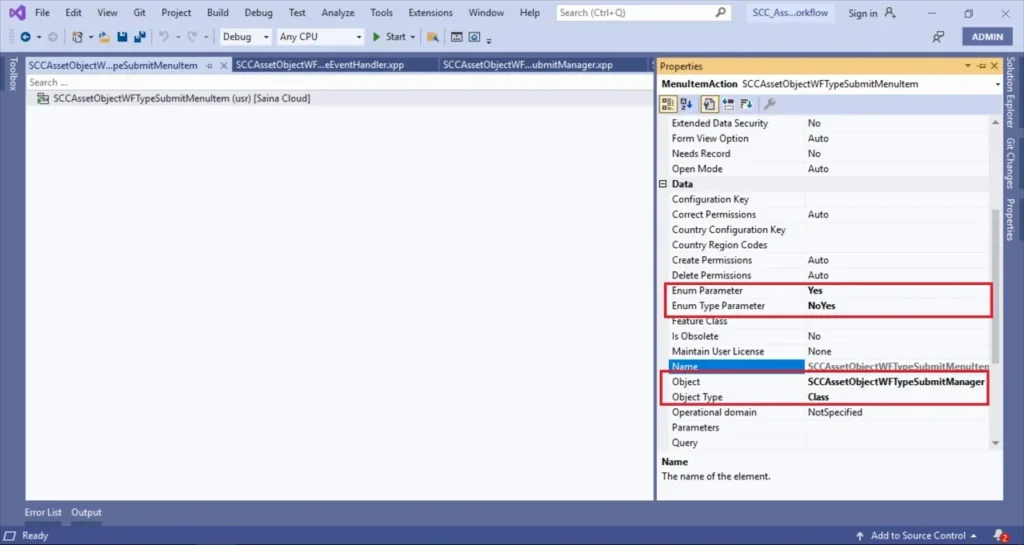
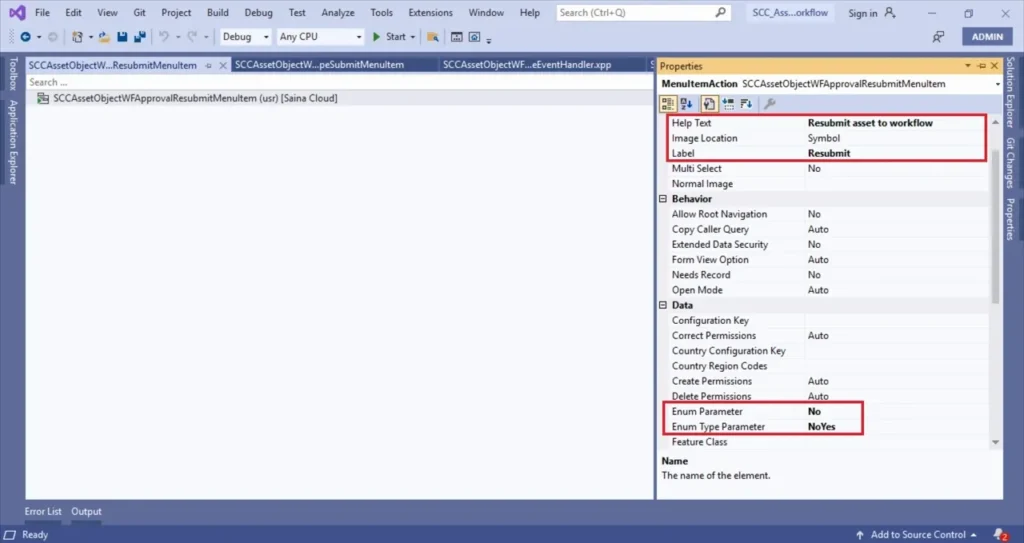
Fill the properties in the submit action menu item, set the proper label, and set the value of NoYes::Yes in the enum value parameter. Also, we need to check the target of the SubmitMenuItem action menu item to call this class. Do compile the objects created till now.
Workflow Approval
After the build, create a workflow approval, where approval is a workflow element that we can add to a workflow. In this case, an approval is a step where one or more people need to approve something. To create a workflow approval, simply click on Add > New item > Business process and workflow > Workflow Approval
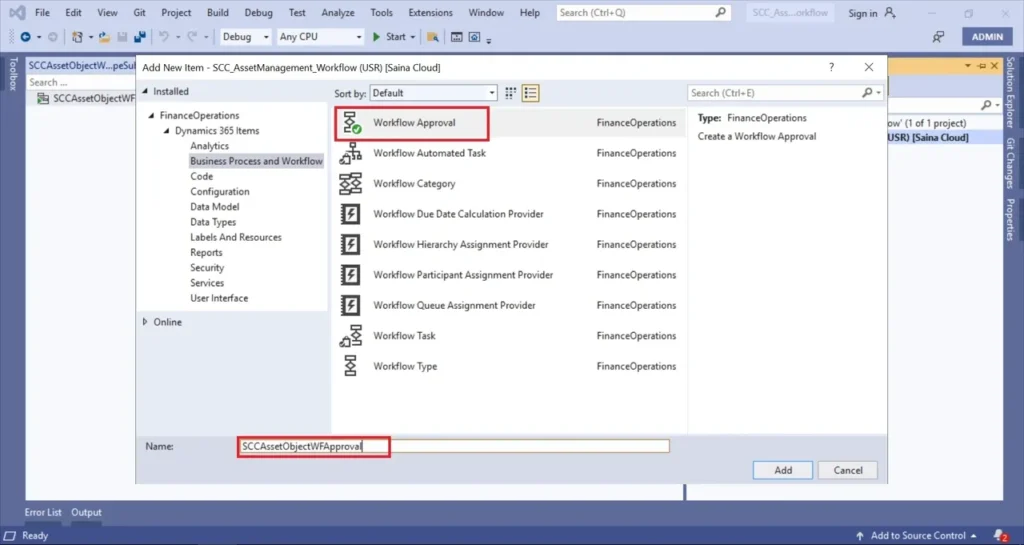
Provide workflow document & document menu item. Field group is optional
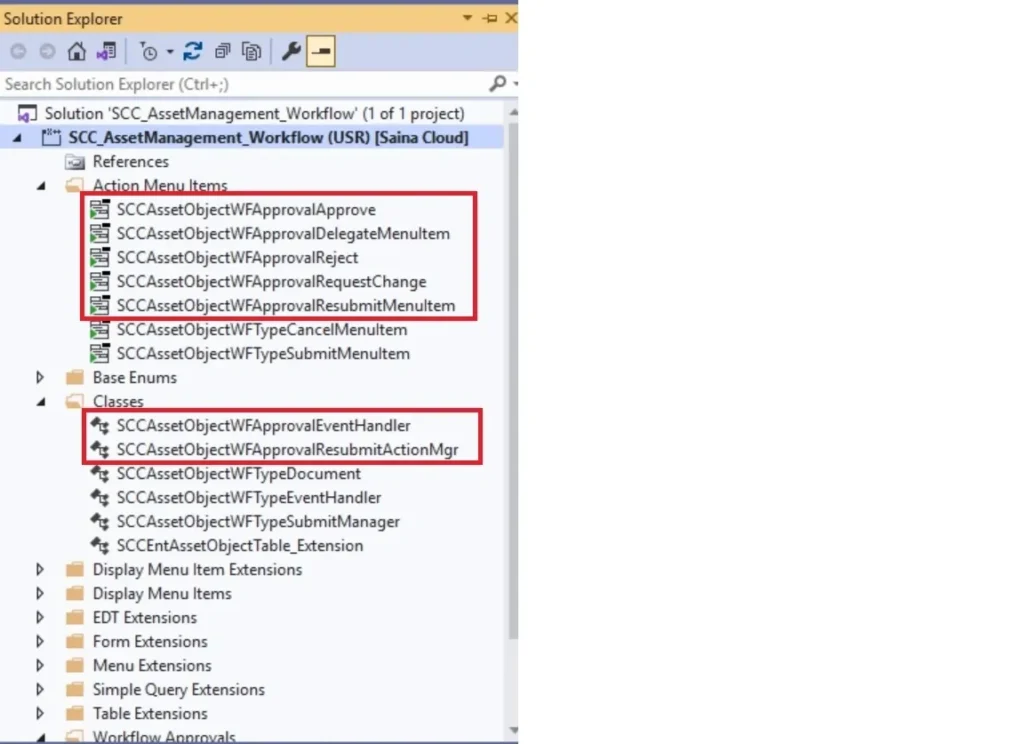
Open the action menu items and set the labels. For the resubmit menu item, set the parameter NoYes::No
For this example, we will be adding business logic. Open the approval event handler and use the code below. If any business logic needs to be added at the time of approval, we can use this event handler to achieve it. There are methods available for every outcome, like Reject, Cancel, and Approve. Based on the requirement, we can add the logic inside the respective methods.
/// The SCCAssetObjectWFApprovalEventHandler workflow outcome event handler.

public final class SCCAssetObjectWFApprovalEventHandler implements WorkflowElementCanceledEventHandler,

WorkflowElemChangeRequestedEventHandler,

WorkflowElementCompletedEventHandler,

WorkflowElementReturnedEventHandler,

WorkflowElementStartedEventHandler,

WorkflowElementDeniedEventHandler,

WorkflowWorkItemsCreatedEventHandler

{

    public void started(WorkflowElementEventArgs _workflowElementEventArgs)

    {

        RecId entAssetObjectTableRecId = _workflowElementEventArgs.parmWorkflowContext().parmRecId();

    }

    public void canceled(WorkflowElementEventArgs _workflowElementEventArgs)

    {

        RecId entAssetObjectTableRecId = _workflowElementEventArgs.parmWorkflowContext().parmRecId();

        EntAssetObjectTable::updateWorkflowStatus(entAssetObjectTableRecId, SCCAssetObjectWFStatus::Rejected);

    }

    public void completed(WorkflowElementEventArgs _workflowElementEventArgs)

    {

        RecId entAssetObjectTableRecId = _workflowElementEventArgs.parmWorkflowContext().parmRecId();

        EntAssetObjectTable::updateWorkflowStatus(entAssetObjectTableRecId, SCCAssetObjectWFStatus::Approved);

    }

    public void denied(WorkflowElementEventArgs _workflowElementEventArgs)

    {

        RecId entAssetObjectTableRecId = _workflowElementEventArgs.parmWorkflowContext().parmRecId();

        EntAssetObjectTable::updateWorkflowStatus(entAssetObjectTableRecId, SCCAssetObjectWFStatus::Rejected);

    }

    public void changeRequested(WorkflowElementEventArgs _workflowElementEventArgs)

    {

        RecId entAssetObjectTableRecId = _workflowElementEventArgs.parmWorkflowContext().parmRecId();

        EntAssetObjectTable::updateWorkflowStatus(entAssetObjectTableRecId, SCCAssetObjectWFStatus::ChangeRequest);

    }

    public void returned(WorkflowElementEventArgs _workflowElementEventArgs)

    {

        // TODO:  Write code to execute once the workflow is returned.

    }

    public void created(WorkflowWorkItemsEventArgs _workflowWorkItemsEventArgs)

    {

        // TODO:  Write code to execute once work items are created.

    }

}
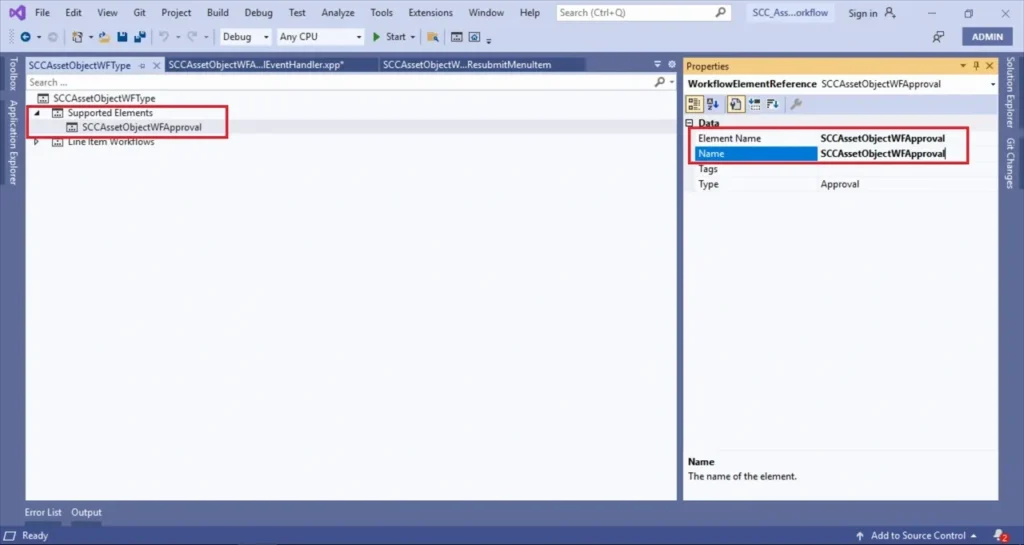
Next step, we need to add the workflow approval to the workflow type. In workflow type, add a new workflow element reference under the Supported elements node. Provide the workflow approval name under properties.
Enabling the workflow
Finally, we need to enable the workflow in the form. Create an extension of the Asset object table form. On the details node of the Asset object table’s form, change the Workflow data source, Workflow enabled, and Workflow type properties.
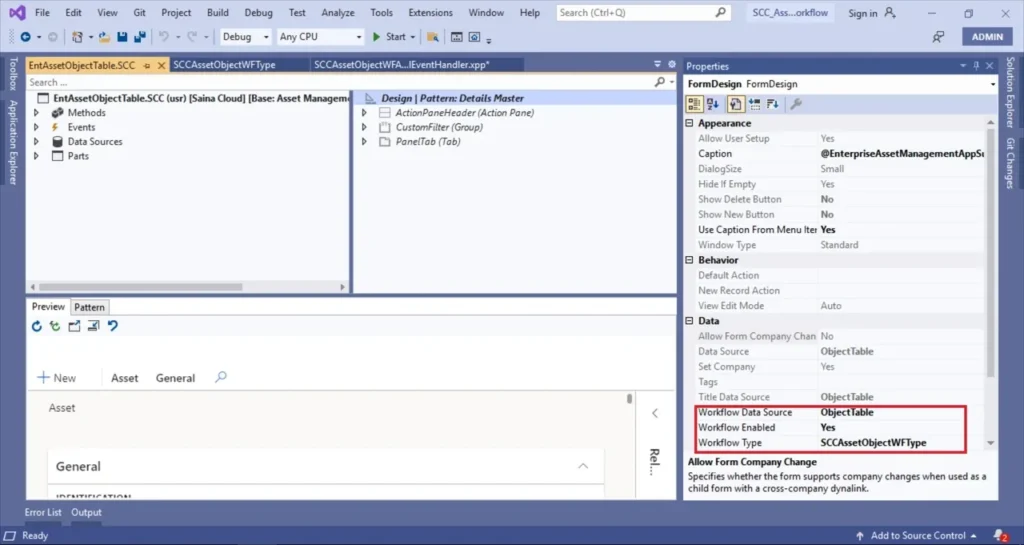
Configuration of workflow
After the build, open the UI through Microsoft Edge since Internet Explorer will not support getting the workflow editor. Go to your module à setups à workflow for respected modules available. Here, we customize the Asset workflow menu item, which is helpful for configuring the workflow
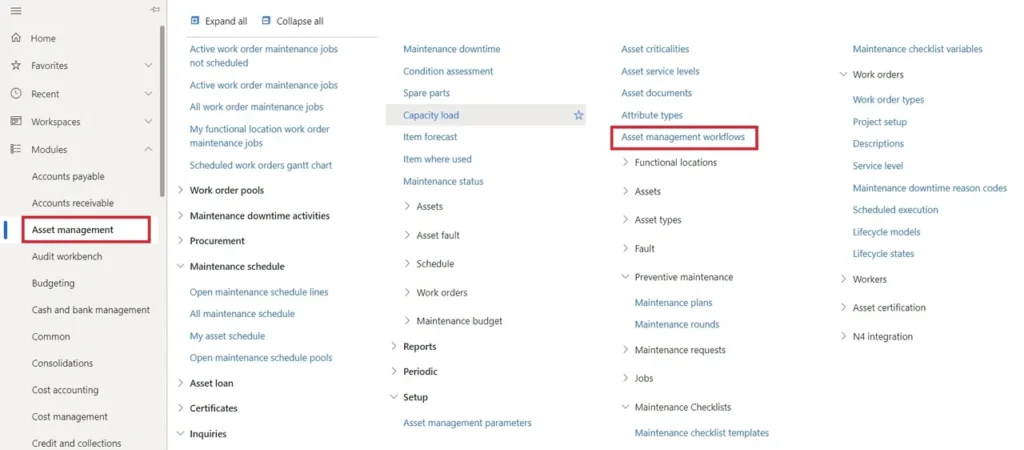
In the configuration form, we click the new button and select our workflow type from the list.
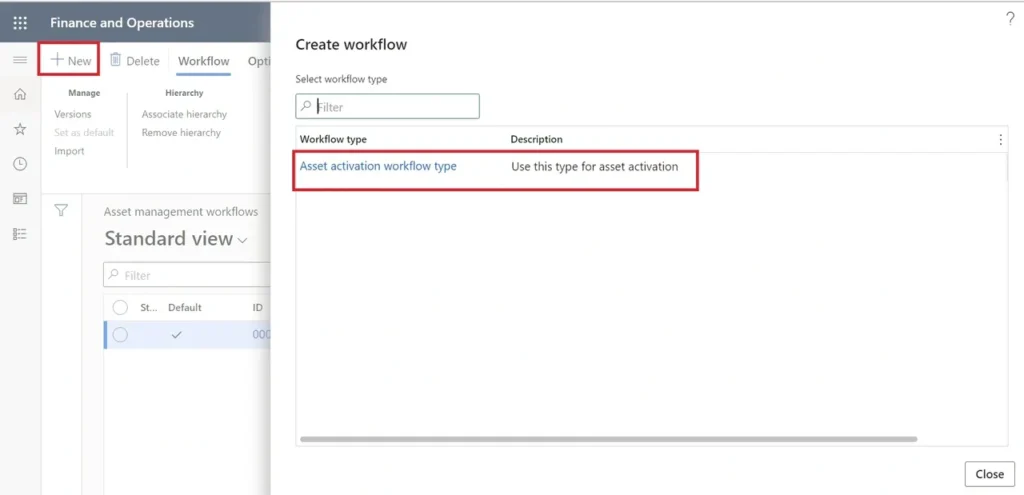
When asked, we enter our credentials, and the workflow editor will open.
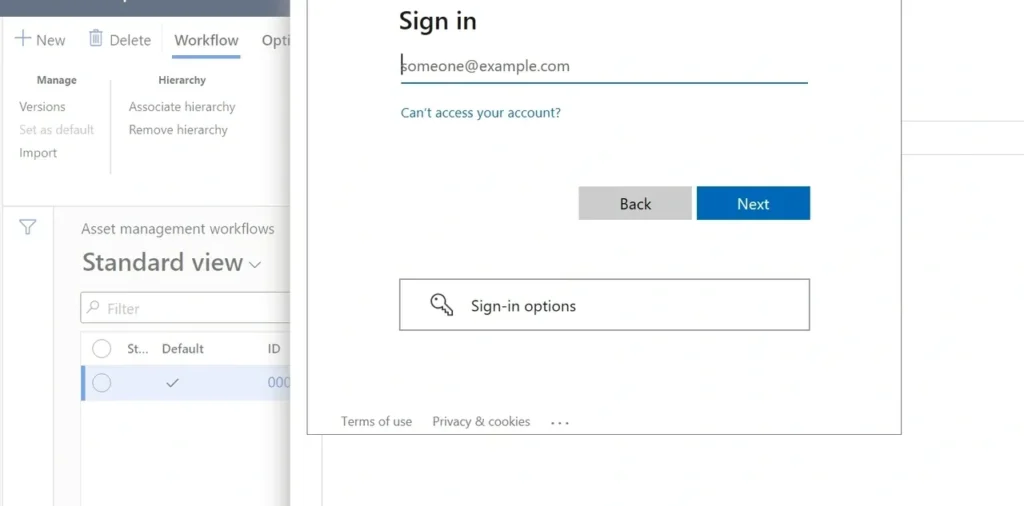
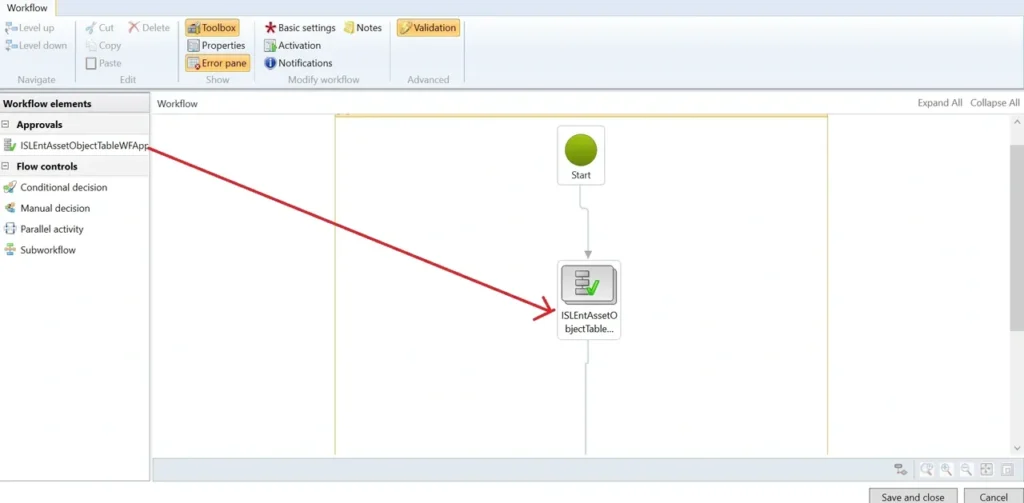
In the workflow editor, we add the workflow approval to the workflow (drag & drop). Next, we connect the start node to the approval and the approval to the end node.
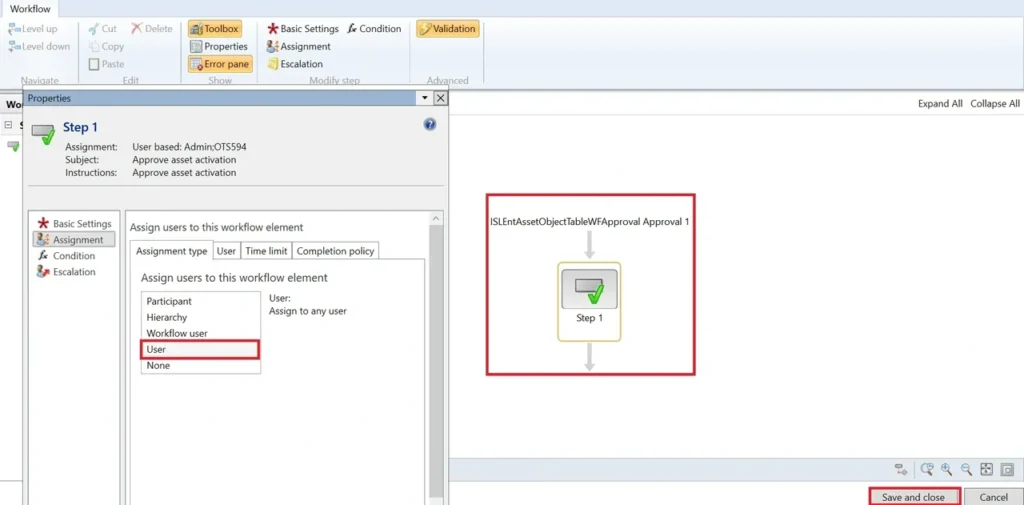
Double click the workflow approval, click basic settings, fill in the subject, instructions, then assign the user whom you want to approve the workflow. Finally, we resolve the warnings and click Save and close. When asked, activate the workflow.
Output
Workflow enabled in All asset form, once the record is created and the active set to Yes