Modify Slicer with Field Parameter in Power BI
- If we want to modify slicer other than date, month, year in that case we can use modify slicer
which we create using field parameter.
High level resolution steps
Modify Slicer with Field Parameter in Power BI
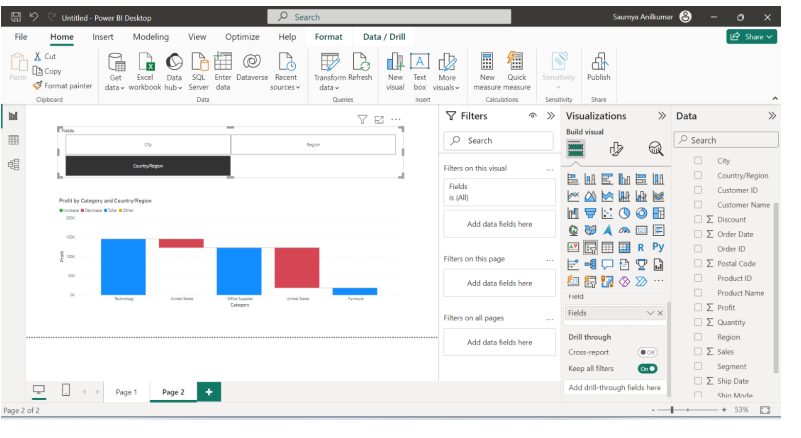
- Creating modify slicer that contain City, Country/Region and Region. In output I’m showing the
Profit by Category and Country/Region using Slicer.
Detailed resolution steps
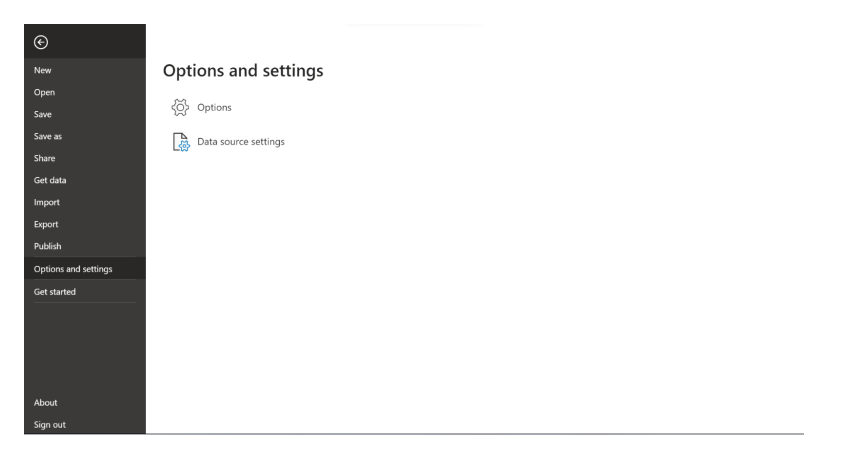
Step 1: Open Power BI Desktop. Firstly, click on File menu bar in that select “Option and settings” and then click Options.
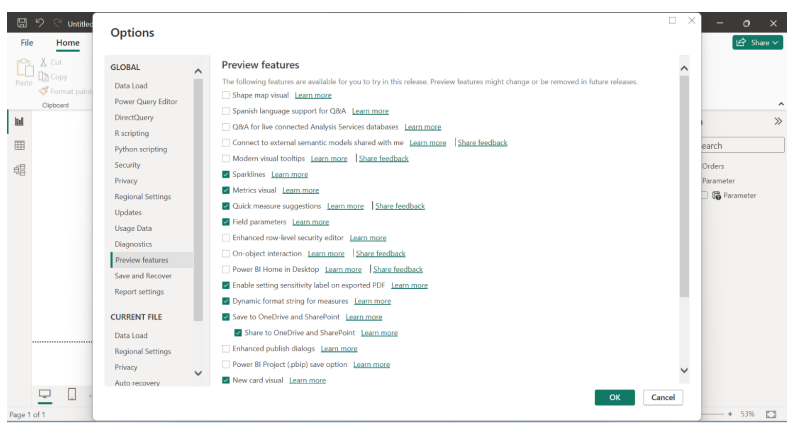
Step 2: After selecting Options, click on preview features and enable Field Parameter and click OK.
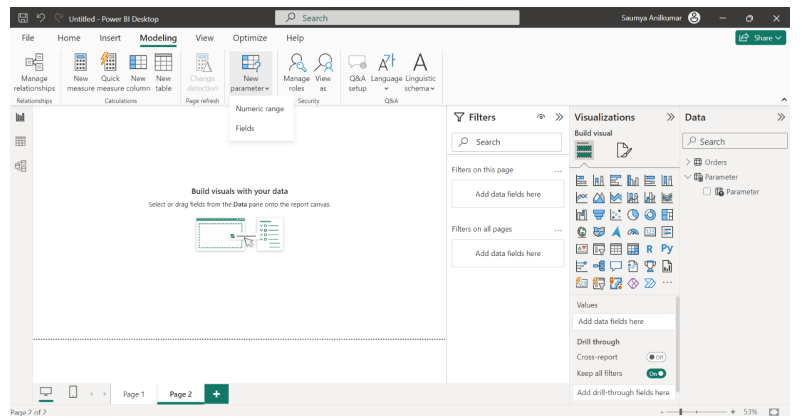
Step 3: Now, load the data using Get Data option. After that go to Modeling menu bar, in that click on New Parameter and select Fields.
Step 4: Now fill the required name and select the required field depending upon your requirements and click Create button. Here I’m selecting City, County and Region.
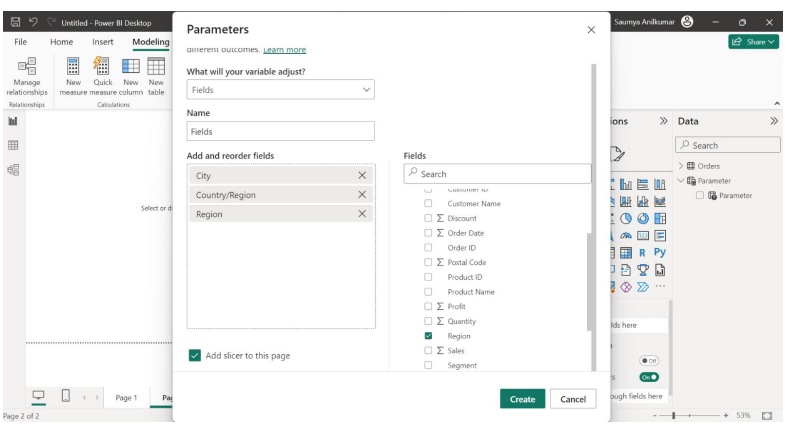
Step 5: After clicking on create we can see the field created and appear in the screen. After that create visual and use the modify slicer to show the output.
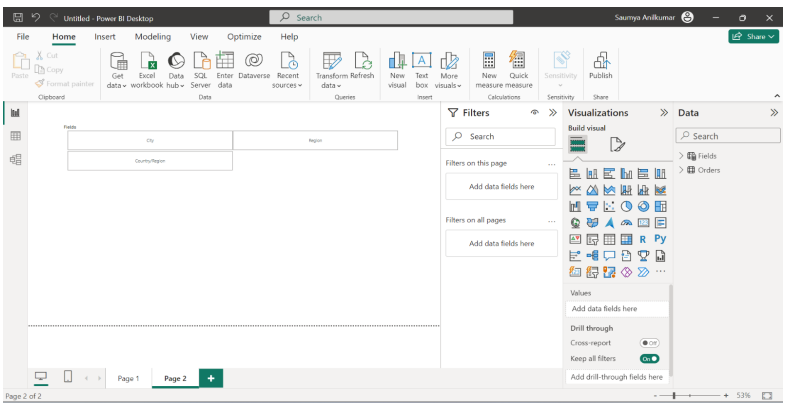
Output:
Showing the Profit by Category and Country/Region using Slicer.