How to Display Images in Power Virtual Agent
Problem statement
In Power Virtual Agent, we can define the questions and answers (basic conversation). But we can’t use the image directly as a response.
Resolution
By using a simple Power Automate flow, we can display an image as a response in Power Virtual Agent.
Create a simple Power Virtual Agent using the following link. Https://make.powerapps.com
Select the environment you want to create a chatbot (Power Virtual Agent).
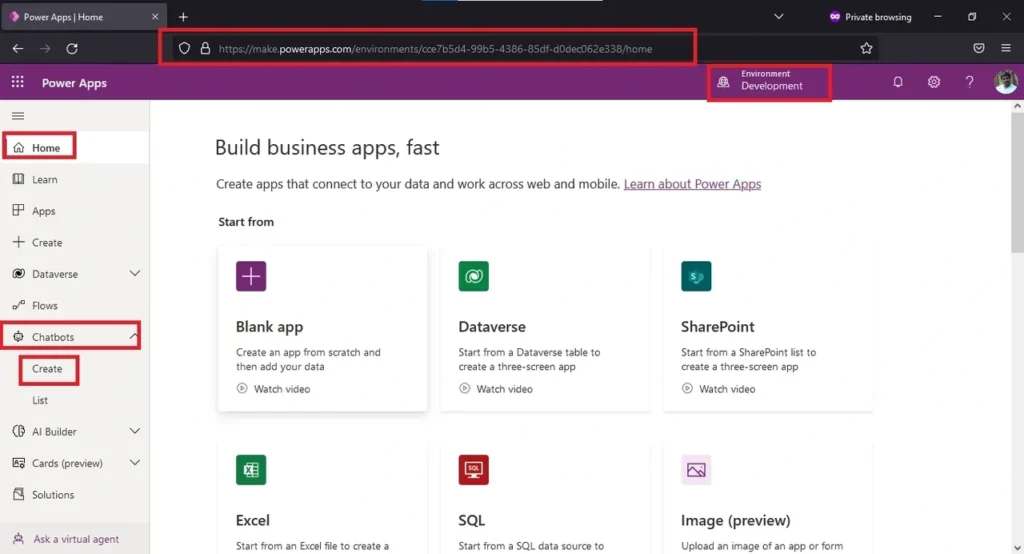
Select chatbots in the left side pane (refer to the attached image) and expand them
Select Create to create a new power virtual agent (chatbot)
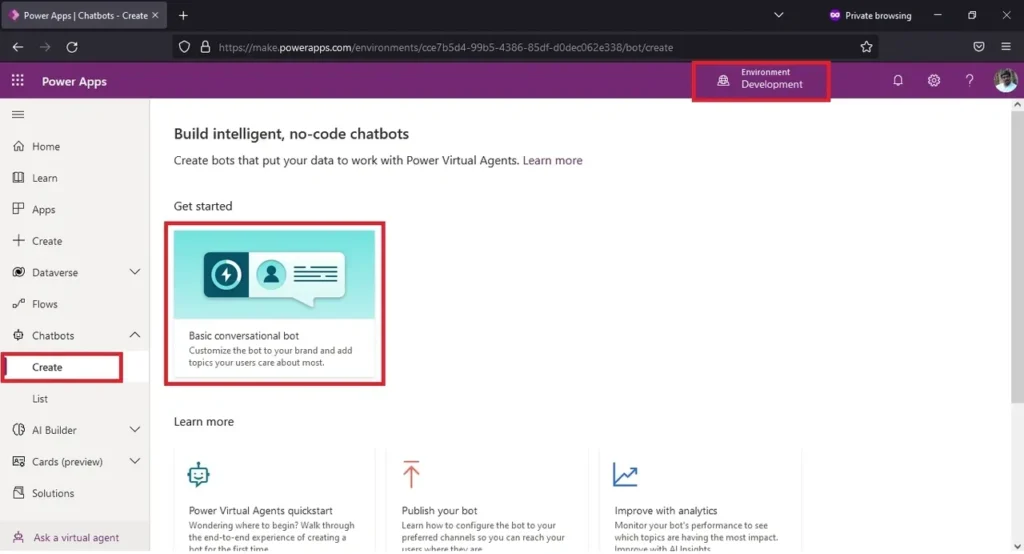
Select a basic conversational bot to create a simple chatbot.
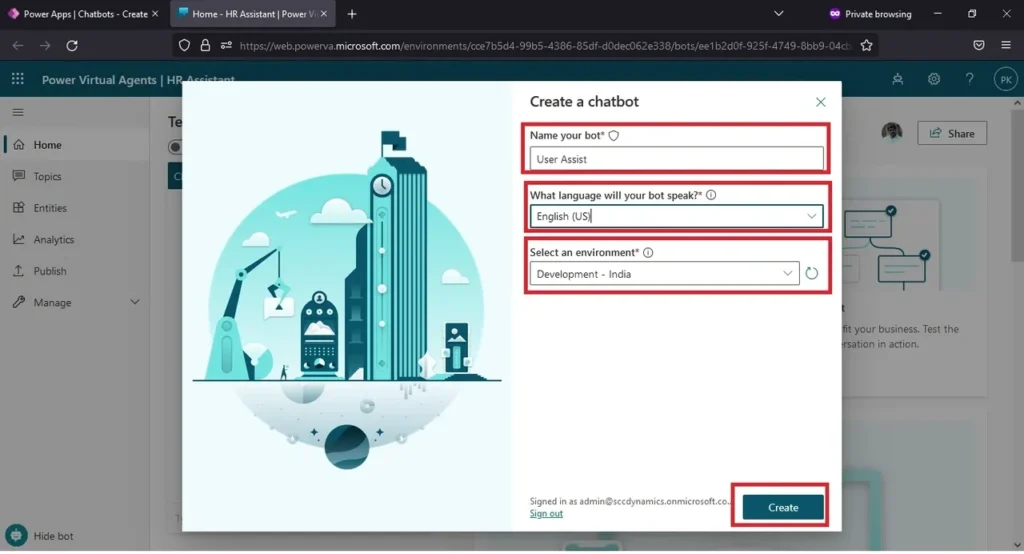
Enter the name you want to give to the chatbot. Select the language you want to use. And select the environment for the chatbot to function.
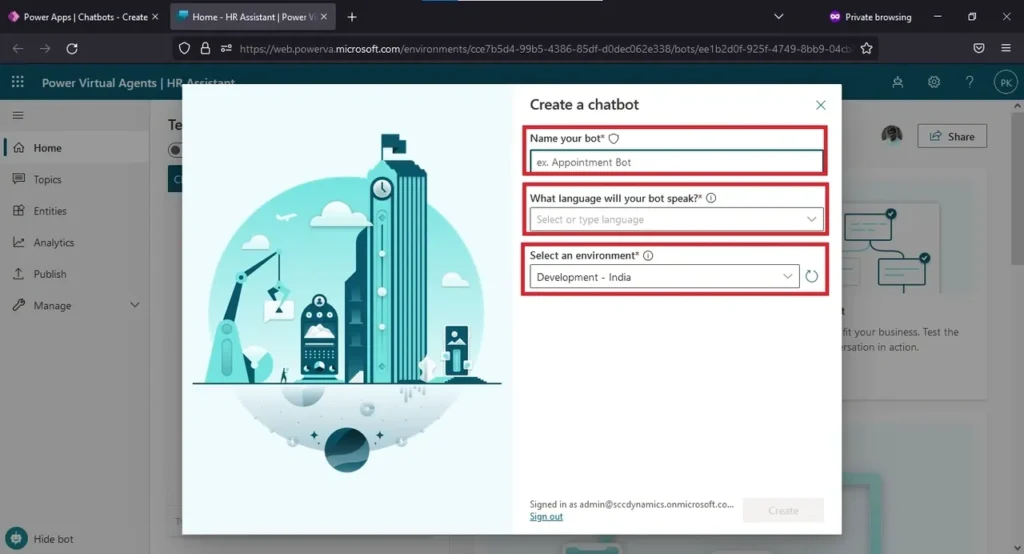
After entering the details. Click on create. It will take some time to create a chatbot. After processing, the chatbot will open.
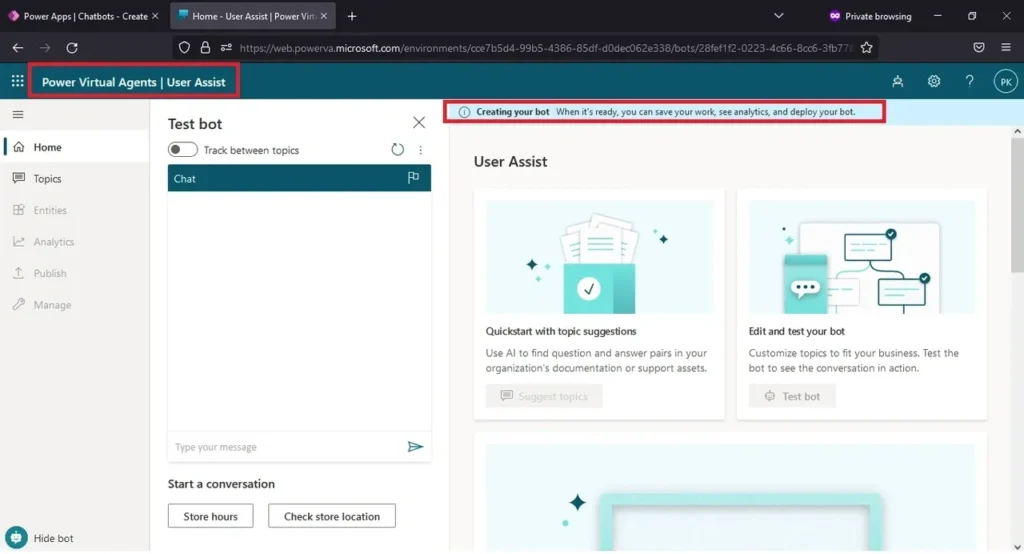
Please wait until the message disappears (“creating your bot ………”)
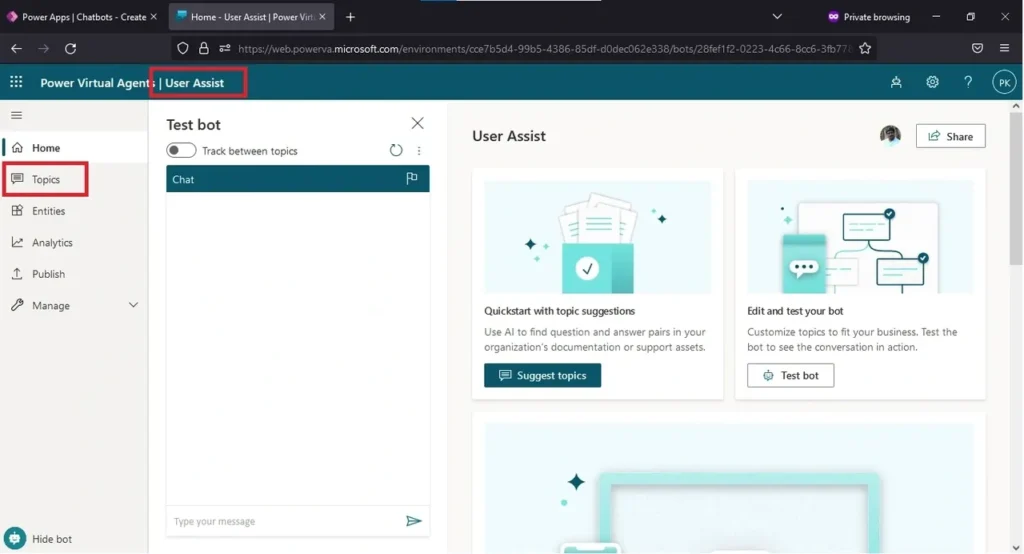
Select topics on the left side pane.
Select any one of the topics in the default, or you can create your own topic by clicking on the “new topic” button at the top.
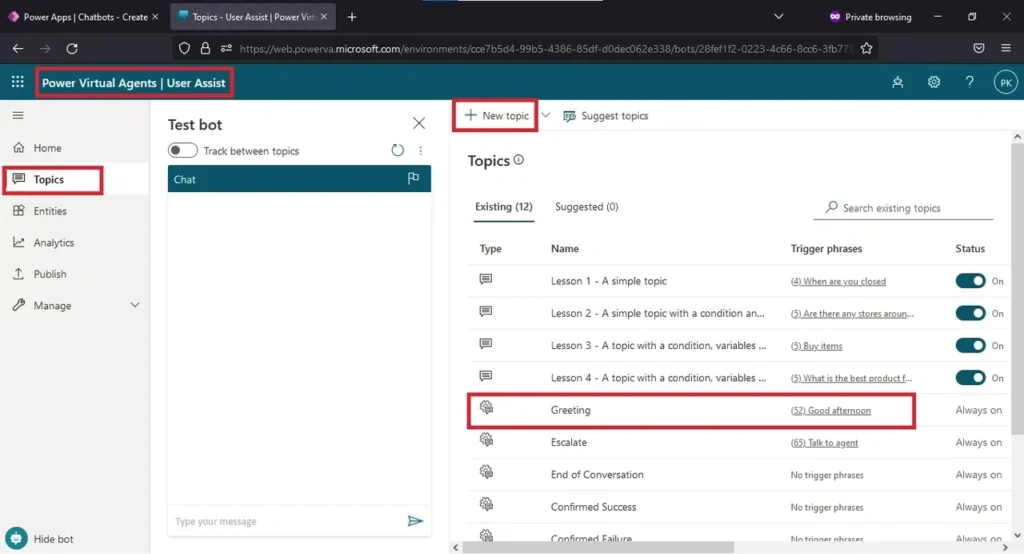
The greeting topic is shown below.
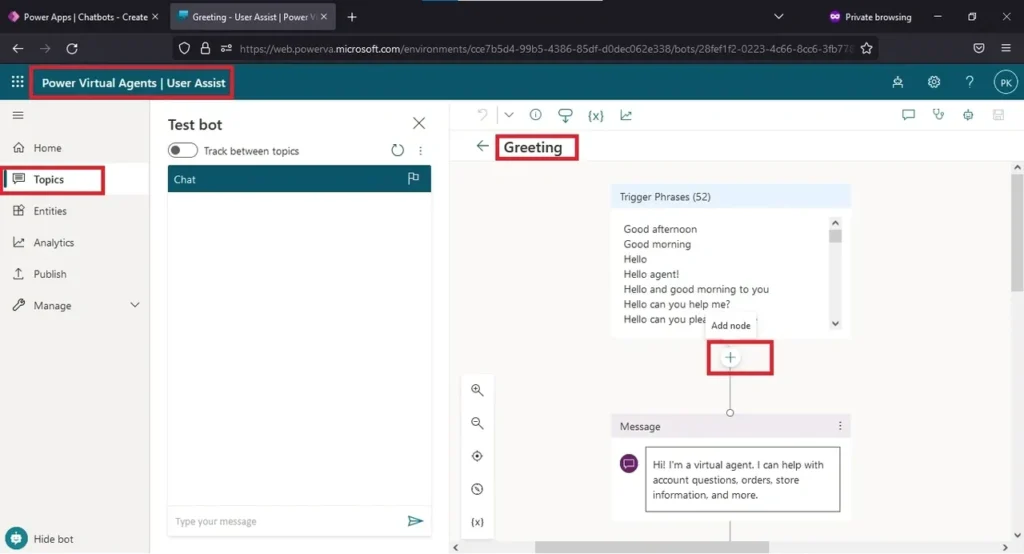
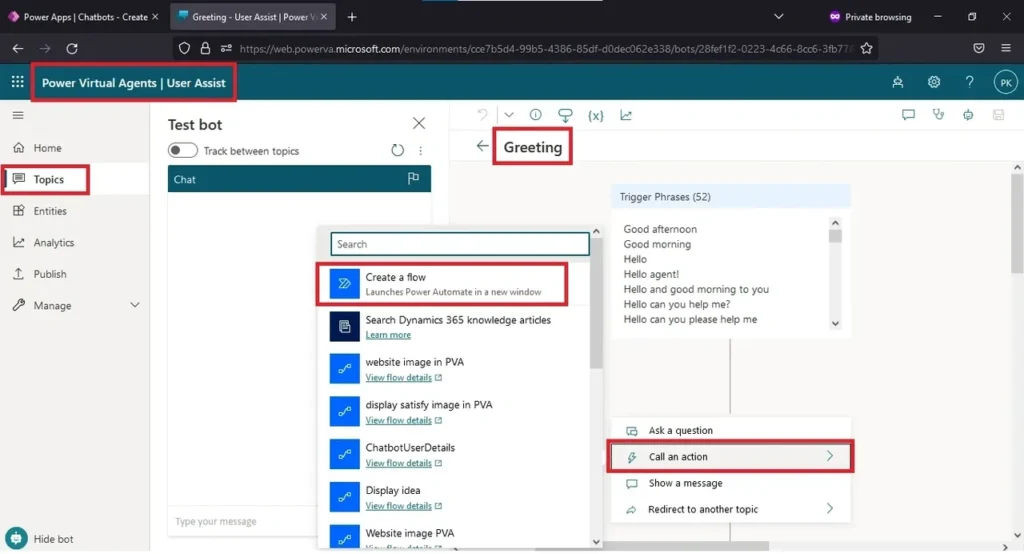
Select the + icon mentioned in the image. (to add node) Select call an action and select create a flow in the option. A separate window will open to create a flow.
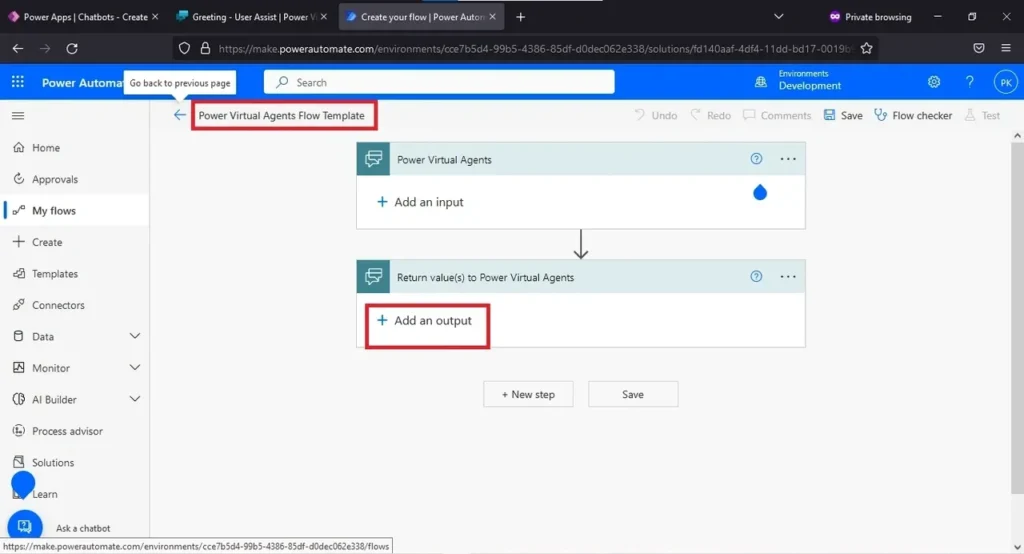
Rename the flow as “Displaying greeting image in chatbot.”
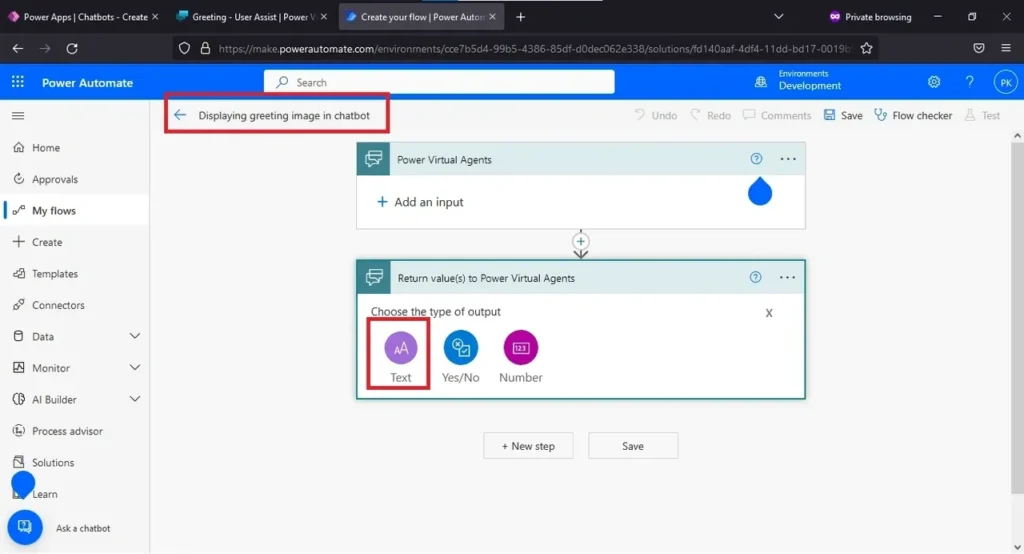
After renaming the flow. Select “Add an output” and select Text.
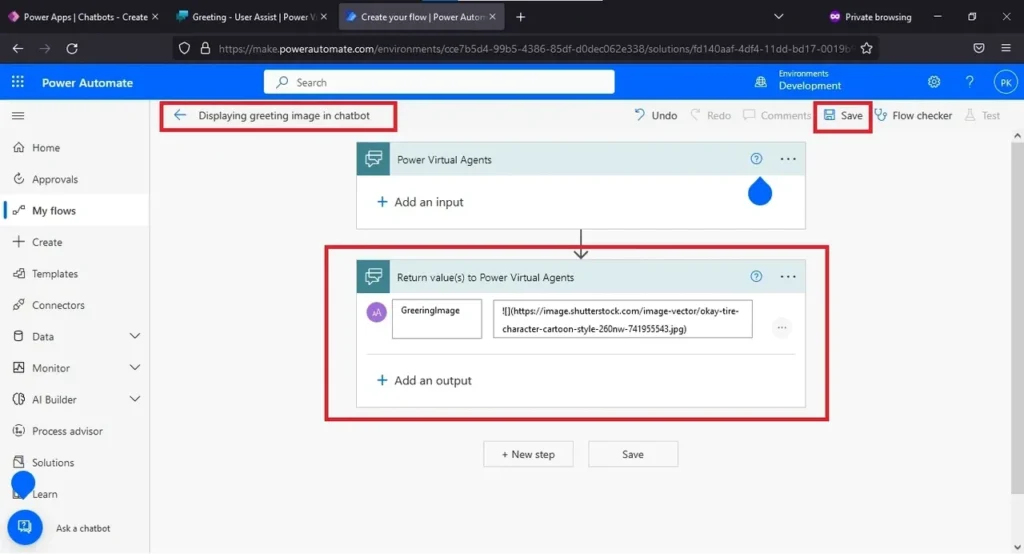
Give the name of the title as “Greeting Image.”
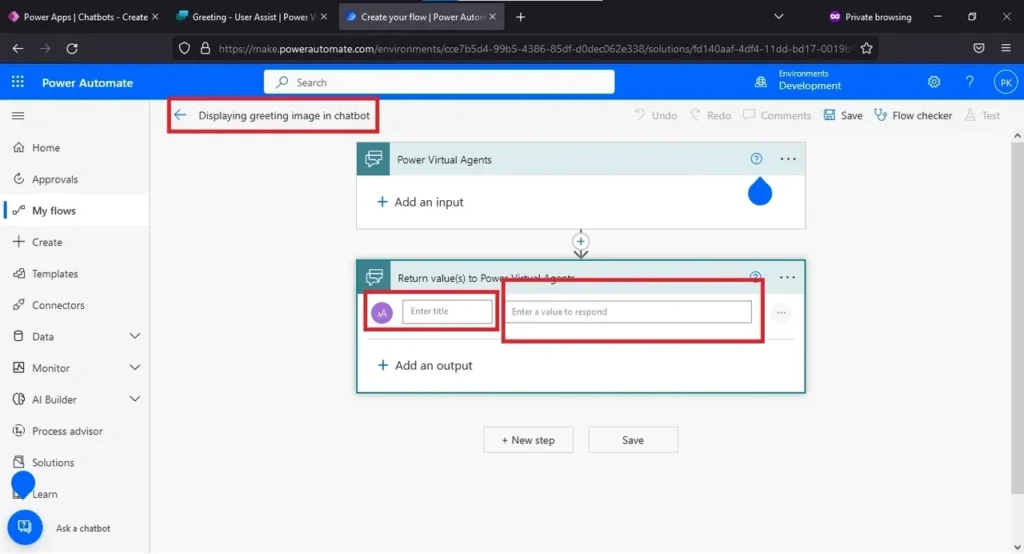
Second tab. Enter the following code.

For example –
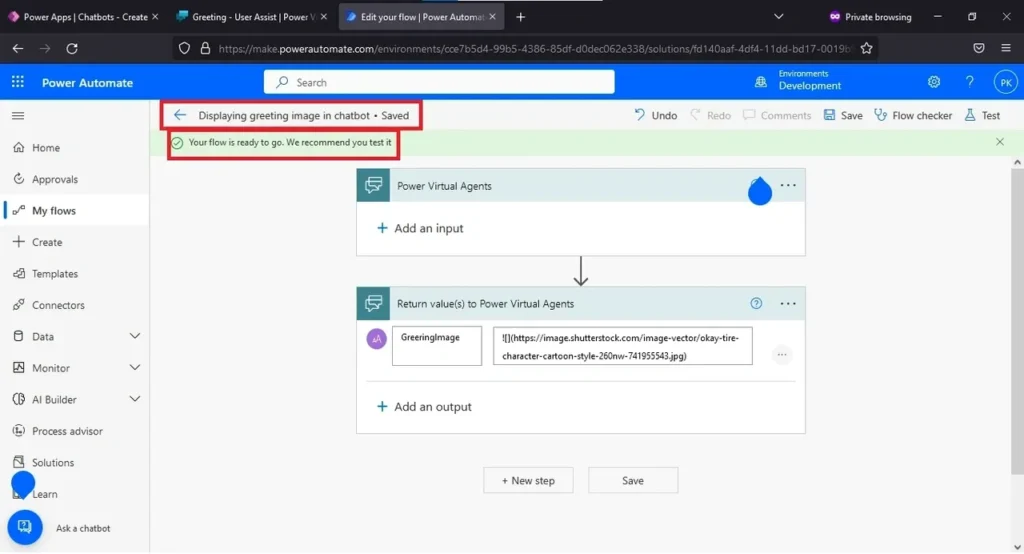
After entering the output fields. Click on Save. (Make sure that there is no error in the flow)
After saving the flow. You will get a success message. And after this, we are going to add this flow to our chatbot.
Open the Chatbot we created in the beginning. And try to open the Greetings topic. Select the + icon to add a node.
Select Call an Action and select the recently created Power Automate from the list.
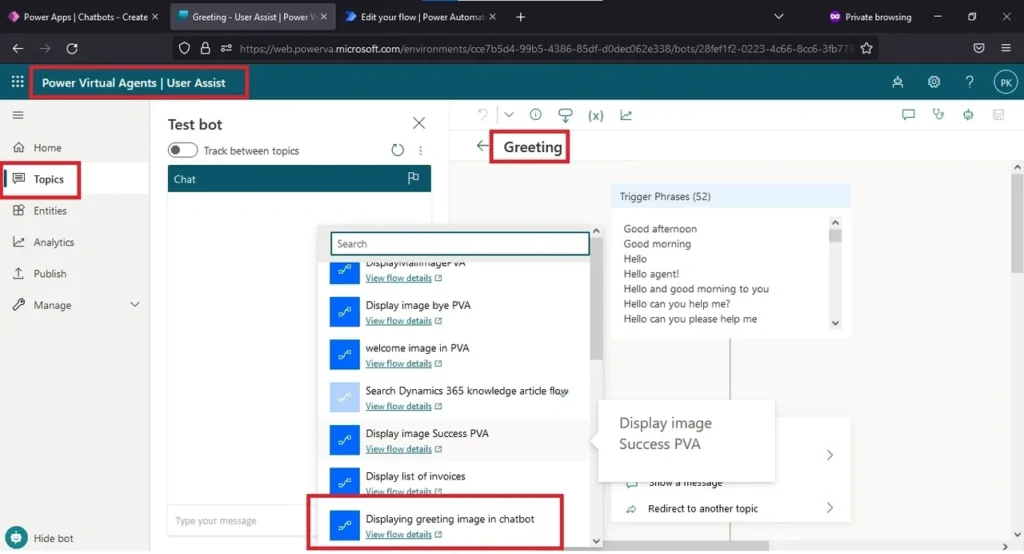
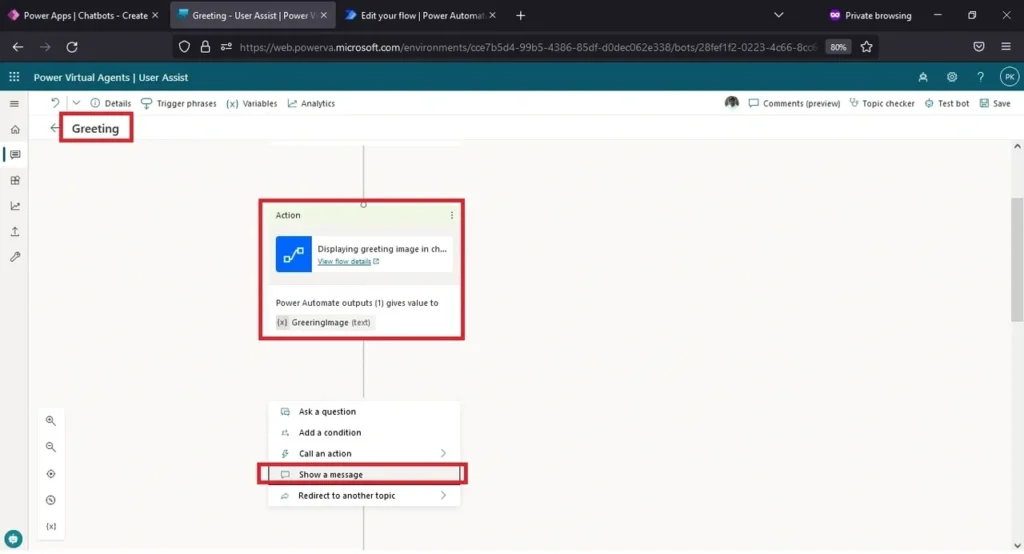
After adding the Power Automate to the chatbot. Select the + icon to add a node. Select show a message.
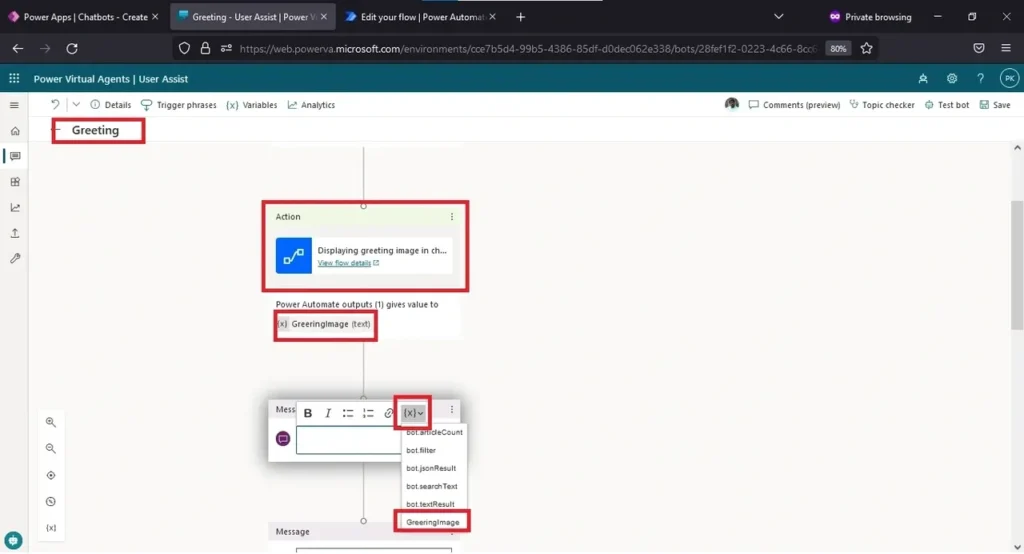
Select the variable in the dropdown.
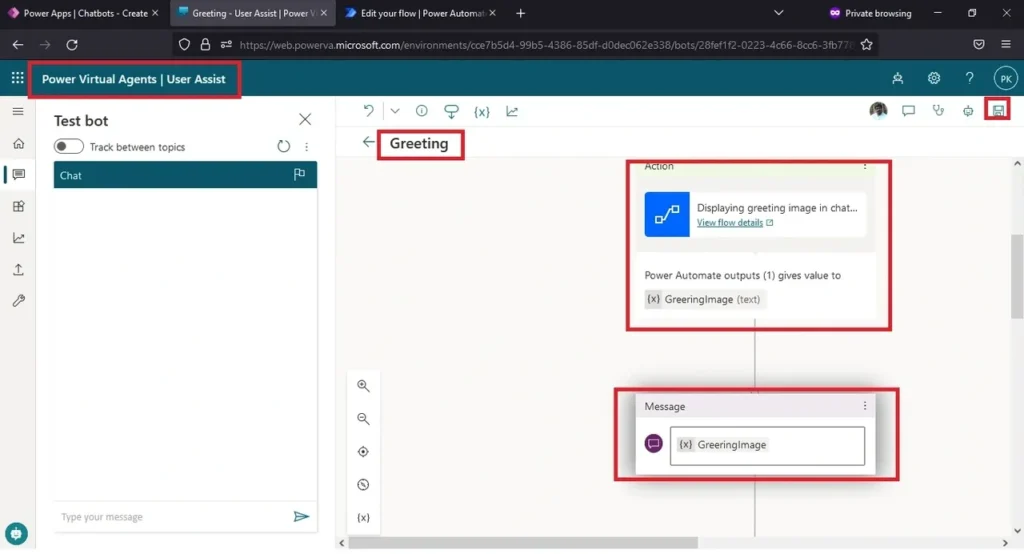
After adding the message, click on save.
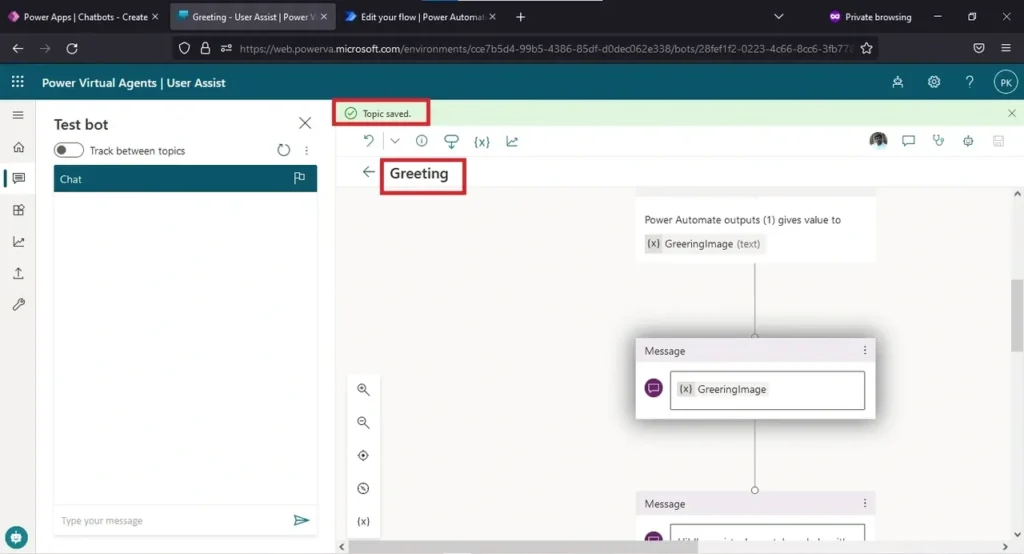
You will get a success message. (Topic saved)
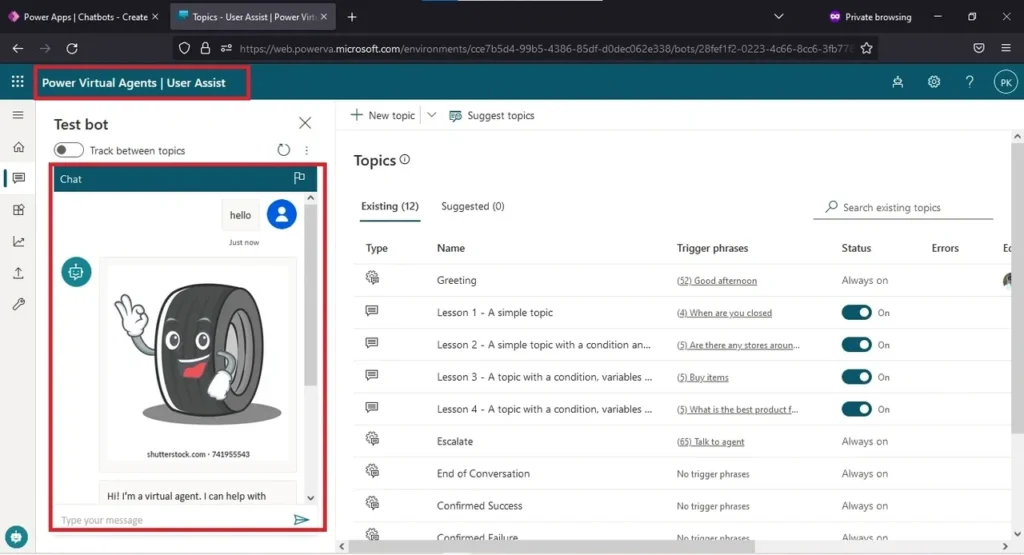
Type hello in the chat.
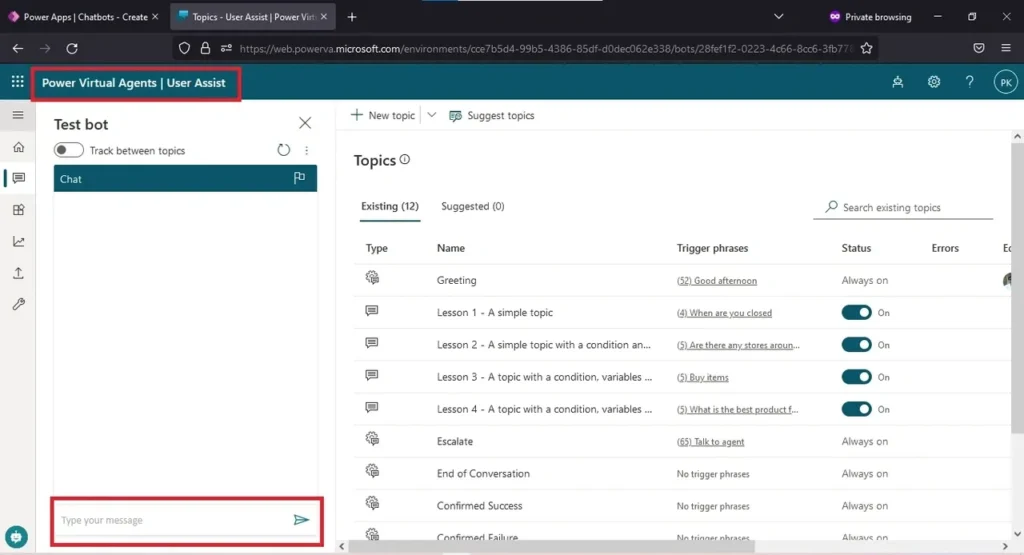
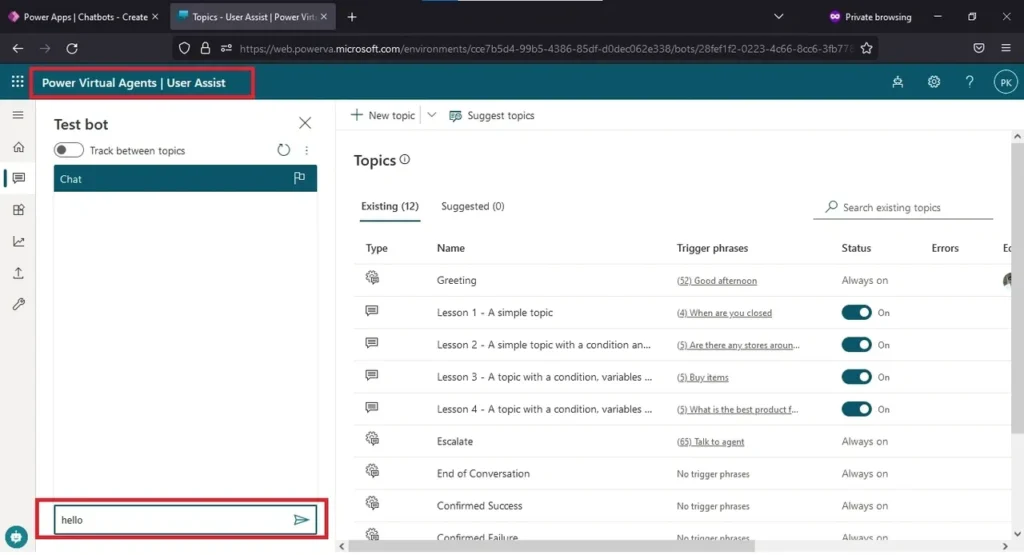
Getting an image as a response in a chatbot.