To reload the Azure Authentication Token that has already been produced at the time you specify.
The process of confirming the identity of users, apps, and services that communicate with Microsoft Azure resources is known as “Azure authentication.” It guarantees that data and services on Azure can only be accessed by authorized parties. A timer control is an element in a Microsoft Power Apps canvas app that lets you start events or do actions based on time that has passed.
After a predetermined amount of time, actions are carried out using the timer control. This can help with handling transitions within your app, automating processes, and routinely updating data.
This method improves security by automatically renewing the authentication token at regular intervals to guarantee that your canvas app maintains seamless authentication with Azure services.
Part 1
GENERATE AZURE AUTHENTICATION TOKEN VIA POWER AUTOMATE AND CONSUME IN CANVAS APP
- For On-Prem Servers with Azure Proxy, the Request URLs get changed, so to connect an API
custom connector to pull data from F&O to canvas app – The connector will not work - For this reason, we generate the token from outside using Power Automate and feed it into
Canvas app for further consumption for API connectors.
High level resolution steps
- Get Azure Credentials from your App registration in Azure Portal
- Create a button in Canvas App
- On Click of a button in canvas app – Power Automate Will trigger
- Create a flow in Power automate
- Send the Token back to Canvas App
Detailed resolution steps
Step 1 –Get Azure App Registration Credentials from Azure Portal that includes:
Client ID, Client Secret, Tenant ID, Resource URL, grant type.
Step 2 –Create a Power Automate flow in the following steps:
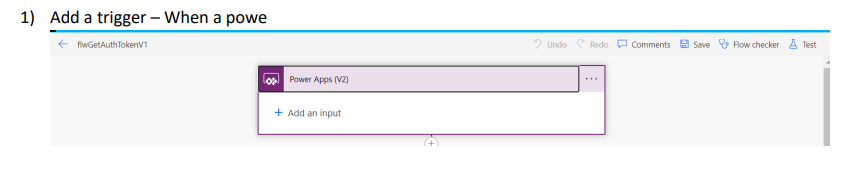
2) Add an action – HTTP Request and provide your credentials in the below format
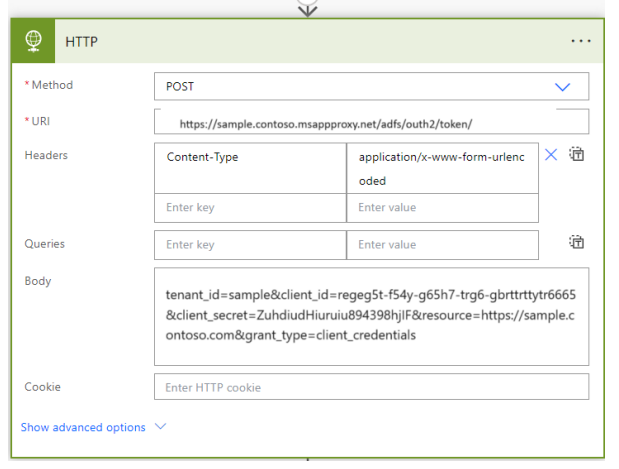
3) Run the flow till step 2 – trigger the flow on click of a button in Canvas app
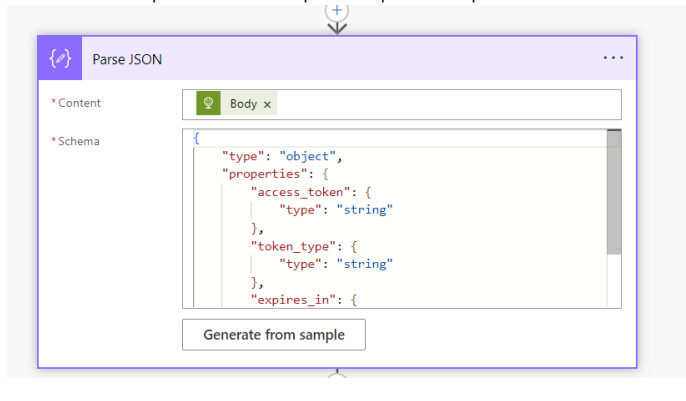
And copy the outputs of HTTP request and paste them in 3rd Action – Parse JSON.
Generate from sample will have the outputs from previous step.
4) Add an action “Respond to a power app or flow” and flow will send back the generated flow to
canvas app

Step 3 –Add a button in Canvas and add the flow inside canvas app and write the below code in On-select property of the app.
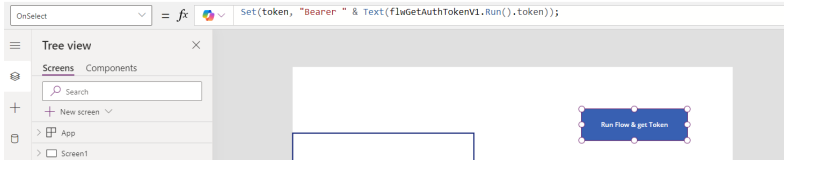
Step 4 –Hit the button and flow triggers and token comes and sits in the text label box.
Give the text as variable set.

Output
- When you hit the button, Flow triggers and generates a token and sends it back to PowerApps.
- In PowerApps – since we have set a variable for text label box – the token will be stored in the box.
- You can use the token in further actions, where you want to consume it in API custom connector by feeding it as an input.