Filtering Gallery Based on Dropdown Value in Power Apps
Problem statement
If we use the data source directly in the gallery, we may face delegation issues. To avoid that, we can use a drop-down to filter a gallery.
Resolution
- We can add a drop-down and map a related entity to filter a gallery.
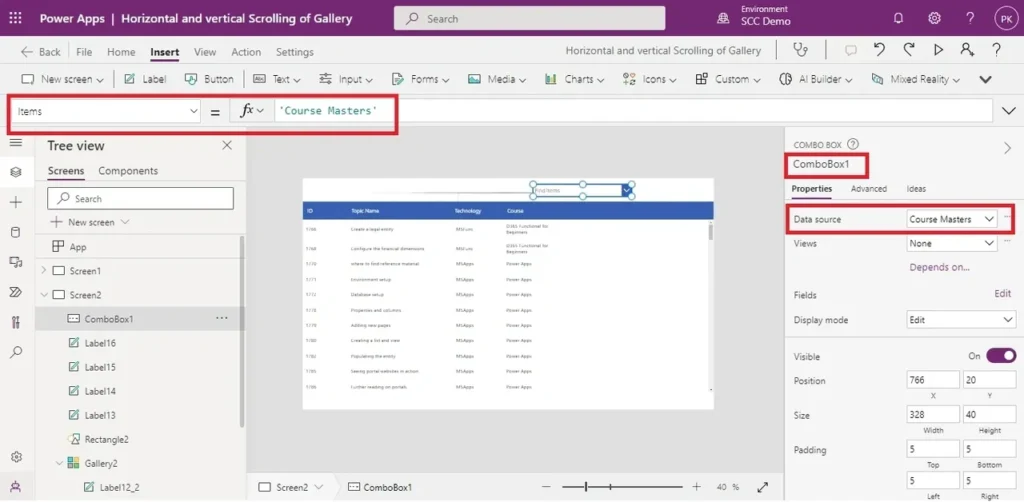
- For this, I have added a drop-down control and mapped a course entity for it.
- To insert a drop-down control – go to the insert menu in the ribbon bar, and select input, followed by selecting the drop-down control or combo box control.
- After adding it to the screen, select the items property of the control and select the entity you want to use.
Write a Code as mentioned in the image.
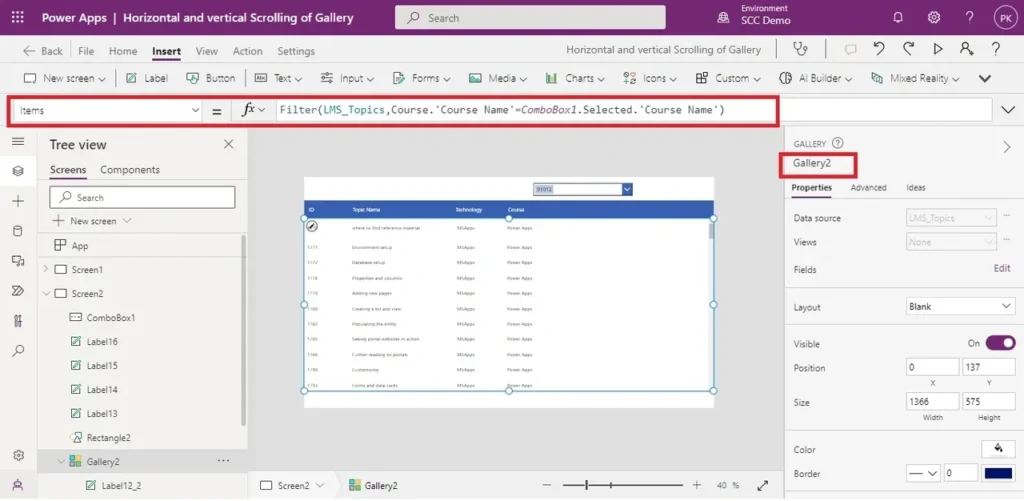
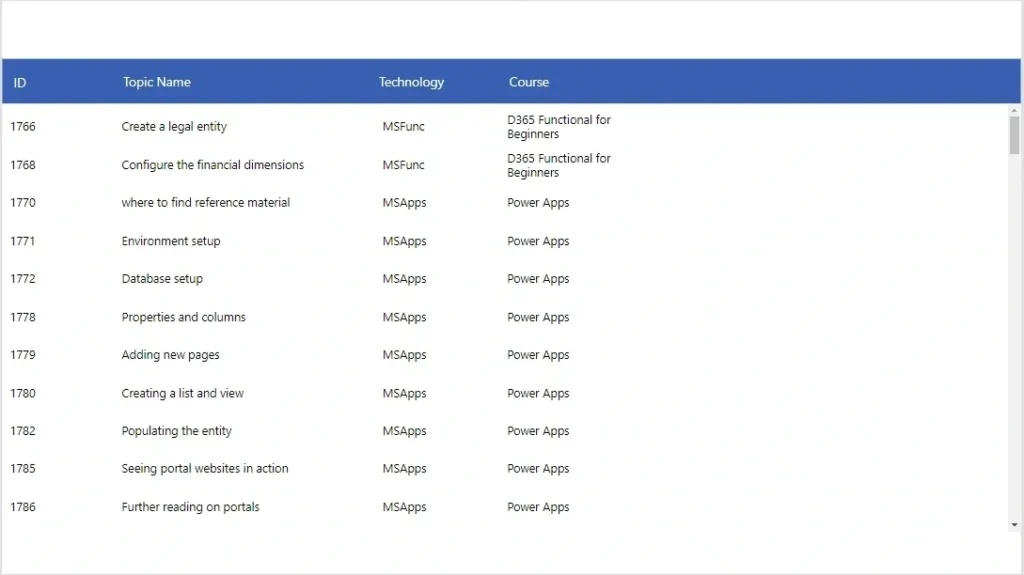
Gallery before filter function,
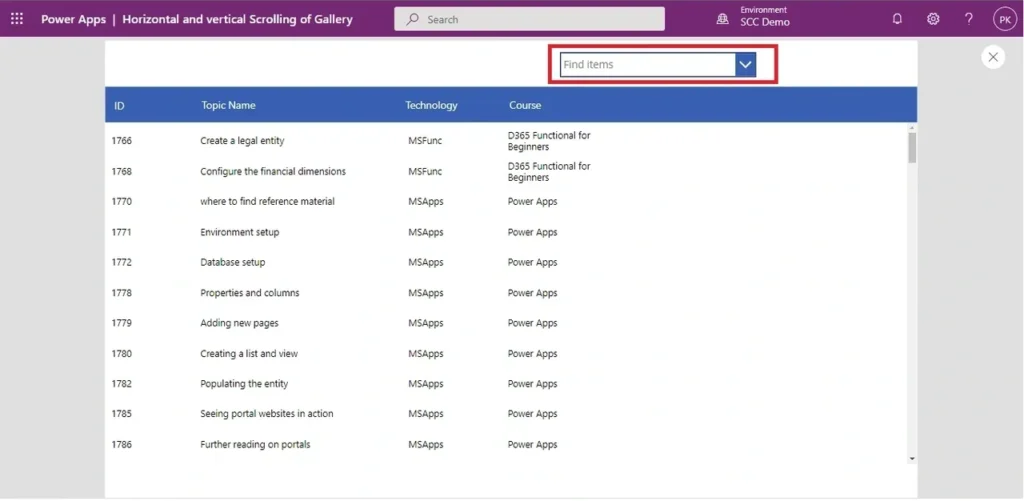
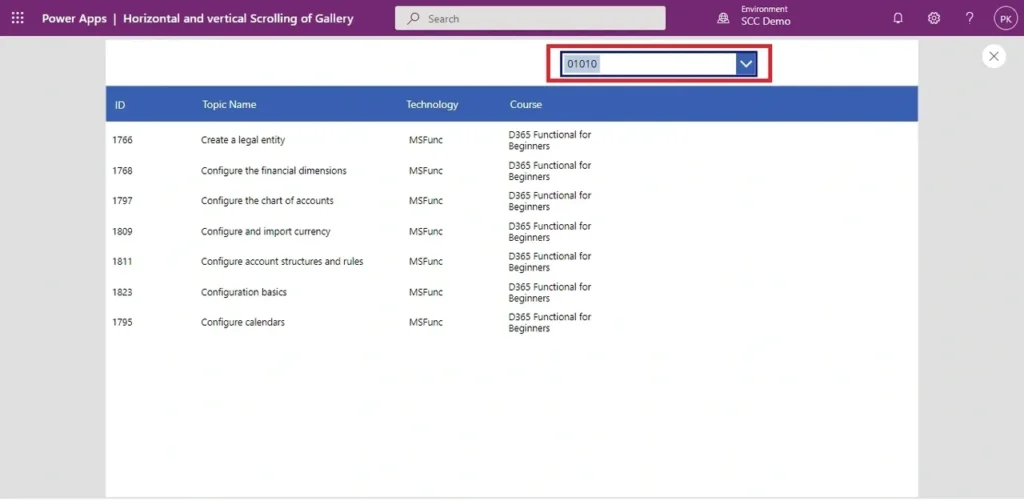
Gallery after applying a Filter,