How to Auto Submit the Workflow Through X++ Code?
Introduction: Workflows in Dynamics 365 Finance and Operations streamline approval processes. However, in some scenarios, manually submitting a workflow can be time-consuming and prone to delays, especially in high-volume environments or when dealing with recurring processes. To address this, automating workflow submission becomes a game-changer.
In this blog, a practical scenario of automating custom Project Estimation workflow submission is used as an example, complete with technical steps and sample code to guide users through implementation.
Scenario: When workers create project estimates in D365FO, they often need to manually submit them for managerial approval. Automating this process ensures that estimates meeting predefined conditions are automatically submitted, saving time and reducing delays.
High level resolution steps
- Create a New Workflow: Configure a workflow using your custom table to define the approval process.
- Write Auto-Submission Code: Implement X++ code in the write method of the form’s data source to automatically submit the workflow when conditions are met.
- Add Refresh Code: Include logic to refresh the form or grid to reflect the updated workflow status immediately.
- Test in D365FO UI: Verify the functionality by testing the workflow auto-submission in the Dynamics 365 Finance and Operations user interface.
Detailed resolution steps
Step 1: Create a new workflow and configure a workflow using your custom table to define the approval process.
Note: Use the link below to create workflow.
Create Custom Workflow in Standard Form Dynamics 365 FO
Step 2: Implement X++ code in the write method of the form’s data source to automatically submit the workflow when conditions are met.
///

/// Auto submit workflow

///

public void write()

{

    super();


    Workflow::activateFromWorkflowType(workFlowTypeStr(SCSS_EmployeeProjectWorkflowType),


                                        SCSS_EmployeeProjectTable.RecId,


                                        "Automatic workflows submit",


                                        false,


                                        curUserid());


    //Update workflow status to submit


    SCSS_EmployeeProjectTable::updateWorkflowStatus(SCSS_EmployeeProjectTable.RecId, SCSS_WorkflowStatus::Submitted);


    SCSS_EmployeeProjectTable_ds.research(true);

} Code Explanation:
- Submit to Workflow: The code automatically activates the workflow for the current record using the workflow type and the record’s RecId.
- Update Status: It updates the workflow status in the custom table to indicate the record has been submitted.
- Refresh UI: Finally, it refreshes the form’s data source to display the updated status immediately.
Output
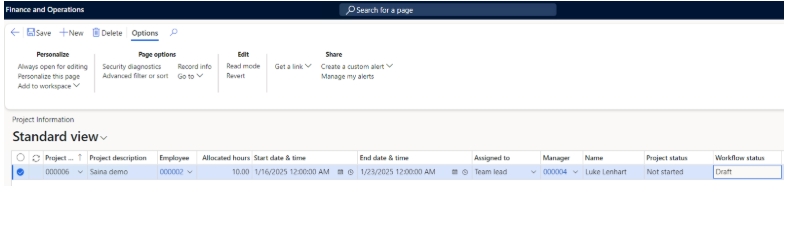
When a new project estimate is created from the UI, it remains in draft state, and as shown in the screenshot, the record is not yet saved, so the workflow is not visible in the action pane.
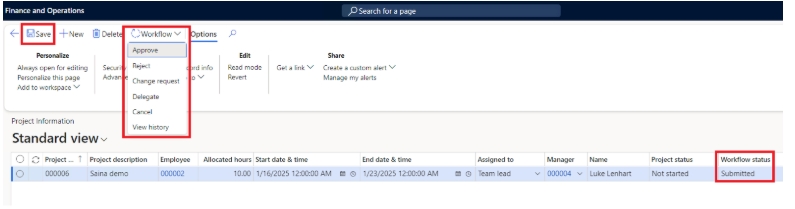
Once the record is saved, the workflow appears in the action pane, marked as “Submitted,” with the “Approve” option only visible, and no “Submit” option available.